# Kristaps Grinbergs
> Developer Relations Engineer Lead at Flare Network. Writing on x402 payments, AI agents, stablecoins, and Web3.
Kristaps Grinbergs is Developer Relations Engineer Lead at Flare Network, based in Riga. He ships x402 payment integrations, AI agents that pay with stablecoins, Flare Confidential Compute (TEE) demos, and Flare AI Skills for coding agents.
## Pages
- [About](https://kristaps.me/about/): Background, Flare, x402, AI agents, and contact
- [Home](https://kristaps.me/): Overview and recent posts
- [Talks](https://kristaps.me/talks/): AI Connect, W3N, DappCon TEEs, EthCC, Flare Builders x402 workshop
- [Projects](https://kristaps.me/projects/): Index of Web3, AI, and iOS work
- [Blog](https://kristaps.me/blog/): All articles
## Projects
- [Flare AI Skills](https://kristaps.me/projects/flare-ai-skills/): Agent skills that give AI coding assistants like Cursor, Claude Code, Codex and other coding agents structured domain knowledge of Flare.
- [x402 Weather Insurance Agent](https://kristaps.me/projects/x402-agent/): Parametric rainfall insurance on Flare. An AI agent pays per weather API call with x402. The TEE verifies on-chain FeeCollected before calling OpenWeatherMap.
## Blog posts
### What is x402? How I charged a weather API in stablecoins so an AI agent could pay
- URL: https://kristaps.me/blog/x402-ai-agent-stablecoin-payments/
- Date: 2026-09-10
- Tags: x402, AI agents, stablecoins, web3, flare
- Summary: x402 turns HTTP 402 into a payment handshake. I used it on Flare so an AI agent could pay per weather API call in an ERC-20, with the API key locked inside a TEE.
x402 is an open payment protocol that reuses the long-idle HTTP 402 Payment Required status. When a client asks for a paid resource, the server answers 402 with the price, the token, and who to pay. The client pays on-chain, retries, and gets 200. That handshake is useful for APIs and for AI agents, because neither of them can click through Stripe.
I wanted that for a real call, not a `/premium-data` stub. The demo is [parametric rainfall insurance on Flare](/projects/x402-agent/): an agent pays per weather fetch, a TEE checks the payment, then OpenWeatherMap runs with the API key still inside the enclave.
## What is x402?
x402 takes the HTTP status that was reserved for "Payment Required" and makes it a machine-readable invoice. The original [x402 spec](https://x402.org/) and [Flare's walkthrough](https://dev.flare.network/fxrp/token-interactions/x402-payments) use EIP-3009 (`transferWithAuthorization`) so the payer signs off-chain and a facilitator settles. No gas for the buyer, unique nonces, stablecoins as the unit.
The pattern is always:
1. Client requests a protected resource.
2. Server returns **402** with what it will accept (scheme, network, amount, token, payee).
3. Client pays, or proves it already paid.
4. Client retries. Server returns **200** and the resource.
An AI agent can do those four steps. A human checkout form cannot be called from a tool loop.
## The demo: weather in, insurance out
The dApp lives in a [Flare Confidential Compute](https://dev.flare.network/fcc/overview) extension. Buy a rainfall policy for a city. Fetch live weather. Settle against OpenWeatherMap inside the TEE. Premiums and payouts are ERC-20.
Two extra pieces sit on top:
- An **x402 gateway** as Next.js routes at `/x402/weather/fetch` and `/x402/weather/settle`.
- An **insurance assistant** (OpenAI tool calling) plus an **MCP server** at `/api/mcp`, so the same paid tools work from the UI, Cursor, or Claude Code.
`getWeather` and `requestSettlement` are `onlyGateway`. The browser never talks to those functions directly. The gateway wallet is the only address the contract trusts.
## How the 402 handshake actually moves tokens
HTTP 402 in this repo is a **pre-check**. `approve` only sets allowance. Tokens move later, on Coston2, in the same transaction as `getWeather` / `requestSettlement`, via `feeToken.transferFrom`. The TEE does not take the money. It waits for `FeeCollected`, then calls OpenWeatherMap.
That is the important split:
| Layer | What it does | What it does not do |
| --- | --- | --- |
| HTTP 402 | Tells the client the fee and blocks the retry until allowance is enough | Transfer tokens |
| `feeToken.approve` | Lets the contract pull the fee | Charge the call |
| `transferFrom` | Pulls the ERC-20 from the payer in the same tx as `getWeather` | Talk to OpenWeatherMap |
| TEE | Verifies `FeeCollected`, holds the API key, fetches weather | Settle the payment |
The fetch looks like this:
1. Client `POST /x402/weather/fetch` with city and payer.
2. Gateway reads `fetchFee`. If allowance is short, it returns **402**.
3. Wallet calls `approve` on the fee token. No transfer yet.
4. Client retries the same POST.
5. Gateway sends `getWeather(city, payer)`.
6. The contract runs `_collectFee` (`transferFrom`) in that transaction.
7. The FETCH instruction enters FCC. The enclave checks `FeeCollected`.
8. The enclave calls OpenWeatherMap over HTTPS and returns a signed report.
Settle is the same loop against `/x402/weather/settle` and `requestSettlement`. The later `settle()` confirmation does not charge again.
The per-call fee is any ERC-20 you set (`setFeeToken` / `setFetchFee` / `setSettleFee`). In practice that is a test USDT0 or FXRP. Policy premiums use a separate `PAY_TOKEN` (WPT on Coston2 in the sample env).
## API keys vs Stripe vs x402
| | API key | Stripe / cards | x402 |
| --- | --- | --- | --- |
| Who can pay | Whoever holds the secret | A human with a browser | Any HTTP client with a wallet |
| Unit | Monthly quota | Fiat, invoices, 3DS | ERC-20, usually a stablecoin |
| Per-call price | Awkward | Fees eat micropayments | Native |
| Secrets | Key in env or client | PCI + customer accounts | Key can stay in a TEE |
| Agent-friendly | Poor (key sharing) | Poor (no card for the agent) | Designed for it |
I still [reset ERC-20 allowances](/blog/solidity-erc-20-approve/) before bumping them. The 402 retry in this demo is the same `approve` footgun, just with an agent driving the wallet.
## Gasless x402 on Flare (EIP-3009)
If you want the payer to sign and not send a gas transaction, use the [Flare Hardhat x402 guide](https://dev.flare.network/fxrp/token-interactions/x402-payments). That path deploys MockUSDT0 (EIP-3009) and an `X402Facilitator`. The client puts a signed authorization in an `X-Payment` header. The server calls `settlePayment()`, which runs `transferWithAuthorization`.
FXRP is not on that path yet. The docs say it needs `transferWithAuthorization` first.
I used `approve` + `transferFrom` in the insurance extension because the fee has to be atomic with `getWeather`. The gateway already pays gas. The TEE needs an on-chain event it can attest, not only an HTTP header.
## The agent
Once the routes exist, the model does not need a special "crypto SDK". It needs tools:
- read pool stats
- fetch TEE weather (paid)
- list / buy policies
- request settlement (paid)
Those tools hit the same gateway the UI uses. Point Cursor at `http://localhost:3000/api/mcp` and the agent is a payer.
That is the part I keep repeating in workshops: **agents need a payment rail and a place to keep secrets**. x402 is the rail. The TEE is the place.
## What broke
OpenWeatherMap's One Call `day_summary` is often slower than the 2s window tee-node allows for a synchronous extension response. FETCH and SETTLE had to go async, with a longer timeout, or settlement just died with `context deadline exceeded`.
cloudflared quick tunnels change hostname on every restart. `EXT_PROXY_URL` and `register-tee` have to be redone or the TEE is registered to a dead URL.
The indexer DB credentials are chain-specific. Mix Coston and Coston2 and the proxy never sees instruction responses, so `test.sh` fails after a "successful" fetch.
Demo only. A production weather oracle would not trust a single API.
## TL;DR
x402 is HTTP 402 plus an on-chain pay-and-retry. I wired it to a Flare weather-insurance extension so an AI agent can pay per API call in an ERC-20. The TEE will not talk to OpenWeatherMap until `FeeCollected` is on-chain, which keeps the API key out of the app server. The Coinbase-style flow settles with EIP-3009; this demo settles with `transferFrom` in the same transaction as the gated call.
Code: [flare-foundation/fce-weather-insurance-x402-agent](https://github.com/flare-foundation/fce-weather-insurance-x402-agent).
## Links
* [x402 weather insurance agent (project page)](/projects/x402-agent/)
* [x402 weather insurance agent (source)](https://github.com/flare-foundation/fce-weather-insurance-x402-agent)
* [Flare Builder workshop: Paid AI APIs with x402](https://www.youtube.com/watch?v=Kk5vuiGZGto)
* [x402 on Flare (EIP-3009 starter)](https://dev.flare.network/fxrp/token-interactions/x402-payments)
* [Flare Confidential Compute](https://dev.flare.network/fcc/overview)
* [x402 protocol](https://x402.org/)
* [EIP-3009](https://eips.ethereum.org/EIPS/eip-3009)
* [Understanding ERC-20 approve()](/blog/solidity-erc-20-approve/)
---
### Understanding approve() in ERC-20: Why It Matters and How to Use It Safely
- URL: https://kristaps.me/blog/solidity-erc-20-approve/
- Date: 2025-07-05
- Tags: Solidity, web3, ERC20
- Summary: This post takes a closer look at the `approve()` function in the ERC-20 token standard. While commonly used in DeFi applications, it introduces a huge risk if not handled correctly. Learn how to use it safely and avoid known vulnerabilities.
In a [previous post](/blog/solidity-erc-20/), I gave a quick overview of ERC-20 — the fungible token standard used across EVM-compatible chains.
Like how one dollar bill is interchangeable with another, ERC-20 tokens are designed to be equal in value and function.
Today, I want to dig deeper into one function in this standard that often goes unnoticed - but is critical for interacting with dApps and smart contracts: `approve()`.
## What `approve()` does?
The `approve(address spender, uint256 amount)` function lets the token holder (caller) authorize another address (the spender) to spend tokens on their behalf — up to a defined limit.
This is essential when interacting with DeFi protocols, DEXes like Uniswap, or any smart contract that requires moving tokens from your wallet. Instead of transferring tokens directly, you first give the smart contract permission to pull tokens from your balance when needed.
```solidity
IERC20(token).approve(spender, amount);
```
## Why You Should Care: Security Implications
The naive implementation of approve() can be risky.
Let's say you initially approve 100 tokens, then later decide to reduce it to 50.
If you call `approve(spender, 50)`, there is a chance that the spender sees both approvals before the new one takes effect — and spends both amounts.
This race condition is well-documented and can be exploited. See the issue on [GitHub](https://github.com/ethereum/EIPs/issues/20#issuecomment-263524729).
The best practice is to first set the allowance to 0 and only then set it to the desired value.
```solidity
token.approve(spender, 0);
token.approve(spender, newAmount);
```
You can also use the OpenZeppelin's `SafeERC20` library with methods like `safeApprove()`, `safeIncreaseAllowance()`, and `safeDecreaseAllowance()` instead of manually calling `approve()`.
Looking at this library is outside the scope of this blog post.
## TL;DR
The `approve()` function of the ERC-20 standard permits a smart contract (or another address) to spend your tokens.
It is a key part of token transfers in DeFi applications.
Be careful and always reset to 0 before updating allowances to avoid race conditions.
The ERC-20 standard may seem simple, but subtle details like this one can expose users to a real risk of losing money. AI agents paying per API call still hit `approve()` unless the flow uses gasless EIP-3009. I wrote up that pattern in [What is x402?](/blog/x402-ai-agent-stablecoin-payments/).
## Links
* [Sample code](https://github.com/fassko/erc-20-approve-attack)
* [EIP-20: Token Standard](https://eips.ethereum.org/EIPS/eip-20)
* [ERC-20 - Ethereum documentation](https://ethereum.org/en/developers/docs/standards/tokens/erc-20/)
* [ERC20 - OpenZeppelin documentation](https://docs.openzeppelin.com/contracts/4.x/erc20)
* [ERC20 - OpenZeppelin implementation](https://github.com/OpenZeppelin/openzeppelin-contracts/blob/master/contracts/token/ERC20/ERC20.sol)
---
### Back from Berlin Blockchain Week: Thoughts on DappCon, Privacy, and Where Blockchain Goes Next
- URL: https://kristaps.me/blog/dappcon-2025-berlin/
- Date: 2025-06-20
- Tags: web3, blockchain
- Summary: DappCon in Berlin brought together builders tackling the big questions in Web3 - stablecoins, privacy, regulation, and UX. Berlin's deep-rooted values of privacy and self-expression made it the perfect setting. This post shares key insights from the conference and reflects on what still needs fixing to bring blockchain to everyday life.
Berlin has always had a certain charm. A city where [privacy is king](https://www.berlin.de/ea/en/privacy-statement/).
Whether it is cash payments or resistance movements, it is now at the heart of conversations about digital identity and decentralization.
It is no coincidence that Ethereum launched here.
Or that David Bowie found creative freedom in its streets.
In Berlin, you are allowed to be yourself. No gaze. No judgment. Just expression.
And that is why [DappCon](https://dappcon.io/), a conference for decentralized app builders, felt so at home here.
This city has always attracted more than just white-collar technologists.
It attracts the kind of people described in [Hackers & Painters](https://en.wikipedia.org/wiki/Hackers_%26_Painters): People who think differently, create something new, and push boundaries.
## What We Talked About at DappCon
DappCon is not just another tech conference.
It is a gathering of creators trying to solve deep problems with blockchain—and this year, several themes stood out.
### 💵 Stablecoins: From Speculation to Real Use
One huge hope is that stablecoins will finally bring millions into crypto - not for speculation, but for real use.
However, there is a twist here: money is currently managed by governments.
Are we comfortable trusting private companies to hold and manage our digital assets instead?
I have been using them as the unit an AI agent pays with. [x402 on Flare](/blog/x402-ai-agent-stablecoin-payments/) is HTTP 402 plus an ERC-20 pull, so a model can buy a weather API call without a credit card.
### 🏛️ Governments & Big Tech Enter the Chat
From Stripe integrating crypto and [buying blockchain companies](https://cointelegraph.com/news/stripe-acquires-privy-crypto-wallet-infrastructure) to the U.S. exploring blockchain regulation and Europe pushing [MICA](https://www.esma.europa.eu/esmas-activities/digital-finance-and-innovation/markets-crypto-assets-regulation-mica). Institutions are arriving at the party. It is a validation and concern at the same time.
If we are not careful, the decentralized web might be colonized before it becomes mainstream.
### 🤯 UX Is Still Broken
Let's be honest.
The UX in crypto is still terrible.
And I do not just mean buttons and color schemes.
I mean onboarding.
Trust.
Understanding.
People still do not know what they are signing, why they are approving, or how to stay safe. We have protocols, but we lack simple onboarding and usage.
### 🕵️ Privacy and Zero-Knowledge Proofs
We do not want everyone to know how much we spend or when we spend it.
[Zero-knowledge proofs (ZKPs)](https://en.wikipedia.org/wiki/Zero-knowledge_proof) are becoming a must.
It is not just a trend.
Privacy is not about hiding. It is about owning your data, your identity, and your decisions.
Apple (like them or not) but they promote privacy as default.
## Was DappCon Worth It?
Inspiring?
Absolutely.
But also, are conferences broken?
Talks happen. Most people are in the hallway, sipping [Club Mate](https://de.wikipedia.org/wiki/Club-Mate).
Almost nobody is listening (except [Vitalik](https://en.wikipedia.org/wiki/Vitalik_Buterin) talking), asking questions, challenging ideas, or digging deeper during sessions.
There is an opportunity to rethink how these events could be.
### TL;DR
The blockchain technology is ready.
What we need now is storytelling, education, and interfaces that people can trust.
We need to get these tools into everyday life.
Berlin reminded me why I started building in this space.
I am hoping to be part of what brings blockchain to the people who need it most - not just another whitepaper but in their daily lives.
Let's build something that matters.
---
### Understanding Escrow in ERC-721 NFT Smart Contracts
- URL: https://kristaps.me/blog/erc-721-escrow/
- Date: 2024-03-28
- Tags: ethereum, solidity, nft
- Summary: The ERC-721 standard helps make buying and selling unique digital items (NFTs) safe and reliable. It is crucial to secure transactions between two parties. That is where escrow services come in. They act like a safety net, holding an NFT until everyone agrees and all rules have been met. Let's explore how we can develop an escrow using the ERC-721 standard using OpenZeppelin implementation.
The ERC-721 standard helps make buying and selling unique digital items (NFTs) safe and reliable. It is crucial to secure transactions between two parties. That is where escrow services come in. They act like a safety net, holding an NFT until everyone agrees and all rules have been met. Let's explore how we can develop an escrow using the ERC-721 standard using OpenZeppelin implementation.
## Sending an NFT to an Escrow
At first, the NFT asset holder needs to approve that a specific token can be used by someone else to transfer it. Only the owner of that token can execute this command.
With the implementation of OpenZeppelin ERC-721, we can call the `approve(address to, uint256 tokenId)` function to delegate it.
```solidity
// Send to ESCROW address
function sendToESCROW(address escrow, uint256 tokenId) public {
approve(escrow, tokenId);
}
```
In the code above, when the owner of the `tokenId` calls this function, they delegate transfer functionality to the `escrow` address. Now the `escrow` account holder can transfer this NFT to another address.
We can get an approved address to check if the token has been delegated to another account. If it is a zero (`0x`) address, that means it has not been delegated.
```solidity
// Returns the ESCROW address
// 0x address means that this NFT has not been sent to ESCROW
function isSentToESCROW(uint256 tokenId) public view returns(address) {
return _getApproved(tokenId);
}
```
## Removing from an Escrow
If the owner of the NFT changes their mind and wants to remove the delegation, they can do so by setting the approval address to zero (`0x`) address. In Solidity language, there is no concept of null values. The default value of an `address` type is zero (`0x`).
```solidity
// Remove from ESCROW
function removeFromESCROW(uint256 tokenId) public {
approve(address(0), tokenId);
}
```
## Execute Transfer from an Escrow
Suppose the token has been delegated to an escrow. The escrow can transfer it from the current owner to a new one because it has the right to do it.
```solidity
// Transfer to new owner from ESCROW
function transferFromEscrow(uint256 tokenId, address from, address to) public {
safeTransferFrom(from, to, tokenId);
}
```
The OpenZeppelin ERC-721 implementation has the function `safeTransferFrom(address from, address to, uint256 tokenId)` that transfers a specific NFT `tokenId` from one account `from` to another `to`. The token must be owned by the `from` address. The caller is the escrow, and it has the right to move ownership of this NFT.
## TL;DR
The ERC-721 standard and OpenZeppelin's implementation allow safe and reliable buying and selling of NFTs with escrow services. We can send an NFT to an escrow, check if an NFT has been delegated to an escrow, and remove an NFT from escrow. The escrow account holder can execute a transfer to a new owner. Using escrow allows all the parties to agree when the transfer happens when all the rules have been met.
## Links
- [Demo code](https://gist.github.com/fassko/f244139e246091225ecfebc2e77984b7)
- [ERC-721: Non-Fungible Token Standard](https://eips.ethereum.org/EIPS/eip-721)
- [OpenZeppelin - ERC 721](https://docs.openzeppelin.com/contracts/2.x/api/token/erc721)
---
### Exploring Nested Mappings in Solidity
- URL: https://kristaps.me/blog/nested-mappings-solidity/
- Date: 2024-02-28
- Tags: ethereum, solidity
- Summary: Nested mappings in Solidity offer developers powerful tools to efficiently organize and manipulate complex data structures. This blog post explores how to use nested mappings and their practical applications and provides transformative examples in smart contract development.
Nested mappings in Solidity offer developers powerful tools to efficiently organize and manipulate complex data structures. This blog post explores how to use nested mappings and their practical applications and provides transformative examples in smart contract development.
## Nested Mapping in Solidity
In Solidity, nested mapping involves using one mapping as the value type within another mapping. This technique enables developers to create multidimensional data structures within Ethereum smart contracts. Nested mappings facilitate hierarchical relationships between data elements.
In this post, we'll delve into an illustrative example showcasing how to organize employee records based on their respective departments efficiently.
First, we need to define a nested mapping. We can achieve that like a [regular mapping](/blog/solidity-mapping/), but we use another mapping instead of type.
```solidity
mapping(string => mapping(address => Employee)) private employees;
```
In this example, we will use a [Solidity struct type](/blog/solidity-structs/) that holds employee data like name and salary.
```solidity
struct Employee {
string name;
uint256 salary;
}
```
## Storing Values in a Nested Mapping
When storing a value in a Solidity nested mapping, assigning the value based on the corresponding key pairs is essential. In our example, we use `department` and `address` keys. These keys are pivotal in structuring our example's nested mapping data.
```solidity
employees[department][_address] = Employee(name, salary);
```
From the code provided above, it's evident that each employee record is stored within a specific department and is uniquely identified by the employee's blockchain address. This organizational structure allows efficient retrieval and management of employee data within the nested mapping, ensuring clarity and accessibility across departments.
## Retrieving Values from a Nested Mapping
To retrieve a value from a nested mapping, it's essential to possess the corresponding keys for both the `department` and the employee's `address`. The retrieved value could either be the employee record or the default values of the `Employee` type. For instance, for the `uint256` type, the default value is zero (`0`). This mechanism enables us to ascertain the existence of the value within the mapping structure.
```solidity
Employee memory employee = employees[department][_address];
```
We can use the `require` statement to check if the value exists and show an error if it does not.
```solidity
require(employee.salary != 0, "Employee does not exist");
```
## Integrating the Code
Now, let's put all the code together. This code shows how we can save and retrieve a value in Solidity nested mapping.
```solidity
contract NestedMapping {
struct Employee {
string name;
uint256 salary;
}
mapping(string => mapping(address => Employee)) private employees;
function getEmployee(string memory department,
address _address) external view returns (Employee memory) {
Employee memory employee = employees[department][_address];
require(employee.salary != 0, "Employee does not exist");
return employee;
}
function addEmployee(string memory department,
address _address,
string memory name,
uint256 salary)
external {
require(_address != address(0), "Invalid address");
require(bytes(name).length > 0, "Name cannot be empty");
require(employees[department][_address].salary == 0, "Employee already exists");
employees[department][_address] = Employee(name, salary);
}
}
```
## TL;DR
Solidity nested mappings are versatile data structures that allow developers to organize and manage complex data within Ethereum smart contracts. Nested mappings facilitate efficient data retrieval and manipulation by associating multiple keys with corresponding values. They enable hierarchical data organization, empowering developers to create dynamic and structured storage solutions tailored to decentralized application (dApp) requirements.
## Links
- [Demo code](https://gist.github.com/fassko/5b7e40bb62a1605163a6bf3fd999fbeb)
- [Official documentation](https://docs.soliditylang.org/en/v0.8.13/types.html)
- [Solidity by Example - Mapping](https://solidity-by-example.org/mapping/)
---
### Understanding tx.origin and msg.sender in Solidity
- URL: https://kristaps.me/blog/txorigin-vs-msgsender/
- Date: 2024-01-06
- Tags: ethereum, solidity
- Summary: Developers need to understand the difference between `tx.origin` and `msg.sender` in Solidity. These two global variables often need clarification with each other despite their fundamental differences. While they may appear similar at first glance, `tx.origin` and `msg.sender` represent distinct addresses in the context of a transaction. In this blog post, we will delve deeper into the meanings of each of these variables.
Developers need to understand the difference between `tx.origin` and `msg.sender` in Solidity. These two global variables often need clarification with each other despite their fundamental differences. While they may appear similar at first glance, `tx.origin` and `msg.sender` represent distinct addresses in the context of a transaction. In this blog post, we will delve deeper into the meanings of each of these variables.
## What is `tx.origin`?
In Solidity, `tx.origin` identifies the original sender of a transaction. It points to the external account initiating the transaction and remains constant throughout subsequent smart contract interactions (full call chain).
When a transaction is initiated through the MetaMask wallet, the address of the user's MetaMask wallet is stored in `tx.origin`. This address remains the same, even if the transaction passes through multiple contracts. The consistency of this address is essential for tracing the initial sender of the transaction.
## What is `msg.sender`?
In smart contract development, `msg.sender` identifies the sender of the current call. This variable is dynamic and can change throughout the transaction process.
When a transaction moves through several smart contracts, the `msg.sender` value changes to indicate the most recent contract address in the call chain. For example, if Contract A calls Contract B, then the `msg.sender` value within Contract B will be recognized as Contract A.
## Coding it up
To demonstrate how the `tx.origin` and `msg.sender` change between smart contract calls, we will create an `EntryContract` smart contract that references the `UnderlyingContract` contract.
Let's add a `printTxOriginAndMsgSender` function that prints each address.
Here we have the `Entry` smart contract:
```solidity
contract EntryContract {
IUnderlyingContract private underlyingContract;
constructor(IUnderlyingContract _underlyingContract) {
underlyingContract = _underlyingContract;
}
function printTxOriginAndMsgSender() public view {
console.log("tx.origin", tx.origin);
console.log("msg.sender", msg.sender);
}
function callUnderlyingContract() external {
underlyingContract.printTxOriginAndMsgSender();
}
}
```
Now let's define the `UnderlyingContract` and it's interface:
```solidity
interface IUnderlyingContract {
function printTxOriginAndMsgSender() external ;
}
contract UnderlyingContract is IUnderlyingContract {
function printTxOriginAndMsgSender() external view {
console.log("tx.origin", tx.origin);
console.log("msg.sender", msg.sender);
}
}
```
To execute the test, we must first deploy the `UnderlyingContract` and use its address when deploying the `EntryContract`.
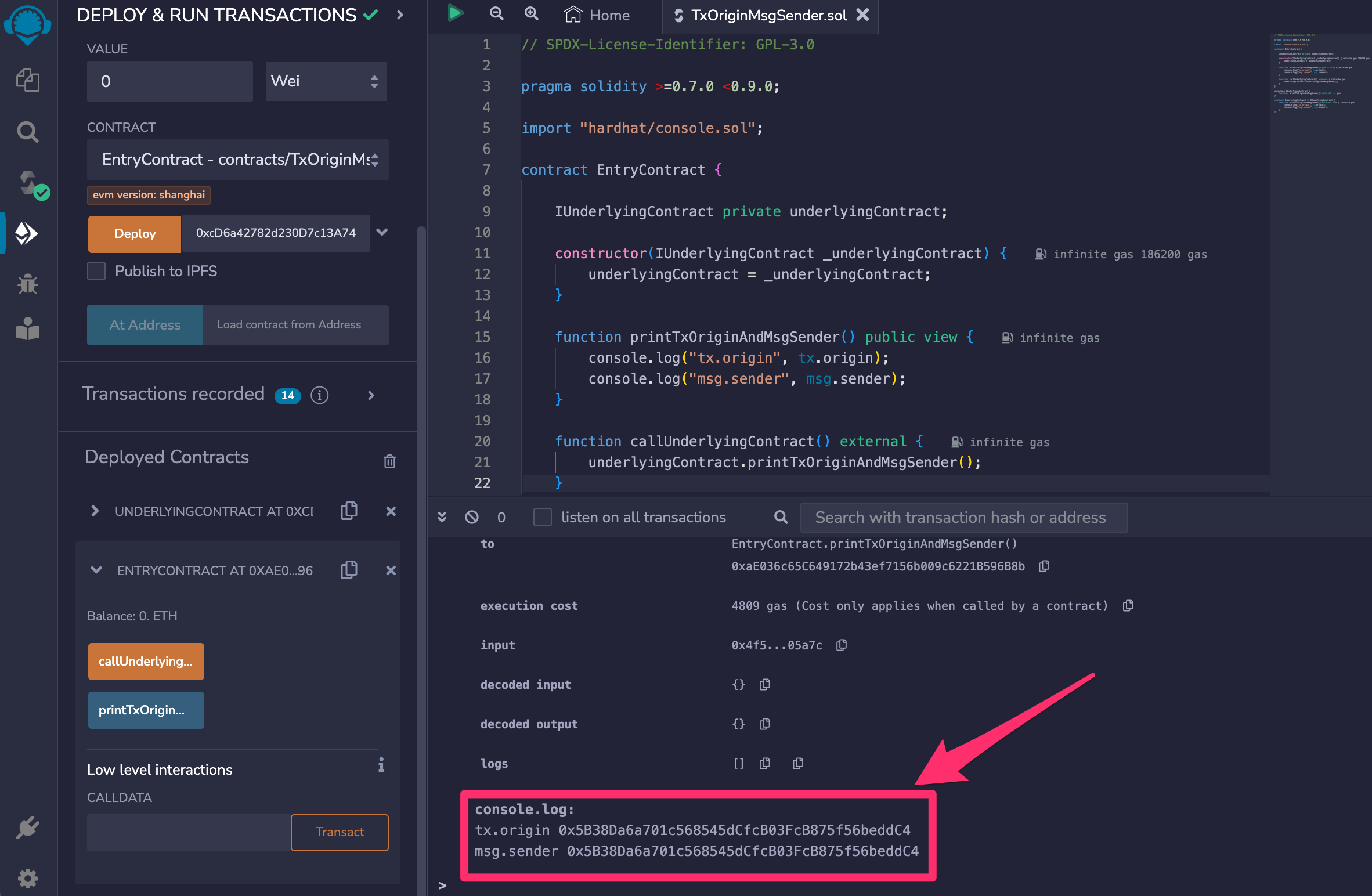
When we call the `printTxOriginAndMsgSender` function of the `EntryContract` contract, we see that both addresses are the same.
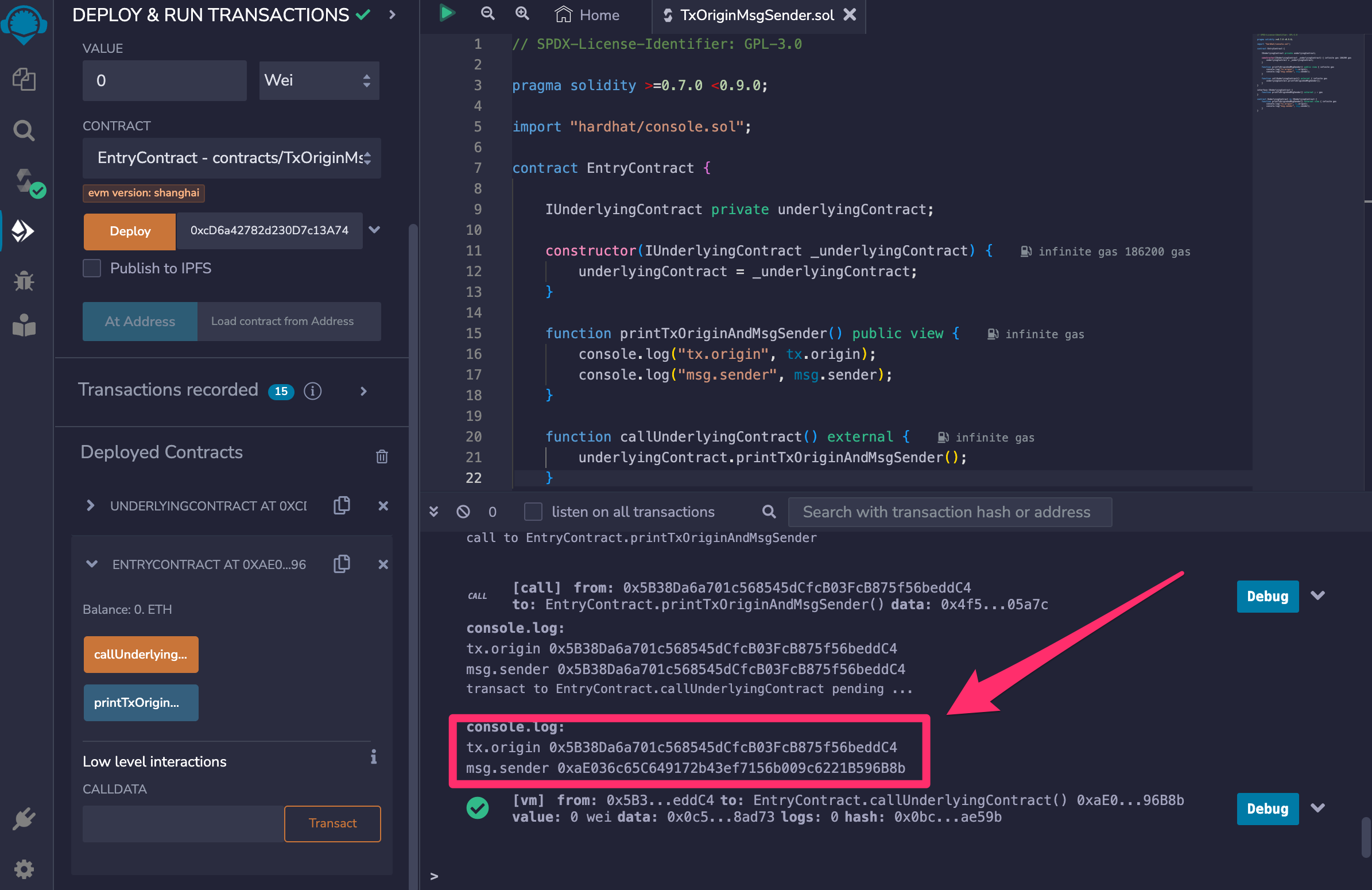
Let's call the `callUnderlyingContract` function on the `EntryContract` contract. We can see that `tx.origin` and `msg.sender` are different now. `tx.origin` is the original caller address and `msg.sender` is the `EntryContract` smart contract address.
## TL;DR
In Solidity, `tx.origin` and `msg.sender` are two variables that serve different but crucial purposes. `tx.origin` always refers to the address that initially initiated the transaction and remains constant throughout the transaction chain. On the other hand, `msg.sender` represents the sender of the current message or contract interaction and changes with each call. It is crucial to be cautious when using `msg.sender`, as it may not always represent the initial caller of the transaction.
## Links
- [Demo code](https://gist.github.com/fassko/814206e679499e5ce465fcead119ee55)
- [Solidity documentation: Special Variables and Functions](https://docs.soliditylang.org/en/v0.8.23/units-and-global-variables.html#block-and-transaction-properties)
- [Solidity documentation: Block and Transaction Properties](https://docs.soliditylang.org/en/v0.8.23/cheatsheet.html#block-and-transaction-properties)
- [Unraveling Solidity Mysteries: Demystifying tx.origin and msg.sender](https://solidity101.substack.com/p/unraveling-solidity-mysteries-demystifying)
---
### Understanding ERC-4337 and the Future of Ethereum User Experience: Account Abstraction
- URL: https://kristaps.me/blog/solidity-account-abstraction/
- Date: 2023-10-31
- Tags: ethereum, solidity
- Summary: In Ethereum Improvement Proposal 4337 (ERC-4337), account abstraction simplifies user interaction and the blockchain. It eliminates the need for users to deal with the complexities of wallets, making blockchain applications (dApps) more accessible to users. For instance, users can use social login to interact with dApps, and there is no need for private keys or seed phrases anymore. In this series of posts, I will provide a high-level overview of the topic in this post and dive into the code in the following ones.
In Ethereum Improvement Proposal 4337 (ERC-4337), account abstraction simplifies user interaction and the blockchain. It eliminates the need for users to deal with the complexities of wallets, making blockchain applications (dApps) more accessible to users. For instance, users can use social login to interact with dApps, and there is no need for private keys or seed phrases anymore. In this series of posts, I will provide a high-level overview of the topic in this post and dive into the code in the following ones.
## What is Account Abstraction?
In the current Ethereum framework, there are two different types of accounts:
* **Externally Owned Accounts (EOAs)** - controlled by user private keys, for instance Metamask;
* **Contract Accounts** - controlled by the smart contract code.
The new account abstraction proposal aims to combine two types of accounts, as explained in the ERC-4337 proposal. This addition will provide our users with better recovery options, an easier way to pay transaction fees, and the ability to enjoy multi-signatory rights. Ultimately, it will make Ethereum more accessible to a larger audience without dealing with private keys and seed phrase management.
## ERC-4337
An account abstraction proposal 4337, or in short ERC-4337, describes how the account abstraction works in the Ethereum Virtual Machine.
Let's see it all together in a diagram that is taken from [https://twitter.com/ProbablyNoam](https://twitter.com/probablynoam/status/1648080136439488513?s=61&t=tfKGnxF3fow02GH1cn2qLQ):
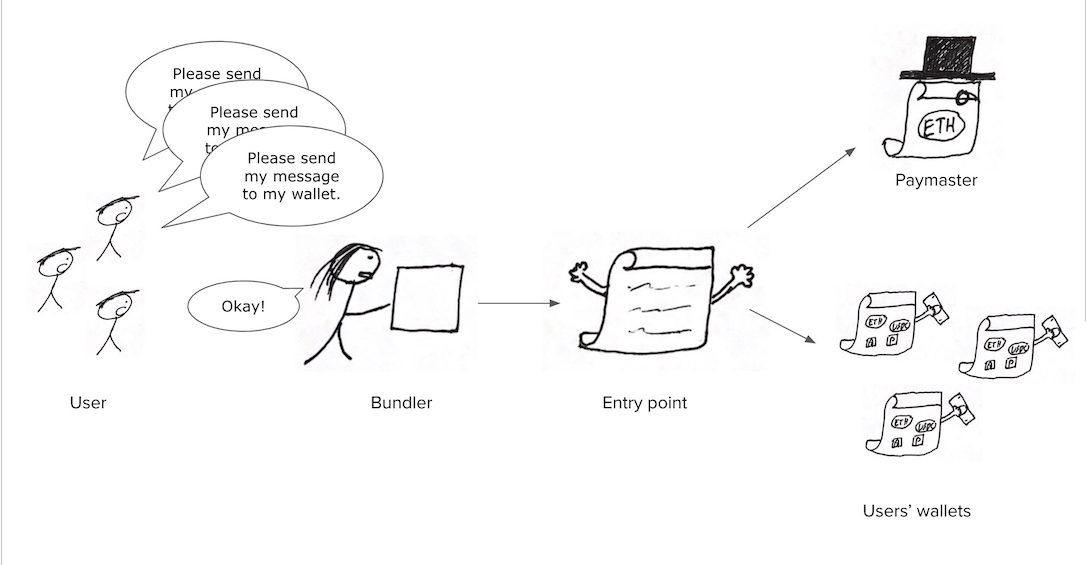
1. Users can interact with the blockchain through a pseudo transaction object, `UserOperation`, containing the necessary information, such as data and signatures.
2. Bundlers group together user intents and merge multiple `UserOperation` objects into one transaction.
3. When multiple user operations are included in a transaction, it is sent to the `EntryPoint` contract for execution on the chain.
4. When a bundle of user operations is executed on the blockchain, it is done on behalf of an external account (EOA). It is important to note that the sender address `from` is the Bundler address, while the recipient `to` address is the `EntryPoint` smart contract address.
5. Users can pay transaction fees through the `EntryPoint` smart contract, which outlines the rules for such payments. For example, paying gas fees using tokens other than ETH or having the Paymaster fully fund the transaction is possible.
## Benefits and hurdles of the Account Abstraction
The ERC-4337 enables blockchain interaction with familiar logins, like two-factor authentication, biometrics, or bank login, eliminating the need for seed phrases and private keys.
Users do not interact with smart contracts directly but through an intermediary layer. This helps to mitigate the risk of user funds being stolen by a hacker.
Coworkers and DAO members can share accounts, simplifying multi-signature interactions.
When implementing account abstraction, it is crucial to thoroughly test and ensure that the smart contracts are written securely and accurately. Smart contracts are inherently more susceptible to hacks than externally owned accounts that rely on private keys for security. This poses a significant risk when employing a sophisticated mechanism to pay for transaction fees on behalf of users.
## TL;DR
Proposed in ERC-4337, account abstraction is a paradigm shift for Ethereum's usability, security, and user-friendliness. It's success is dependent on the community's adoption rate.
Agents that pay per API call still need a way to authorize spend. Today I use HTTP 402 plus an ERC-20 pull, not a bundled UserOperation: [What is x402?](/blog/x402-ai-agent-stablecoin-payments/).
## Links
- [ERC-4337: Account Abstraction Using Alt Mempool](https://eips.ethereum.org/EIPS/eip-4337)
- [What is account abstraction: A beginner's guide to Ethereum’s ERC-4337 standard](https://cointelegraph.com/learn/account-abstraction-guide-to-ethereums-erc-4337-standard)
- [You Could Have Invented Account Abstraction](https://www.alchemy.com/blog/account-abstraction)
---
### Structs in Solidity: Mastering Data Organization in Ethereum Smart Contracts
- URL: https://kristaps.me/blog/solidity-structs/
- Date: 2023-09-21
- Tags: Solidity, web3, struct, ethereum
- Summary: The Solidity programming language for Ethereum smart contracts, offers a robust feature known as **structs** that is indispensable in organizing and structuring information. These user-defined data types allow us to bundle variables under a single name, effectively creating blocks of organized data with set boundaries. Not only do structs enhance code readability and maintainability, but they also offer flexibility in instantiation. There are three ways to instantiate a struct in Solidity, each with advantages and use cases. In this blog post, we'll explore the nitty-gritty of Solidity structs, exploring their significance.
The Solidity programming language for Ethereum smart contracts, offers a robust feature known as **structs** that is indispensable in organizing and structuring information. These user-defined data types allow us to bundle variables under a single name, effectively creating blocks of organized data with set boundaries. Not only do structs enhance code readability and maintainability, but they also offer flexibility in instantiation. There are three ways to instantiate a struct in Solidity, each with advantages and use cases. In this blog post, we'll explore the nitty-gritty of Solidity structs, exploring their significance.
## Defining a struct
To define a struct, we should use the struct keyword, followed by the name you wish to give to the struct. Then, we enclose the variables (fields) within curly braces {}. Each field must be declared with its data type, followed by its name.
```solidity
struct Employee {
string name;
uint256 salary;
}
```
Here, we defined a struct `Employee` with two fields:
- `name` - `string` value that holds an employee name
- `salary` - `uint256` value that holds employee salary
After we have declared a struct, we can use it to declare variables and create arrays with it.
One interesting thing with structs is that a struct can hold a struct, which can open new doors. Let's imagine an employee struct can have managers.
```solidity
struct Employee {
string name;
uint256 salary;
Employee[] managers;
}
```
## Three Ways to Instantiate a Solidity Struct
Solidity offers three distinct methods for instantiating a struct, each with its advantages and applications. Let's check them out.
### Initializing Structs as Key-Value Pairs
One of the most straightforward and intuitive methods to instantiate a struct in Solidity is using key-value pairs. This approach allows developers to explicitly assign values to the individual fields within the struct at its creation. Doing so makes the code more readable and self-explanatory, as each value is directly associated with its corresponding key (field name).
```solidity
Employee memory employee = Employee({name: name, salary: salary});
```
### Updating each value
In Solidity, another viable approach to instantiate a struct is declaring an instance and then updating each field separately. This method offers the advantage of incremental initialization, allowing developers to populate the struct's fields step-by-step, which can be particularly useful in conditional logic or complex workflows.
```solidity
Employee memory employee;
employee.name = name;
employee.salary = salary;
```
Initially, all fields are set to their default values, such as an empty string for `name` and zero for `salary`.
This method provides a flexible way to manage data, as you can modify each field based on specific conditions or computations, thereby offering granular control over the struct's initialization.
### Passing values
In Solidity, one of the most straightforward methods for instantiating a struct is by directly passing values to its fields in the order they are declared. This technique is handy for quick and straightforward initializations where the values for all fields are readily available.
```solidity
Employee memory employee = Employee("Mary", 110000);
```
While this method is efficient, it requires us to remember the order of the fields, making it less self-explanatory than other methods like key-value pair initialization. Nonetheless, for simple structs with a limited number of fields, this remains a quick and effective way to instantiate a struct.
## TL;DR
In Solidity, structs are user-defined data types that allow us to group multiple variables of different types under a single name, making it easier to manage and organize data in your smart contracts. We can define a struct using the struct keyword and then instantiate it in various ways: by directly passing values in the order they're declared, using key-value pairs for explicit field assignment, or creating an empty instance and updating each field individually. Whether we're building simple or complex smart contracts, mastering structs is essential for writing clean, efficient, and maintainable code.
## Links
- [Sample code](https://gist.github.com/fassko/6f1c75f9c78766f73272cbb8930a0b5f)
- [Learn Solidity: What is a struct?](https://www.alchemy.com/overviews/solidity-struct)
- [Solidity by example: Structs](https://solidity-by-example.org/structs/)
---
### Beyond Default Messages: Mastering Custom Errors in Solidity
- URL: https://kristaps.me/blog/solidity-custom-error/
- Date: 2023-08-11
- Tags: Solidity, web3, errors
- Summary: Solidity's custom errors offer significant advantages in blockchain development, enhancing smart contract robustness and clarity. These errors provide detailed and precise error messages, improving the ease of issue diagnosis. Additionally, they strengthen code readability by allowing for clear naming of error conditions and improve gas efficiency by enabling compact encoding of error information. Embracing these custom errors can revolutionize your Solidity development experience. Let's see how we can use custom errors in our Ethereum smart contracts.
Solidity's custom errors offer significant advantages in blockchain development, enhancing smart contract robustness and clarity. These errors provide detailed and precise error messages, improving the ease of issue diagnosis. Additionally, they strengthen code readability by allowing for clear naming of error conditions and improve gas efficiency by enabling compact encoding of error information. Embracing these custom errors can revolutionize your Solidity development experience. Let's see how we can use custom errors in our Ethereum smart contracts.
## Defining Custom Errors
In Solidity, defining a custom error is a straightforward process that enhances the clarity and specificity of error messages in smart contracts. To define a custom error, you use the error keyword followed by a unique name for the error. If you want to include specific details or parameters in the error message, add them in parentheses after the error name.
```solidity
error NumberTooHigh(uint256 from, uint256 number);
```
Or we can omit the parameters and define a custom error with them.
```solidity
error Unauthorized();
```
## Using Custom Error
Once defined, we can trigger this error using the revert statement followed by the error name and required parameters. This approach makes the code more readable and provides a clear context for the error, aiding developers in diagnosing and addressing issues more efficiently.
We can use the' revert' keyword to utilize errors that don't require parameters. Then, we specify the desired custom error name and call it a regular function.
```solidity
revert Unauthorized();
```
To use a custom error with parameters, we must pass the error name and parameters when reverting, similar to how we would pass them in a function.
```solidity
revert NumberToLow(from, number);
```
## Consuming custom errors
When utilizing a smart contract that has custom errors, it can provide users with more specific explanations of what went wrong. By utilizing libraries such as ethers.js or web3.js, developers have a more effective means of managing and presenting information to users.
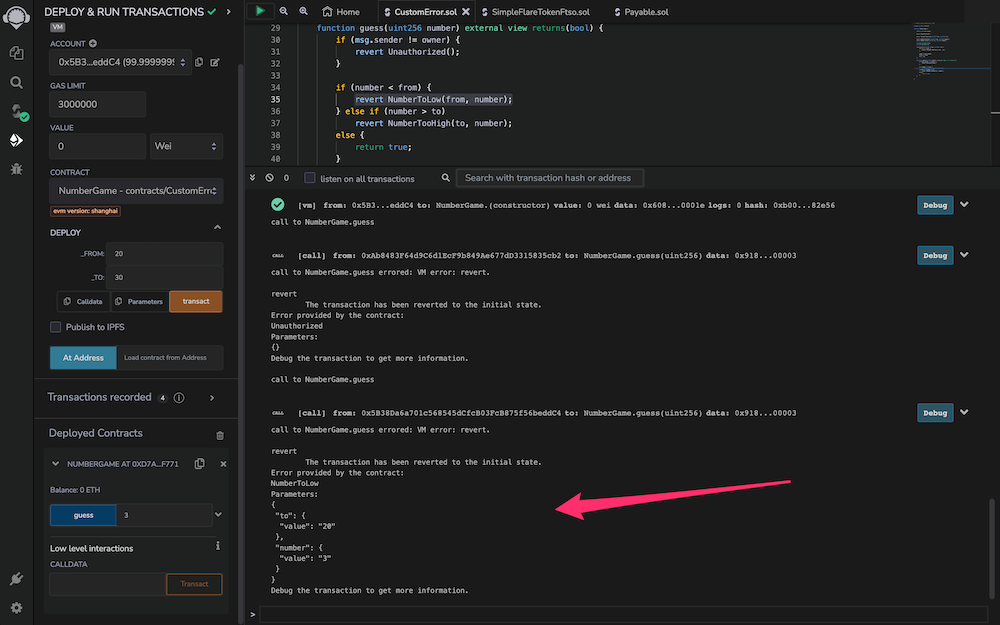
Using the Remix test environment, we can see how a custom error is present in the log console.
## TL;DR
Custom errors in Solidity can improve the transparency and effectiveness of smart contract code, providing more insightful feedback for developers and smart contract consumers, for instance, using a Web3 library. Adding them to your toolkit can be highly beneficial and reduce gas costs.
## Links
- [Sample code](https://gist.github.com/fassko/b22c722f1d488528791f8c99e42c6a73)
- [Custom Errors in Solidity](https://soliditylang.org/blog/2021/04/21/custom-errors/)
- [Embracing Custom Errors in Solidity](https://dev.to/george_k/embracing-custom-errors-in-solidity-55p8)
- [`revert` documentation](https://docs.soliditylang.org/en/v0.8.21/control-structures.html#revert)
---
### Leveraging the Set Structure in Solidity
- URL: https://kristaps.me/blog/solidity-set/
- Date: 2023-07-25
- Tags: Solidity, web3, set, nft
- Summary: A Set structure, as used in many programming languages, is a collection of distinct elements where each item is unique, and no duplicates are allowed. This data structure is especially valuable when you need to efficiently check the existence of an item, maintain an organized collection of items without repetition, or quickly retrieve unique elements. Solidity programming language for Ethereum smart contract development does not natively support the Set data structure. Developers need to create their own structures or utilize external libraries to replicate Set functionalities, such as ensuring the uniqueness of elements within a collection.
A Set structure, as used in many programming languages, is a collection of distinct elements where each item is unique, and no duplicates are allowed. This data structure is especially valuable when you need to efficiently check the existence of an item, maintain an organized collection of items without repetition, or quickly retrieve unique elements. Solidity programming language for Ethereum smart contract development does not natively support the Set data structure. Developers need to create their own structures or utilize external libraries to replicate Set functionalities, such as ensuring the uniqueness of elements within a collection.
## Functionality of the Set
The Set structure we're going to build will have the ability to add items, remove items, check if an item is in the Set, and list all the unique elements.
In order to implement each of these functionalities, we must first complete some prework by creating two variables to hold set values and their corresponding indexes.
```solidity
contract Set {
uint256[] public elements;
mapping(uint256 => uint256) private indexes;
```
We will use the built-in array structure in Solidity to hold all the elements in the sSt, which will be stored in the variable "items".
One way to ensure that each element in a set is unique is by using the mapping structure from Solidity. The index of each value in the "items" array will serve as the key, while each element in the Set will have the corresponding value in the mapping structure.
## Set Operations
Let's delve into the functionality of each Set operation.
### How to Add an Element
Adding an element to our Set is an essential feature. We need to ensure that every addition will be checked for uniqueness, and only when the element doesn't already exist in the Set will it be added. This will prevent any duplicates and maintain the integrity of our Set.
```solidity
function insert(uint256 value) public {
if (indexes[value] == 0) {
elements.push(value);
indexes[value] = elements.length;
}
}
```
Let's examine the code. Initially, we should verify if the element is present in the Set. This can be achieved by checking if the `indexes` mapping has an index for the given element. If it does not, we can add the element to the `elements` array and establish the index in the `indexes` mapping.
It would be wise to extract this element into a separate function as we need to verify its existence in the Set in other areas.
```solidity
function contains(uint256 value) public view returns(bool) {
return indexes[value] != 0;
}
```
We can employ this function in the conditional check. However, a better approach in Solidity is to utilize the `require` control structure. Thus, let's modify the `insert` function.
```solidity
function insert(uint256 value) public {
require(!contains(value), "Already contains value");
elements.push(value);
indexes[value] = elements.length;
}
```
The code is now simpler to understand and has improved readability.
### How to Remove an Element
The ability to remove elements from our Set gives us flexibility in managing our data. If an element is no longer needed or has become irrelevant, we can remove it from the Set. To maintain efficiency, the removal process should also confirm the existence of an item before attempting its deletion.
```solidity
function remove(uint256 value) public {
require(contains(value), "Set does not contain such value");
// find out the index
uint256 index = indexes[value];
// moves last element to the place of the value
// so there are no free spaces in the array
uint256 lastValue = elements[elements.length - 1];
elements[index - 1] = lastValue;
indexes[lastValue] = index;
// delete the index
delete indexes[value];
// deletes last element and reduces array size
elements.pop();
}
```
Although this function seems lengthy and complicated, let's review it together.
First, we check if the element exists in the Set. If it does, we must determine its index from the `indexes` mapping.
To remove an element from the "elements" array in Solidity, we should avoid using the "delete" function as it creates empty spaces in the array without altering its length. Instead, we can move the last element of the array to the position of the element we want to remove.
Finally, we will use the `pop` built-in function to remove the last element from the array and remove the element index.
### List all elements in the Set
Lastly, we will need a function that lists all the elements in the Set. This feature provides a view of all the unique elements we have collected. Whether we need to debug our code, verify our operations, or use the Set's data, a function to list all elements is invaluable.
```solidity
function values() public view returns(uint256[] memory) {
return elements;
}
```
The 'elements' array can be returned since the order is insignificant.
We can include a helper function that will give us the number of elements in the set.
```solidity
function length() public view returns(uint256) {
return elements.length;
}
```
This function can come in handy if we want to understand if the Set holds anything at all and if we're going to iterate over it ourselves.
## TL;DR
Solidity programming language does not have a built-in Set data structure. However, we can solve this issue by merging two existing Solidity structures - arrays and mappings. This approach enables us to build all the functions of a Set, such as adding unique elements, removing them, checking for their presence, and listing all current elements.
## Links
- [Sample code](https://gist.github.com/fassko/ebba36f92106f367db45d09043cb6547)
- [Mastering Arrays in Solidity](https://kristaps.me/blog/solidity-array/)
- [The Story behind Mapping in Solidity](https://kristaps.me/blog/solidity-mapping/)
- [Set in solidity?](https://ethereum.stackexchange.com/questions/69672/std-set-in-solidity)
- [Storage Patterns: Set](https://programtheblockchain.com/posts/2018/06/03/storage-patterns-set/)
- [Unordered Key Set](https://github.com/rob-Hitchens/UnorderedKeySet)
---
### Creating Interactive Maps with Custom Markers Using SwiftUI in iOS 17
- URL: https://kristaps.me/blog/swiftui-map-markers/
- Date: 2023-06-25
- Tags: swift, swiftui, mapkit
- Summary: With the release of iOS 17, Apple introduces an exciting enhancement to SwiftUI that revolutionizes how we add markers on maps. With the new SwiftUI in iOS 17, you can easily customize markers to match your app's aesthetic and branding, allowing seamless integration with your overall user interface. This article describes how to add and style map markers in iOS 17 with SwiftUI. Keep in mind that this is still in beta and can change.
With the release of iOS 17, Apple introduces an exciting enhancement to SwiftUI that revolutionizes how we add markers on maps. With the new SwiftUI in iOS 17, you can easily customize markers to match your app's aesthetic and branding, allowing seamless integration with your overall user interface. This article describes how to add and style map markers in iOS 17 with SwiftUI. Keep in mind that this is still in beta and can change.
## Add map markers
In iOS 17, SwiftUI offers developers a range of versatile methods to add map markers. Let's check them out.
### The default way
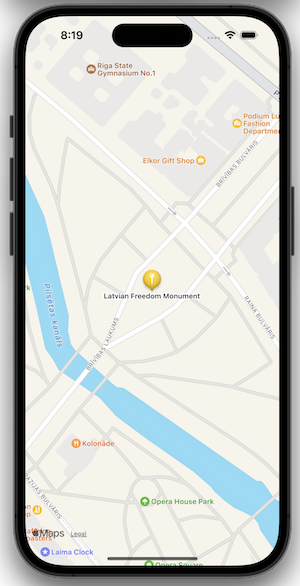
The default and most straightforward way to add a marker on the map in iOS 17 with SwiftUI is by passing a title and coordinate. With just these two essential pieces of information, developers can quickly create a marker that identifies a specific location on the map.
```swift
Marker("Latvian Freedom Monument", coordinate: .marker)
```
### Showing with a custom image
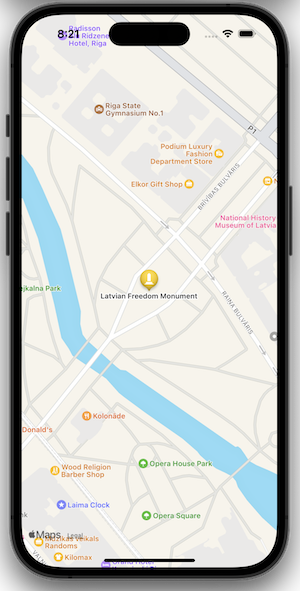
We can seamlessly place a marker on the map using a custom SVG image directly from the assets catalog. This enhanced functionality provides a convenient and organized approach to utilizing custom SVG images as map markers. Leveraging custom SVG images from the assets catalog empowers developers to create visually appealing and personalized map markers that effortlessly integrate with their app's overall design language, enabling a more cohesive and immersive user experience.
```swift
Marker("Latvian Freedom Monument", image: "monument", coordinate: .marker)
```
### Using SF symbols
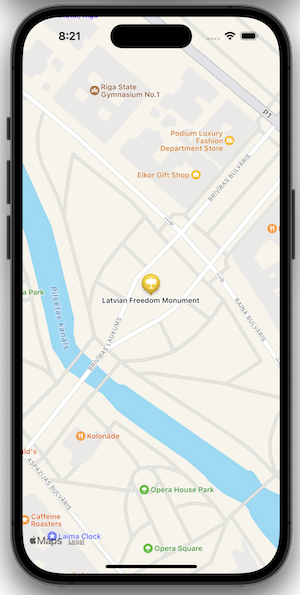
SwiftUI on iOS 17 enables placing a marker on the map by leveraging the built-in SF Symbols library. SF Symbols provides a vast collection of scalable and customizable icons seamlessly integrating with Apple's user interface guidelines. No external image assets are needed, so we can easily access and incorporate many visually consistent and recognizable icons, such as pins, landmarks, or directional arrows.
```swift
Marker("Latvian Freedom Monument", systemImage: "signpost.left.fill", coordinate: .marker)
```
### Using text monogram
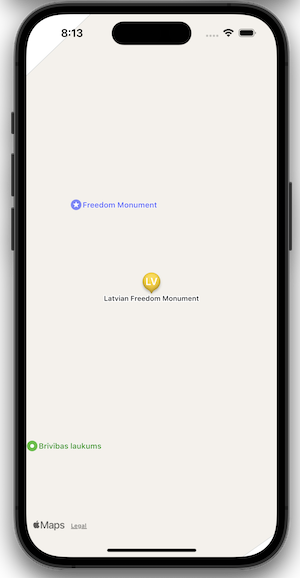
In iOS 17 with SwiftUI, an intriguing option to place a marker on the map is by utilizing monogram text. This approach allows developers to create visually appealing and personalized markers using a maximum of three characters.
```swift
Marker("Latvian Freedom Monument", monogram: "LV", coordinate: .marker)
```
### Custom label
The SwiftUI Label view approach allows developers to design and customize markers with rich textual information and accompanying icons or images. By leveraging the Label view, developers can easily combine a text element and an optional image or icon, allowing the creation of markers.
```swift
Marker(coordinate: .marker) {
Label("Latvian Freedom Monument", image: .monument)
}
```
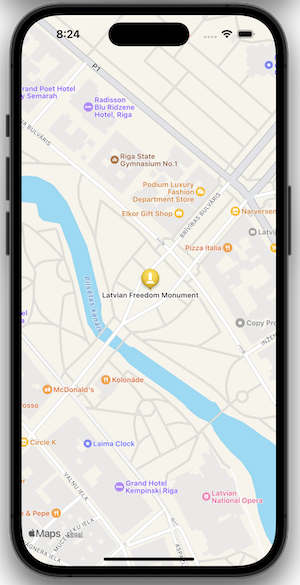
## Change marker color
We have the flexibility to change the tint color of map markers, allowing enhanced customization and visual consistency within their apps. By modifying the tint color, developers can seamlessly integrate the markers with their app's overall color scheme, branding, or design language. With SwiftUI's declarative syntax, adjusting the tint color of map markers is straightforward.
```swift
.tint(.yellow)
```
## TL;DR
In iOS 17 with SwiftUI, developers have various options for adding markers on the map. We can pass a title and coordinate for a simple marker, utilize custom SVG images from the assets catalog for personalized markers, leverage built-in SF Symbols for standardized and customizable markers, use monogram text for elegant and compact markers, or employ custom labels for markers with rich textual information. Additionally, developers can style the markers' tint color, ensuring visual consistency and app customization. These features empower developers to create visually engaging and personalized map experiences seamlessly integrating with their app's design.
## Links
- [Sample code](https://github.com/fassko/ios17-swiftui-map-markers)
- [MapKit Marker documentation](https://developer.apple.com/documentation/mapkit/marker)
---
### Exploring the Features and Benefits of Azuki's ERC-721A NFT Standard
- URL: https://kristaps.me/blog/solidity-erc-721-a-azuki/
- Date: 2023-05-15
- Tags: Solidity, web3, erc721, nft
- Summary: NFT minting on Ethereum can be expensive due to the high gas fees associated with executing intelligent contract transactions on the blockchain. Previously [we learned](https://kristaps.me/blog/solidity-erc-721/) how to use the ERC-721 standard, but there is an improved standard, ERC-721A, by Azuki. It gives enormous gas savings when minting multiple NFTs in one transaction. Minting five NFTs can save 7.2 times gas compared to the original ERC-721 standard. Let's check it out in this article.
NFT minting on Ethereum can be expensive due to the high gas fees associated with executing intelligent contract transactions on the blockchain. Previously [we learned](https://kristaps.me/blog/solidity-erc-721/) how to use the ERC-721 standard, but there is an improved standard, ERC-721A, by Azuki. It gives enormous gas savings when minting multiple NFTs in one transaction. Minting five NFTs can save 7.2 times gas compared to the original ERC-721 standard. Let's check it out in this article.
## ERC-721A vs ERC-721
The ERC-721A standard, compared to the original ERC-721 standard, has some distinctive differences:
The most significant difference between the ERC-721A and the original ERC-721 standards is that ERC-721A includes additional features and functionality not present in ERC-721. For example, ERC-721A allows for dynamic minting of NFTs, meaning they can be minted on-demand rather than having to pre-mint them all at once. This feature can be more cost-effective and efficient for users who don't need to mint a large number of NFTs upfront.
To gain such gas savings Azuki team has implemented an approach. It keeps an address in the records and how many NFTs are in a sequence. For instance, Mary mints five NFTs starting from number 100. Essentially it will hold data that the owner of the #100 is Mary, and the next five will be without an owner. Using this approach, the ERC-721A standard can achieve significant gas savings because there is no need to mint every five NFTs. Azuki team has calculated that minting one NFT with the ERC-721 is 154,814 gas; with the ERC-721A, it is 76,690. Minting five NFTs, respectively, it is 616,914 and 85,206. It is 7.2 times more gas!
## Using the ERC-721A
Using the ERC-721A is very straightforward and similar to the original ERC-721 standard.
After we install the `erc721a` package in our project, we can import it into the smart contract.
```solidity
import "erc721a/contracts/ERC721A.sol";
```
After that, we must extend our NFT smart contract from the `ERC721A` and create a constructor like we would use the OpenZeppelin implementation.
```solidity
contract GasSaverNFT is ERC721A {
constructor(
string memory name_,
string memory symbol_
) ERC721A(name_, symbol_) {}
```
The most significant difference is with minting the NFT. We need to pass the `_safeMint` function not only the address we want to mint to but also the quantity.
```solidity
function safeMint(address to, uint256 quantity) public {
_safeMint(to, quantity);
}
```
Putting it all together, we have a concise and sweet Solidity smart contract.
```solidity
import "erc721a/contracts/ERC721A.sol";
contract GasSaverNFT is ERC721A {
constructor(
string memory name_,
string memory symbol_
) ERC721A(name_, symbol_) {}
function safeMint(address to, uint256 quantity) public {
_safeMint(to, quantity);
}
}
```
To keep this example simple, we're omitting the metadata storage functionality.
## TL;DR
The ERC-721A is a more flexible and robust standard for creating and managing NFTs on the Ethereum blockchain, with additional features that can help to address some of the limitations and challenges of the original ERC-721 standard. The biggest gain is the gas-saving aspect when minting multiple NFTs. Minting five NFTs can save 7.2 times gas compared to the original ERC-721 standard.
## Links
- [Introducing erc721a: An improved erc721 implementation](https://www.azuki.com/erc721a)
- [ERC721 vs. ERC721A: Batch Minting NFTs](https://www.alchemy.com/blog/erc721-vs-erc721a-batch-minting-nfts)
- [ERC-721: Non-Fungible Token Standard](https://eips.ethereum.org/EIPS/eip-721)
- [What are an NFT and the ERC-721 standard?](https://kristaps.me/blog/solidity-erc-721/)
---
### Programmatically Verifying Solidity Smart Contract Code with Hardhat
- URL: https://kristaps.me/blog/solidity-verify-smart-contract-automatically/
- Date: 2023-05-11
- Tags: Solidity, web3, hardhat
- Summary: In a previous [blog post](/blog/solidity-verify-smart-contract/), we discussed the importance of verifying Solidity smart contracts before deploying them onto the blockchain. However, there is a way to automate that process and make it more efficient. With the help of Hardhat, a popular development environment for Ethereum, developers can now verify their smart contract code programmatically as part of the deployment process. This means the verification process can be integrated into the development pipeline, ensuring the code is verified automatically each time the contract is deployed. This blog post will explore how to use Hardhat to verify smart contract code and streamline the verification process programmatically.
In a previous [blog post](/blog/solidity-verify-smart-contract/), we discussed the importance of verifying Solidity smart contracts before deploying them onto the blockchain. However, there is a way to automate that process and make it more efficient. With the help of Hardhat, a popular development environment for Ethereum, developers can now verify their smart contract code programmatically as part of the deployment process. This means the verification process can be integrated into the development pipeline, ensuring the code is verified automatically each time the contract is deployed. This blog post will explore how to use Hardhat to verify smart contract code and streamline the verification process programmatically.
## Hardhat Runtime Environment
HRE stands for Hardhat Runtime Environment. It provides a robust set of tools and APIs that can be used to verify the correctness of a smart contract code programmatically. Verification is an essential step in the development process of smart contracts, as it ensures that the code behaves as intended and is secure.
## Veryfing smart contract programmatically
To programmatically verify a smart contract with HRE, we should use a plugin called `hardhat-etherscan` in combination with the HRE subtask `verify:verify`.
To verify the smart contract automatically, we need to pass:
- the network name that we can get from the Hardhat Network addon;
- smart contract address;
- constructor agruments.
We should wait for the deploy transaction to be finished to avoid problems when verifying a smart contract that hasn't been deployed yet.
Let's now put it all together in a Hardhat script.
```javascript
import hre, { network, ethers } from "hardhat";
async function main() {
const SaveNumber = await ethers.getContractFactory("SaveNumbero");
const number = 6;
const saveNumber = await SaveNumber.deploy(number);
await saveNumber.deployed();
console.log(`SecretNumber deployed to ${saveNumber.address}`);
try {
console.log("\nEtherscan verification in progress...");
await saveNumber.deployTransaction.wait(6);
await hre.run("verify:verify", {
network: network.name,
address: saveNumber.address,
constructorArguments: [number],
});
console.log("Etherscan verification done. ✅");
} catch (error) {
console.error(error);
}
}
main().catch((error) => {
console.error(error);
process.exitCode = 1;
});
```
## TL;DR
Automated smart contract verification with HRE provides a much more streamlined and efficient way to verify smart contract code than manually verifying it from the terminal. It saves time and reduces the chances of errors compared to manual verification from the terminal.
## Links
- [How Hardhat Simplifies Smart Contract Verification on Ethereum](https://kristaps.me/blog/solidity-verify-smart-contract/)
- [Hardhat Runtime Environment (HRE)](https://hardhat.org/hardhat-runner/docs/advanced/hardhat-runtime-environment#hardhat-runtime-environment-hre)
- [`hardhat-verify` documentation](https://hardhat.org/hardhat-runner/plugins/nomicfoundation-hardhat-verify#using-programmatically)
---
### How Hardhat Simplifies Smart Contract Verification on Ethereum
- URL: https://kristaps.me/blog/solidity-verify-smart-contract/
- Date: 2023-04-24
- Tags: Solidity, web3, hardhat
- Summary: Smart contract verification is crucial for ensuring transparency, trust, and safety for users in the blockchain ecosystem. Smart contracts are immutable. Once deployed on the blockchain, they cannot be modified or deleted, making verification an essential process to ensure their correctness and safety. Verifying smart contracts with Hardhat tooling is a straightforward process that can be done quickly and easily. It provides a simple and effective way to verify smart contracts on the Ethereum network.
Smart contract verification is crucial for ensuring transparency, trust, and safety for users in the blockchain ecosystem. Smart contracts are immutable. Once deployed on the blockchain, they cannot be modified or deleted, making verification an essential process to ensure their correctness and safety. Verifying smart contracts with Hardhat tooling is a straightforward process that can be done quickly and easily. It provides a simple and effective way to verify smart contracts on the Ethereum network.
## Setting up the Etherscan Hardhat plugin
The Etherscan Hardhat plugin is a powerful tool that allows developers to quickly verify and deploy their smart contracts on the Ethereum network. The plugin integrates Etherscan's smart contract verification services directly into the Hardhat workflow, making it easy for developers to ensure the correctness and security of their contracts.
To use the Hardhat Etherscan plugin, we must first install the Hardhat development environment on our system. Once Hardhat is installed, the plugin can be installed with the following command:
```sh
npm install @nomiclabs/hardhat-etherscan --save-dev
```
After installing the plugin, we need to configure their Hardhat project to use it. We should import the Etherscan plugin and set the API key for the network we will use. In our example, we are going to use the Polygon Mumbai test network.
```javascript
import "@nomiclabs/hardhat-etherscan";
module.exports = {
// ...
etherscan: {
apiKey: {
polygonMumbai: POLYGONSCAN_API_KEY,
},
},
};
```
We can obtain the Etherscan API key from the respective block explorer website by generating an API key. Once the API key is obtained, it can be added to the configuration file. In our case, we will use the `.env` environment variables file.
## Verifying the smart contract
Now that we have done the initial set, we should deploy the smart contract and get the address that is deployed. At this point, the smart contract on the block explorer site isn't verified.
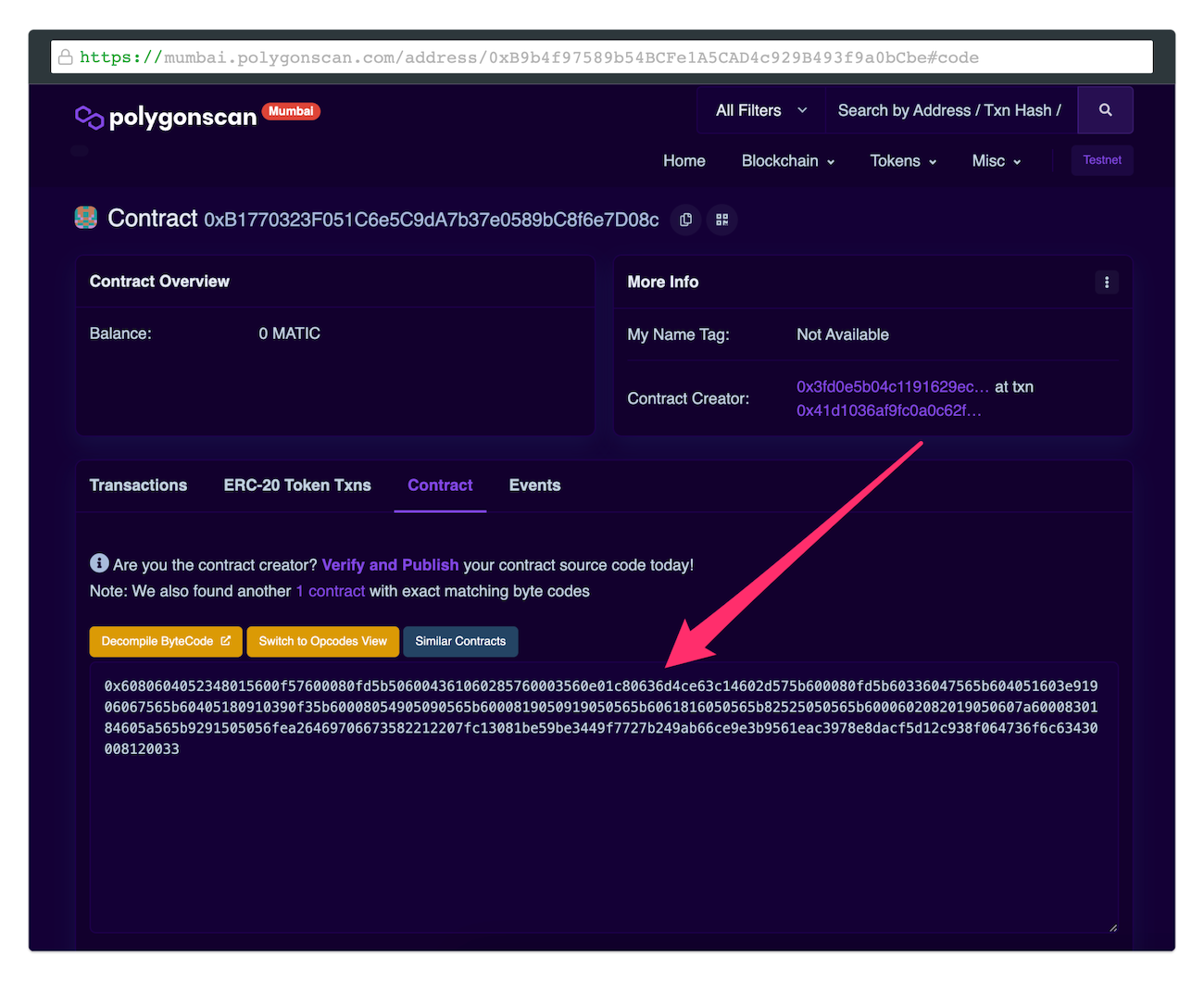
After that, we should use the `hardhat verify` command to deploy and verify their smart contracts on the Ethereum networks. The command takes as an argument contract address and the deployment constructor arguments.
```sh
npx hardhat verify --network mumbai 0x58Bf1271f457F4972f4253C179a0C013737C4232 6
```
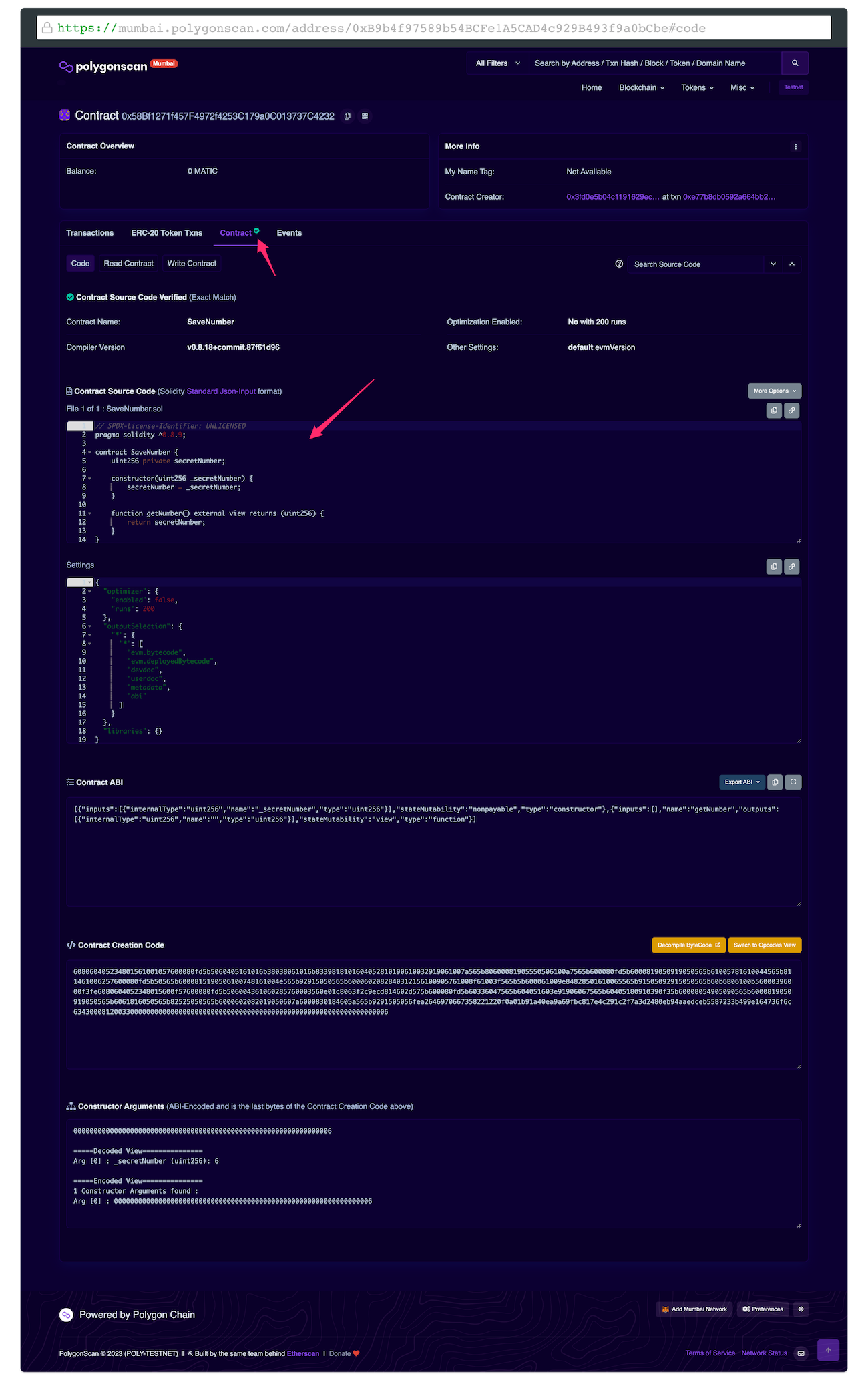
In this example, the contract address is `0x58Bf1271f457F4972f4253C179a0C013737C4232` and the when the contract was deployed the initial argument was `6`.
Now our smart contract has been successfully verified, and we can verify that on the block explorer.
## TL;DR
We should verify the smart contracts to ensure trust and transparency for our users.
The Hardhat Etherscan plugin provides a streamlined and efficient way for developers to verify our smart contracts on the Ethereum networks.
## Links
- [Hardhat documentation](https://hardhat.org/hardhat-runner/docs/guides/verifying)
- [Different Ways to Verify Your Smart Contract Code](https://www.quicknode.com/guides/ethereum-development/smart-contracts/different-ways-to-verify-smart-contract-code/)
- [Verifying Smart Contracts](https://ethereum.org/en/developers/docs/smart-contracts/verifying/)
- [A Guide to Smart Contract Verification](https://blog.tenderly.co/guide-to-smart-contract-verification-methods/)
- [Verify Contracts Perrrrrfectly: Why and How?](https://docs.sourcify.dev/blog/verify-contracts-perfectly/)
---
### Implementing the ERC-2981 NFT royalty standard with Solidity - a game-changer for creators to receive income from every sale
- URL: https://kristaps.me/blog/solidity-royalties-eip-2981/
- Date: 2023-03-28
- Tags: Solidity, web3
- Summary: With the rise of NFTs on the Ethereum blockchain, creators can now monetize their digital art, music, videos, and other media in ways previously considered impossible. However, with the ownership and transfer of NFTs comes the question of royalties when creators receive payments for subsequent sales of their work. In this article, we will explore the concept of royalties in NFTs on Ethereum and how they are changing the landscape of digital ownership and creation.
With the rise of NFTs on the Ethereum blockchain, creators can now monetize their digital art, music, videos, and other media in ways previously considered impossible. However, with the ownership and transfer of NFTs comes the question of royalties when creators receive payments for subsequent sales of their work. In this article, we will explore the concept of royalties in NFTs on Ethereum and how they are changing the landscape of digital ownership and creation.
## The NFT royalty standard
The ERC-2981, also known as the NFT Royalty Standard, is a proposal for a new Ethereum token standard that addresses this need. By implementing ERC-2981, creators can receive a percentage of each subsequent sale of their NFTs on the secondary market. It outlines rules for how royalty payments are calculated and transferred automatically to the creator's wallet whenever their NFT is resold on the secondary market.
Implementing ERC-2981 would provide a transparent and efficient way for creators to receive a fair share of the profits from their NFTs, regardless of how many times they are resold.
## OpenZeppelin NFT royalties implementation
OpenZeppelin is a widely recognized leader in the blockchain industry, and its Royalties Standard for NFTs builds on ERC-2981 to provide an even more comprehensive solution for tracking and distributing royalties. With OpenZeppelin's Royalties Standard, creators can rest assured that they are fairly compensated for their work and have greater control over how their creations are sold and distributed.
There are other implementations, or we can create our own according to the ERC-2981 standard, but that is out of the scope of this article.
## Using the NFT royalty standard
ERC721Royalty extension is one of the many extensions OpenZeppelin provides, which adds a royalty payment mechanism to the ERC721 token standard.
The ERC721Royalty extension adds a new function to the ERC721 standard called `_setTokenRoyalty` for a specific NFT or `_setDefaultRoyalty` for all the NFTs. This function allows a creator of an NFT to set a percentage of each sale that will be paid as a royalty to them. The royalty payment is automatically deducted from the sale price of the NFT and transferred to a creator.
To use the `ERC721Royalty` extension, we must inherit our NFT smart contract from the `ERC721Royalty` and either set royalty. Let's check out both ways, setting it for all the NFTs and specific ones.
```solidity
import "@openzeppelin/contracts/token/ERC721/extensions/ERC721Royalty.sol";
contract Royalties is ERC721Royalty {
// ...
}
```
### Setting royalties per NFT
To set the royalties fee per specific NFT, we need to use the `_setTokenRoyalty` function while minting the NFT. We need to provide the royalty-received address and fee numerator. The fee numerator is a percentage. For example, if an NFT is sold for 1 ETH and the royalty fee is set to 10%, the original creator would receive 0.1 ETH for that deal. If an NFT is sold for 2 ETH the next time, the original creator will receive another 0.2 ETH for that next deal, and so on, every time that NFT is sold in the future.
```solidity
function safeMint(
address to,
uint256 tokenId,
address receiver,
uint96 feeNumerator
) public {
_safeMint(to, tokenId);
_setTokenRoyalty(tokenId, receiver, feeNumerator);
}
```
Now when minting an NFT, we can provide these values.
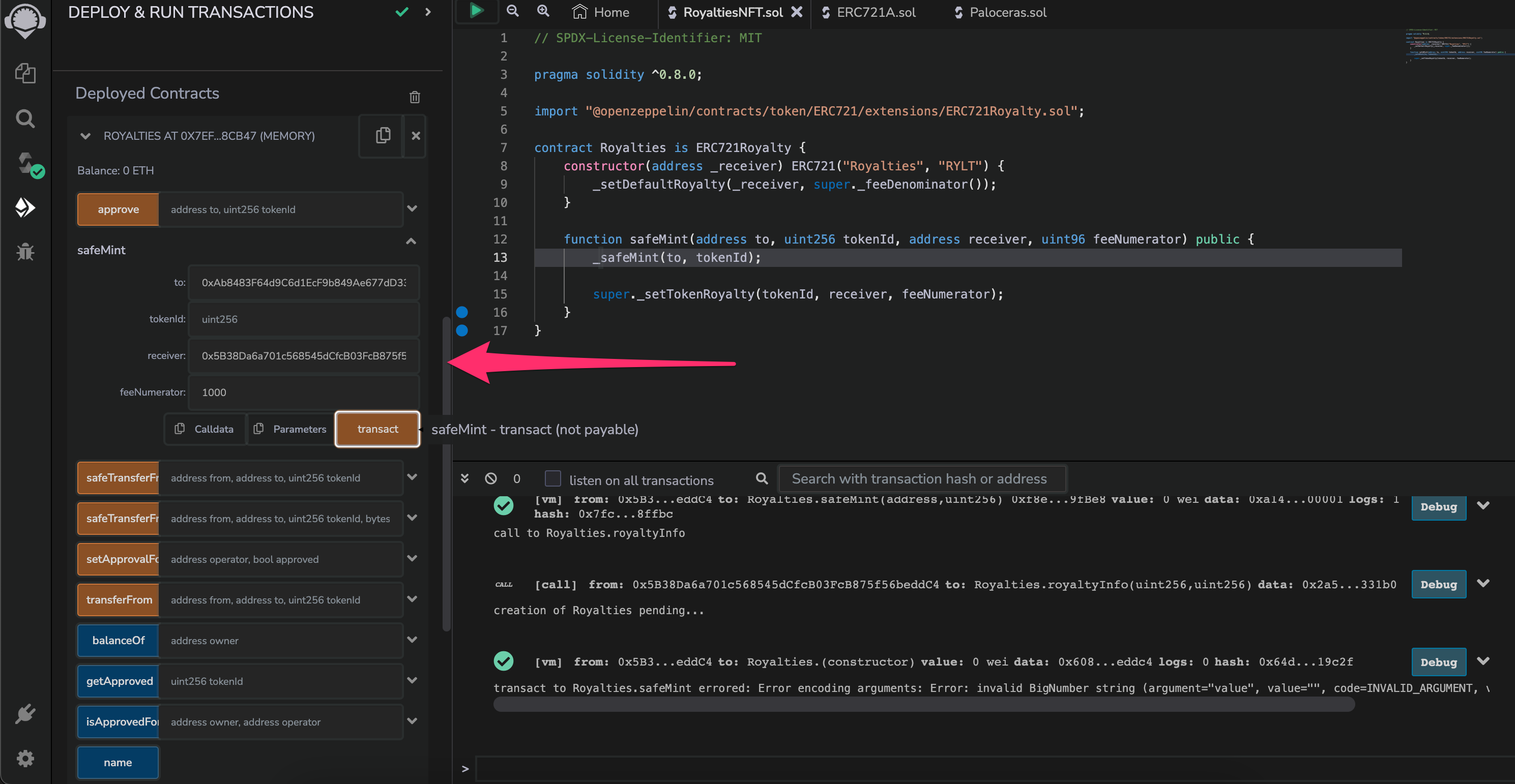
For the fee numerator, we are specifying it as a percentage without a coma. It means that **1000** is equivalent to **10%**.
Now receiver will receive 10% from each resale on NFT marketplaces like OpenSea or Rarible.
### Setting royalties for all NFTs
The most straightforward way to specify a royalty fee is to configure that for all the NFTs equally. To do that, we can call the `_setDefaultRoyalty` function when deploying the smart contract. We must provide the royalty fee receiver and fee numerator similar to what we did per each NFT.
```solidity
constructor(address _receiver, uint96 feeNumerator)
ERC721("Royalties", "RYLT") {
_setDefaultRoyalty(_receiver, feeNumerator);
}
```
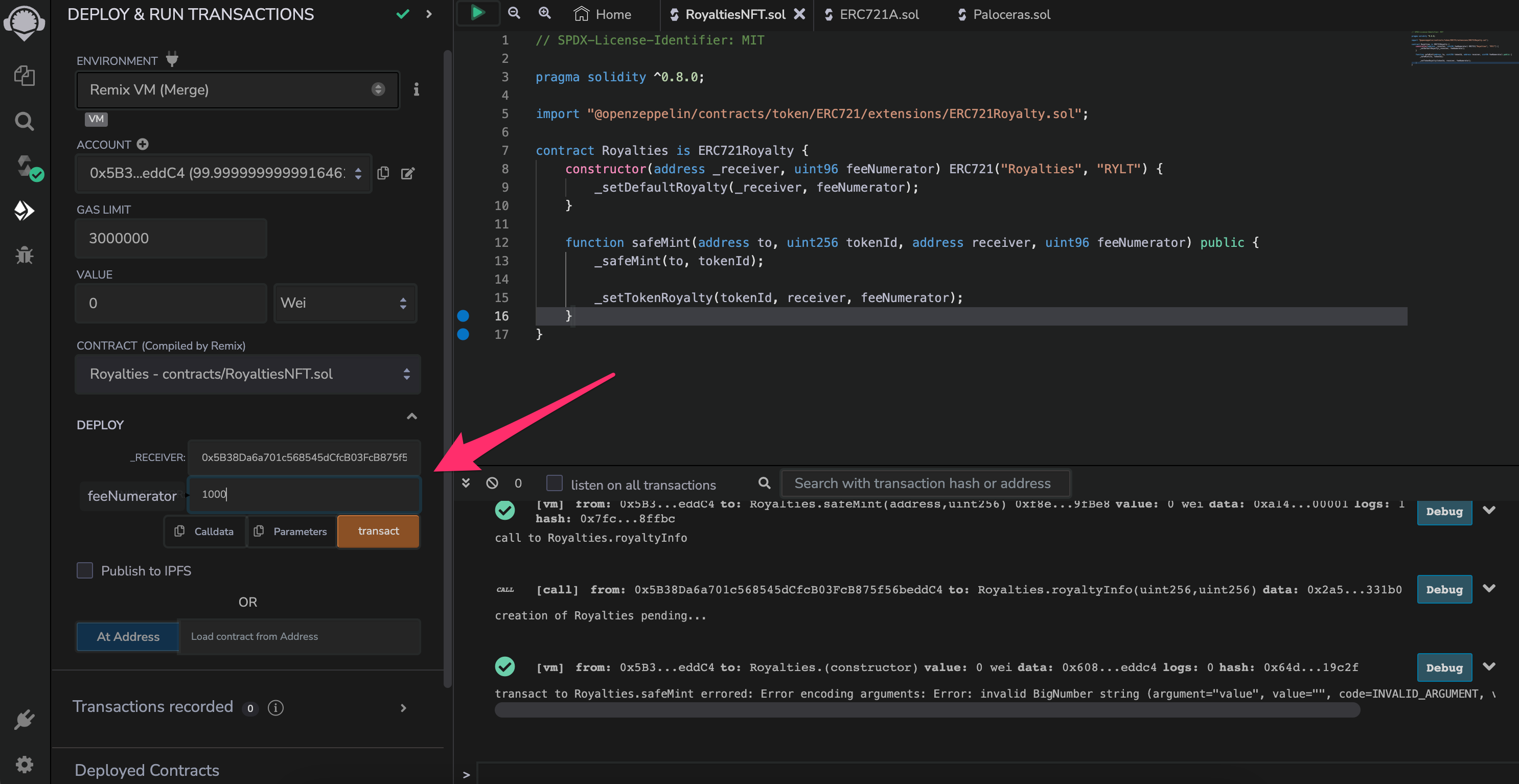
Now, all the NFT resales on marketplaces will require a royalty fee of 10% to be transferred to a creator.
## TL;DR
The NFT royalties enable creators to earn royalties on the secondary market sales of their NFTs, similar to how artists and musicians receive royalties when their work is resold.
ERC-2981 is a standard for NFTs that specifies how creators of NFTs can receive a percentage of any future sales or transfers of their NFTs.
The OpenZeppelin ERC721Royalty extension makes adding royalty functionality to your NFTs smart contracts easy.
## Links
* [Sample code](https://gist.github.com/fassko/e8f7c2b8bb263f8337845126a757f6c0)
* [ERC-2981: NFT Royalty Standard](https://eips.ethereum.org/EIPS/eip-2981)
* [The ERC-2981 implementation by OpenZeppelin](https://docs.openzeppelin.com/contracts/4.x/api/token/common#ERC2981)
---
### Understanding the Signing Process of Solidity Transactions with Ethers.js
- URL: https://kristaps.me/blog/solidity-eip-712-sign-ethers-js/
- Date: 2023-02-27
- Tags: Solidity, web3, ethersjs
- Summary: In the previous [post](/blog/solidity-eip-712-sign-metamask/), we discussed meta transactions and the EIP-712 standard. This time we will check out how to sign the transaction with Ethers.js library and execute it in a smart contract. That means that the gas fee will be paid by someone else.
In the previous [post](/blog/solidity-eip-712-sign-metamask/), we discussed meta transactions and the EIP-712 standard. This time we will check out how to sign the transaction with Ethers.js library and execute it in a smart contract. That means that the gas fee will be paid by someone else.
## Package up the transaction
At first, we need to create a transaction and package it up with all the required components according to the EIP-712 standard. We need three main parts:
* define used types in the message;
* domain information to verify the transaction in the smart contract;
* transaction message that holds the data.
### Create an unsigned transaction
To create an unsigned transaction when calling a smart contract function, we need to use the `populateTransaction` [function](https://docs.ethers.org/v5/api/contract/contract/#contract-populateTransaction) from the EthersJS library. It returns an unsigned transaction that must be signed and submitted to the blockchain network.
Let's have a smart contract function that will set the current employee.
```solidity
struct EmployeeData {
uint256 employeeId;
string employeeName;
}
EmployeeData private currentEmployee;
function set(uint256 id, string memory name) external {
currentEmployee = EmployeeData(id, name);
}
```
When creating the transaction, we need to provide all the function parameters and execute it.
```solidity
const transaction = await employee.populateTransaction.set(1, 'John');
```
It will return a transaction object that contains data which is a function signature, `from` address, `to` smart contract address and gas limit. We are primarily interested in the function signature that is a hex value. In the beginning, is the hashed function name followed by all the parameter values.
```javascript
{
data: '0x64371977...00',
to: '0x5FbDB2315678afecb367f032d93F642f64180aa3',
from: '0xf39Fd6e51aad88F6F4ce6aB8827279cffFb92266',
gasLimit: BigNumber { value: "29022232" }
}
```
### Putting together the message
Let's start with the types object, which has only three parts:
* nonce to avoid duplicate transactions;
* from the address that is the signer of the transaction;
* function signature, which we already create.
```javascript
const types = {
"MetaTransaction": [
{
"name": "nonce",
"type": "uint256"
},
{
"name": "from",
"type": "address"
},
{
"name": "functionSignature",
"type": "bytes"
}
]
};
```
Next is the domain object, which has several parts defined:
* name of the domain to differ transaction in another smart contract;
* the EIP-712 standard version, which in our case will be 1;
* verifying smart contract address that we can get from the unsigned transaction;
* `salt` is the chain id hex value padded with `0` until its length is 64 chars and starts with `0x`.
```javascript
const salt = ethers.utils.hexZeroPad(ethers.utils.hexValue(network.config.chainId ?? 0), 32);
const domain = {
name: "Employee",
version: "1",
verifyingContract: transaction.to,
salt: salt
};
```
Finally, we can create the message object, but first, we need to get the nonce from the blockchain smart contract. To do that, we need to pass in the signer's address. By using a nonce, we are avoiding a situation of duplicate transactions.
```javascript
const nonce = await employee.getNonce(signer.address);
```
The message object has three parts:
* the nonce that is provided by the smart contract;
* `from` address which is the signer address;
* function signature that we got previously from the unsigned transaction.
```javascript
const message = {
"nonce": nonce,
"from": signer.address,
"functionSignature": transaction.data ?? ''
};
```
## Sign the transaction
We can sign the transaction now that we have all the needed parts defined in the EIP-712 standard, which describes how types are structured and hashed.
The Ethers.js library has a function `_signTypedData` that signs the data according to the EIP-712 specification. It is still an experimental function and will be renamed without the underscore, but many projects are using it in production already.
```javascript
const signature = await signer._signTypedData(domain, types, message);
```
### Verify the signature
As a result, we get a hashed signature from which we can get the signer and see that it is correct. The Ethers.js library has a utility function, `verifyTypedData` that verifies the transaction data and signature. In return, we get the signer wallet address.
```javascript
const signerAddress = ethers.utils.verifyTypedData(
domain,
types,
message,
signature
);
```
We have signed the transaction, and it is ready to be sent to the blockchain and executed by another wallet holder. That means our users don't need to pay the gas fees, but we can pay and execute transaction behalf of them. We will look at how to do that in one of the upcoming posts.
## TL;DR
Signing a transaction according to the EIP-712 standard with the Ethers JS library is straightforward. Thankfully, this JavaScript library supports it and can be used right now. There are three steps - create a function signature, construct the transaction, and sign it. After that, it can be sent to the smart contract, and the gas fee can be paid by someone else.
This is how agents authorize spend in the EIP-3009 x402 flow. For the Flare weather API I used an HTTP 402 pre-check and `transferFrom` instead: [What is x402?](/blog/x402-ai-agent-stablecoin-payments/).
## Links
* [Sample code](https://github.com/fassko/meta-transactions)
* [Ethers.js - Signing EIP712 Typed Structs](https://dev.to/zemse/ethersjs-signing-eip712-typed-structs-2ph8)
* [Ethers.js Signers documentation](https://docs.ethers.org/v5/api/signer/#signers)
* [EIP-712: Typed structured data hashing and signing standard](https://eips.ethereum.org/EIPS/eip-712)
---
### What are meta transactions, the EIP-712 standard, and how to sign a message with Metamask?
- URL: https://kristaps.me/blog/solidity-eip-712-sign-metamask/
- Date: 2023-01-28
- Tags: Solidity, web3, Metamask
- Summary: Meta transactions in Ethereum blockchain is an approach that removes the complexity for our users to deal with gas fees. The gas fee is a transaction fee paid to validators for proof of stake (POS) or miners for proof of work (POW) blockchains. With this approach, users sign a transaction, which is sent to a smart contract. It keeps all the security aspects upon which the Ethereum blockchain was created. This article will examine the EIP-712 standard and how to sign transactions with Metamask.
Meta transactions in Ethereum blockchain is an approach that removes the complexity for our users to deal with gas fees. The gas fee is a transaction fee paid to validators for proof of stake (POS) or miners for proof of work (POW) blockchains. With this approach, users sign a transaction, which is sent to a smart contract. It keeps all the security aspects upon which the Ethereum blockchain was created. This article will examine the EIP-712 standard and how to sign transactions with Metamask.
## What is EIP-712 standard?
EIP-712 standard describes how data is structured, hashed, and signed. Signing a transaction has been around in crypto wallets like Metamask, but this approach aims to display that in a much more human-readable way that users can understand and review before signing.
### Structure a typed data
The EIP-712 states how the typed data should be structured in a JSON document. Let's go over the main parts of it.
At first, we need to describe what the types would look like. It always starts describing the `EIP712Domain` type and follows with types that will be presented when signing.
Let's say we would like to add a new employee. That means we must introduce an `Employee` type with an inner `Address` type.
```javascript
types: {
EIP712Domain: [
{
name: "name",
type: "string"
},
{
name: "version",
type: "string"
},
{
name: "verifyingContract",
type: "address"
},
{
name: "salt",
type: "bytes32"
}
],
Employee: [
{ name: 'id', type: "uint256" },
{ name: 'name', type: 'string' },
{ name: 'address', type: 'Address' }
],
Address: [
{ name: 'address', type: "string" },
{ name: 'country', type: "string" },
{ name: 'phoneNumber', type: "string" }
]
}
```
After that, we should pass on information about the domain specifics.
Let's go over the fields:
* `name` is the smart contract name that this message will be sent to;
* `version` will always be `1`;
* `verifyingContract` is the smart contract address whose name is in `name` field;
* `salt` is the chain id in hex format that you can find the chain id from [chainlist.org](https://chainlist.org/).
```javascript
domain: {
name: "AddEmployee",
version: "1",
verifyingContract: "0x5FbDB2315678afecb367f032d93F642f64180aa3",
salt: "0x0...05"
}
```
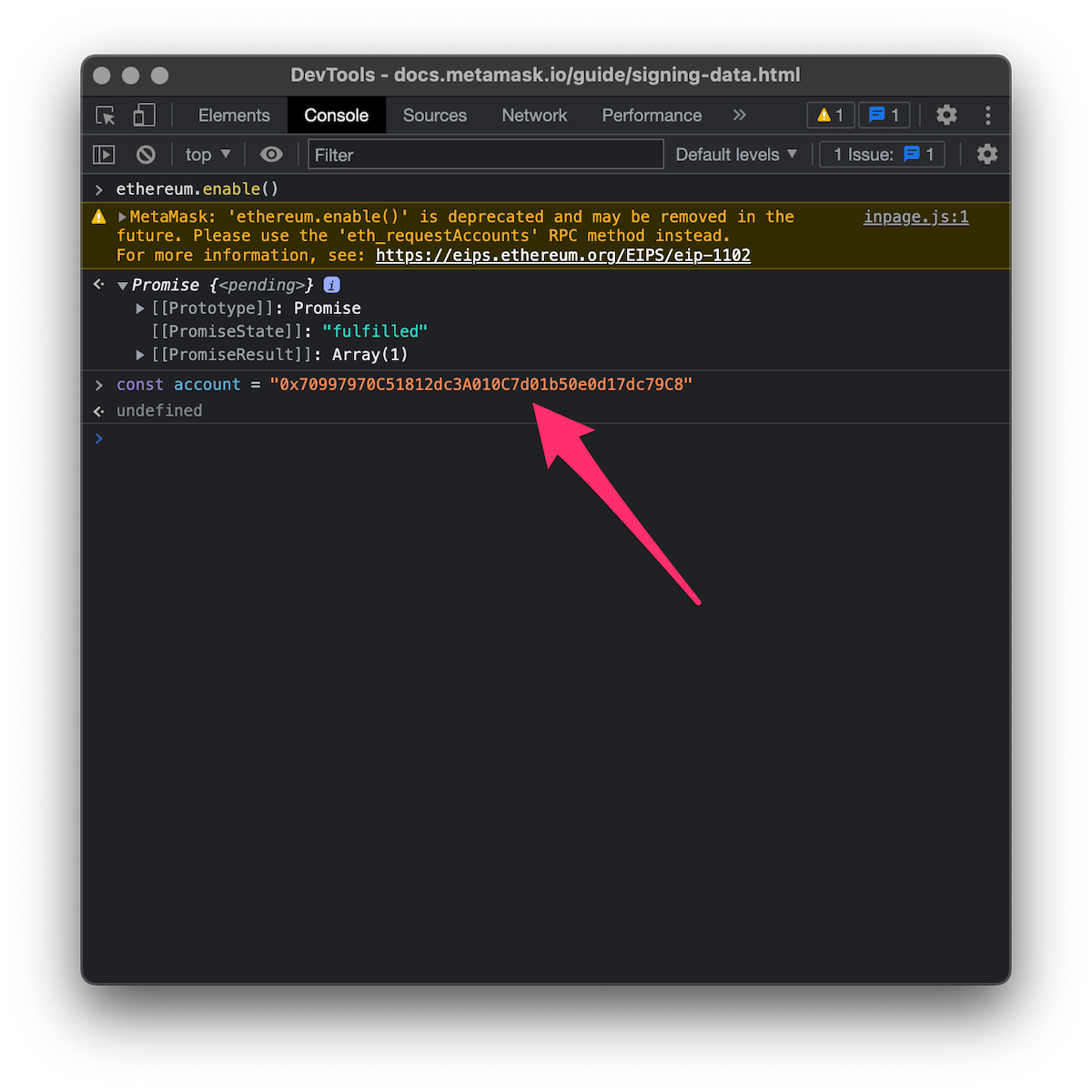
After that, we will use the JSON data object we constructed according to the EIP-712 standard and save it in a variable.
```javascript
const msgData = JSON.stringify({
types: {
EIP712Domain: [
{
name: "name",
type: "string"
},
{
name: "version",
type: "string"
},
{
name: "verifyingContract",
type: "address"
},
{
name: "salt",
type: "bytes32"
}
],
Employee: [
{ name: 'id', type: "uint256" },
{ name: 'name', type: 'string' },
{ name: 'address', type: 'Address' }
],
Address: [
{ name: 'address', type: "string" },
{ name: 'country', type: "string" },
{ name: 'phoneNumber', type: "string" }
]
},
domain: {
name: "AddEmployee",
version: "1",
verifyingContract: "0x5FbDB2315678afecb367f032d93F642f64180aa3",
salt:
"0x0...05"
},
primaryType: "Employee",
message: {
id: 1111,
name: "John",
address: {
address: 'Infinity Loop 1',
country: 'USA',
phoneNumber: '+123456789'
}
}
});
```
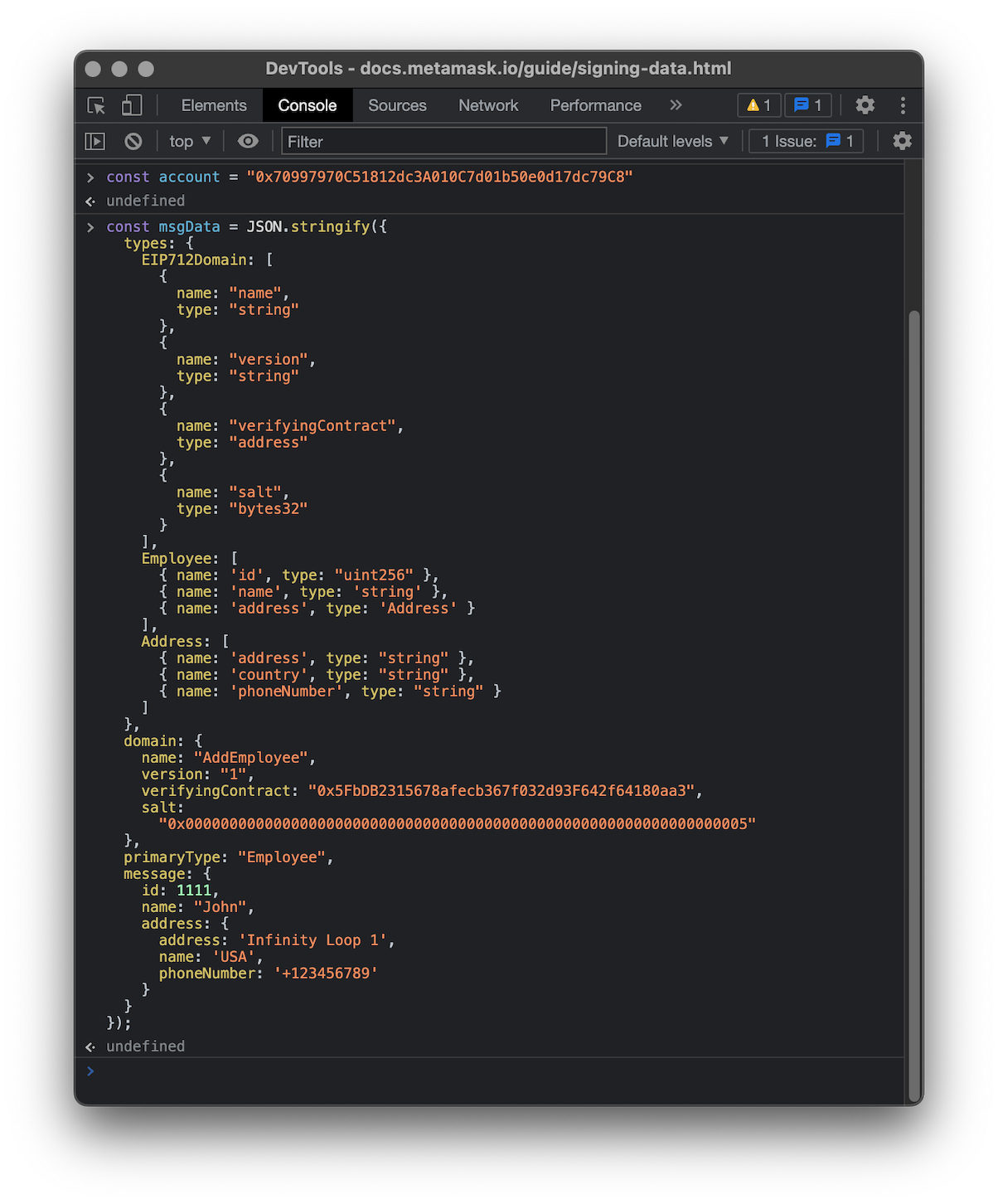
Now, we can finally sign the message by executing the `eth_signTypedData_v4` method.
```javascript
ethereum.request({method: "eth_signTypedData_v4", params: [account, msgData]})
```
Then Metamask will show the message data. We can once again verify if it is correct and sign it.
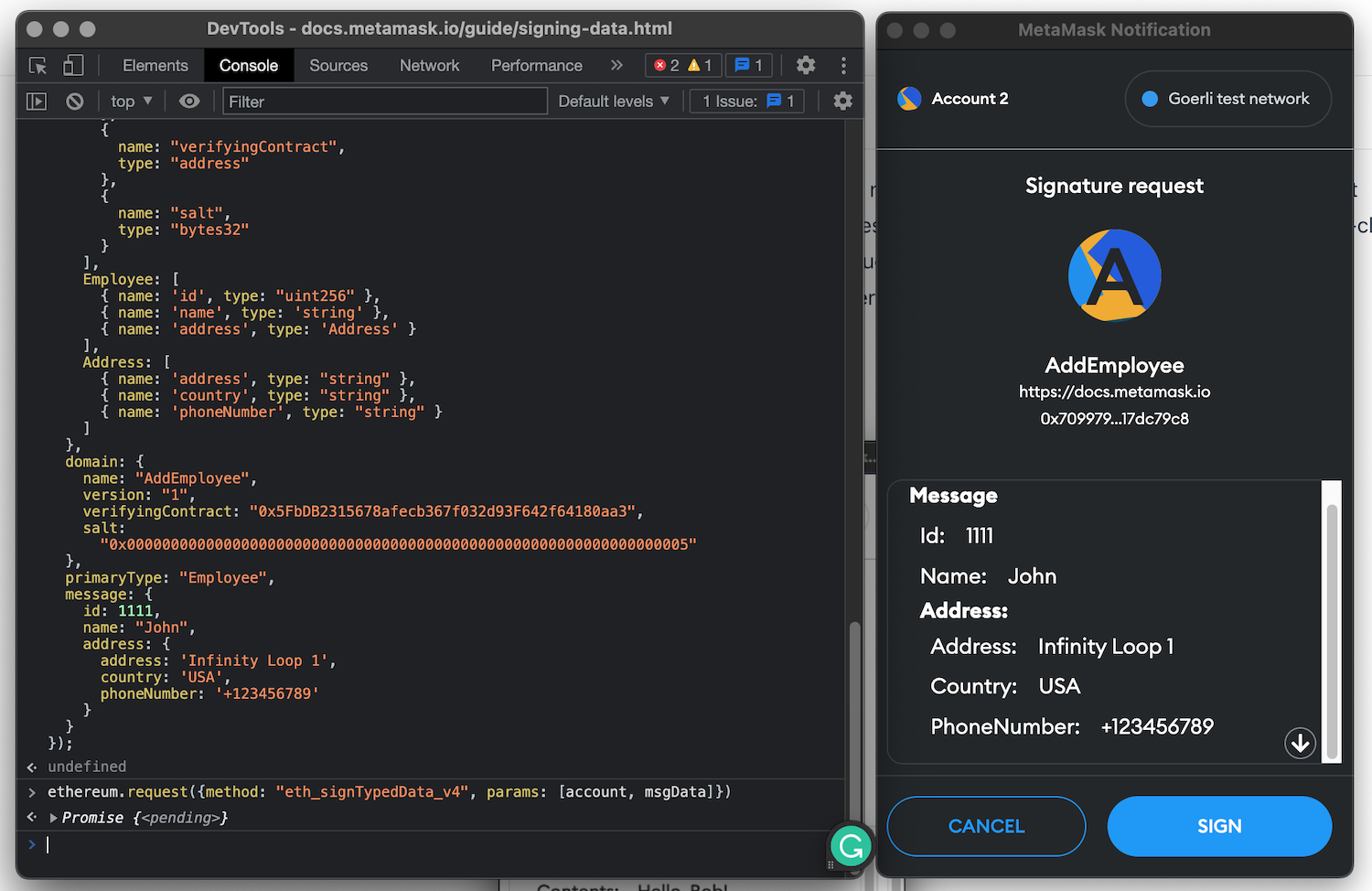
After we hit the sign button, we return the message hash that we can use in the smart contract.
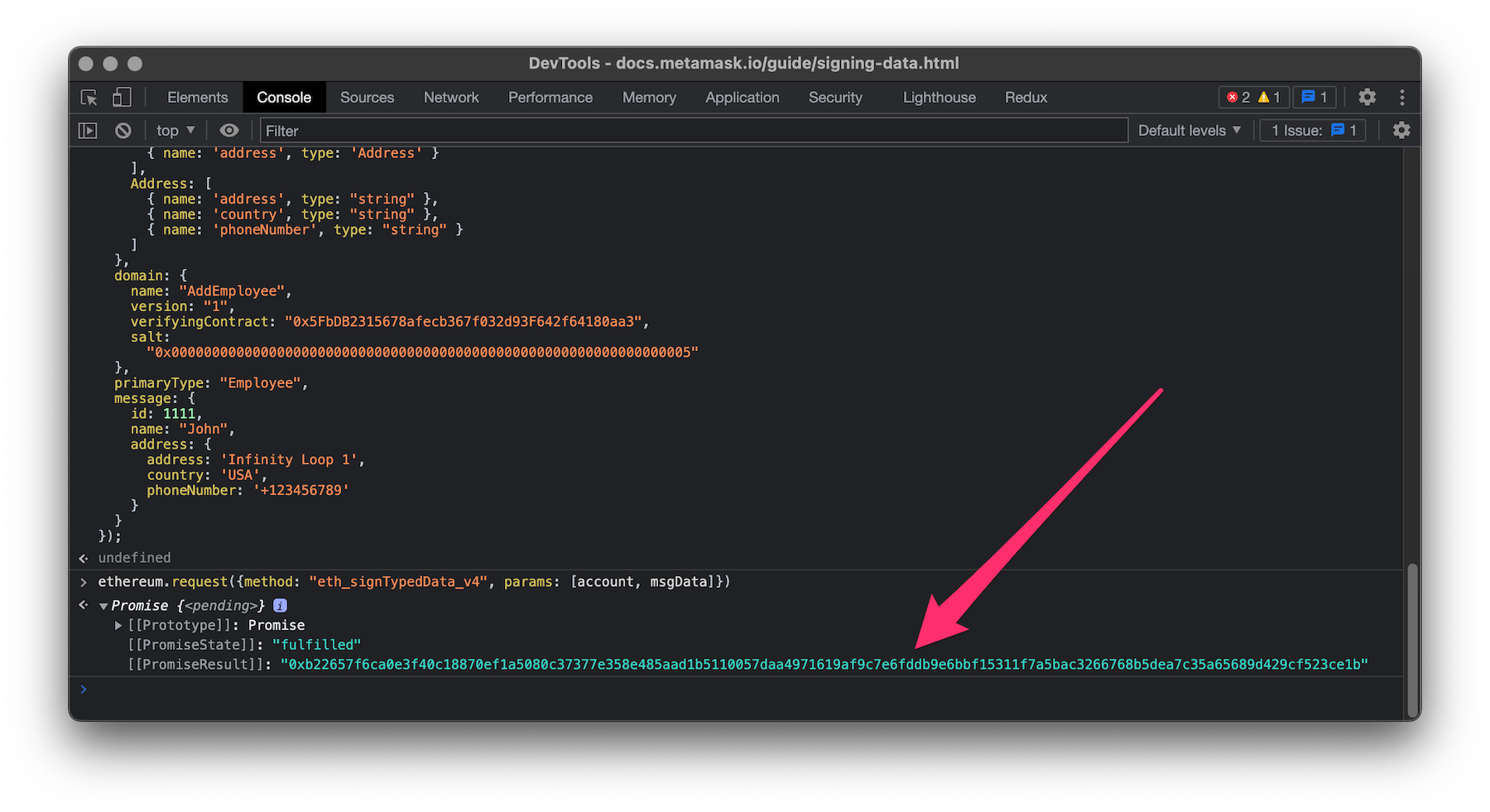
This data can be used on behalf of the signer to execute a smart contract on the blockchain, which we will look into in the next post.
## TL;DR
The EIP-712 standard opens doors to sign a transaction and allows someone else to use this transaction. It helps to implement gasless transactions to avoid our users paying the gas fee and figuring out how to get native tokens like Ethereum, Matic, and others. This standard describes how to format the message in human-readable form in a crypto wallet like Metamask when a user signs it. After it is signed, we can use this signed transaction in a smart contract, but more on that in one of the following blog posts.
That signing step is how gasless x402 works on Flare (EIP-3009 `transferWithAuthorization`). The weather-insurance agent I shipped uses `approve` plus `transferFrom` instead, because the fee has to be atomic with the gated call. Write-up: [What is x402?](/blog/x402-ai-agent-stablecoin-payments/).
## Links
* [EIP-712: Typed structured data hashing and signing](https://eips.ethereum.org/EIPS/eip-712)
* [Signing Data with Metamask](https://docs.metamask.io/guide/signing-data.html#signtypeddata-v4)
* [EIP712 is here: What to expect and how to use it](https://medium.com/metamask/eip712-is-coming-what-to-expect-and-how-to-use-it-bb92fd1a7a26)
* [Meta-Transactions](https://blog.smlxl.io/meta-transactions-28047138ef6d)
---
### What are an NFT and the ERC-721 standard?
- URL: https://kristaps.me/blog/solidity-erc-721/
- Date: 2022-12-30
- Tags: Solidity, web3, ERC721
- Summary: The non-fungible tokens, or in short NFTs, have one the most influential roles in the crypto and Web3 scene. These are digital assets that can represent digital art, virtual collectibles, assets in games, and more. Ethereum Foundation introduced the ERC-721 standard in 2017, which helped all the crypto wallets, brokers, and protocols to use this feature in a translatable way between any crypto solution. In this post, we will look more deeply into the ERC-721 standard and explore how it is used in the Solidity programming language for the Ethereum blockchain.
The non-fungible tokens, or in short NFTs, have one the most influential roles in the crypto and Web3 scene. These are digital assets that can represent digital art, virtual collectibles, assets in games, and more. Ethereum Foundation introduced the ERC-721 standard in 2017, which helped all the crypto wallets, brokers, and protocols to use this feature in a translatable way between any crypto solution. In this post, we will look more deeply into the ERC-721 standard and explore how it is used in the Solidity programming language for the Ethereum blockchain.
## What is an NFT?
Non-fungible tokens represent unique assets that can't be exchanged, copied, substituted, or divided. Each token has a unique identifier. Therefore, we can see who owns what.
An NFT can represent but is not limited to:
* digital work of art;
* virtual collectibles;
* digital assets in games;
* ownership rights, for instance, to a real estate;
* tickets that have unique data like seating place;
* negative loan like a mortgage.
NFTs are like humans - there are no two people the same.
## The ERC-721?
To represent an NFT, the Ethereum foundation has implemented it with an ERC-721 token standard. This standard describes a table of who owns what. The standardized approach helps crypto wallets, brokers, and auctions to work with NFTs on Ethereum and other EVM blockchains. The ERC-721 standard was launched in 2017 and authored by William Entriken, Dieter Shirley, Jacob Evans, and Nastassia Sachs. I met William Entriken at one of the NFT conferences.
### Functions
There are several functions defined in the ERC-721 standard. Let's look at the most important ones separately.
#### Ownewrship functions
These functions describe ownership rights.
* `balanceOf(address _owner)` returns a number of NFTS owned by `_owner` address;
* `ownerOf(uint256 _tokenId)` returns an owner who owns token with the `_tokenId` identifier;
#### Transfer functions
These functions help to transfer a token.
* `safeTransferFrom(address _from, address _to, uint256 _tokenId)` transfers the token with the `tokenId` identifier from the `_from` address to the `_to` address checking that recipient is aware of the ERC-721 standard;
* `safeTransferFrom(address _from, address _to, uint256 _tokenId, bytes data)` similar to the function above with the option to send `data` to the to `_to` in a call, can be useful to send additional data;
* `approve(address _approved, uint256 _tokenId)` gives rights to the `_approved` to transfer the token with the `_tokenId` identifier;
* `getApproved(uint256 _tokenId)` returns the wallet address approved to transfer the token with `_tokenId` identifier;
* `setApprovalForAll(address _operator, bool _approved)` approve or remove approval for all the `msg.sender` assets to `_operator`;
* `isApprovedForAll(address _owner, address _operator)` cheks if the `_operator` address has rights for the `_owner` assets.
### Events
Events help to notify about changes with an NFT. For instance, the web frontend can be updated.
`Transfer(address indexed _from, address indexed _to, uint256 indexed _tokenId)` emits when the token with the `_tokenId` identifier is transfered from the `_from` to the `_to`.
`Approval(address indexed _owner, address indexed _approved, uint256 indexed _tokenId)` emits when approval rights are given to the `_approved` to the token with the `_tokenId' identifier by the `_owner` who has ownership rights;
`ApprovalForAll(address indexed _owner, address indexed _operator, bool _approved)` emits when `_owner` gives or removes rights to the `_operator` for their assets.
## Metadata extension
A commonly used ERC-721 extension describes metadata in a JSON format. It represents information about a token, like a name, symbol, and token URI. Using this extension, crypto wallets can ask for the information using three functions:
* `function name() external view returns (string _name)` returns a descriptive name;
* `function symbol() external view returns (string _symbol)` returns token symbol;
* `function tokenURI(uint256 _tokenId) external view returns (string)` returns URL to JSON file that describes the NFT. Usually, this is stored on IPFS.
The token URI points to a JSON file that conforms to the ERC721 Metadata JSON Schema:
```json
{
"title": "Asset Metadata",
"type": "object",
"properties": {
"name": {
"type": "string",
"description": "Identifies the asset to which this NFT represents"
},
"description": {
"type": "string",
"description": "Describes the asset to which this NFT represents"
},
"image": {
"type": "string",
"description": "A URI pointing to a resource with mime type image representing the asset to which this NFT represents. "
}
}
}
```
If you're unfamiliar with IPFS file storage, we will discuss that in one of the following posts.
## Putting it all together
The most straightforward way to implement NFTs is to use the OpenZepplin contracts suite that includes the `ERC721` and `ERC721URIStorage` contracts. It fully conforms to the ERC-721 and metadata extension standard.
Let's build an NFT ticketing smart contract.
First, we must import OpenZepplin ERC-721 contract implementations and conform our smart contract to it.
```solidity
import "@openzeppelin/contracts/token/ERC721/ERC721.sol";
import "@openzeppelin/contracts/token/ERC721/extensions/ERC721URIStorage.sol";
contract Ticket is ERC721URIStorage {
/// ...
}
```
At first, we need to define the NFT name and symbol. To do that, we pass the event name and description to smart contract the constructor.
```solidity
constructor(
string memory eventName,
string memory shortName
) ERC721(eventName, shortName) {
// initializes the NFT storage
}
```
We can now start minting NFTs because the OpenZepplin hides away all the nitty gritty implementation details.
```solidity
function createTicket(address visitor, string memory tokenURI) external {
tokenId++;
// mint the NFT and assign to the visitor address
_mint(visitor, tokenId);
// set the token JSON file link that was uploaded to the IPFS
_setTokenURI(tokenId, tokenURI);
console.log(tokenId);
}
```
All the ERC-721 functions discussed above come *for free* with the OpenZepplin contracts.
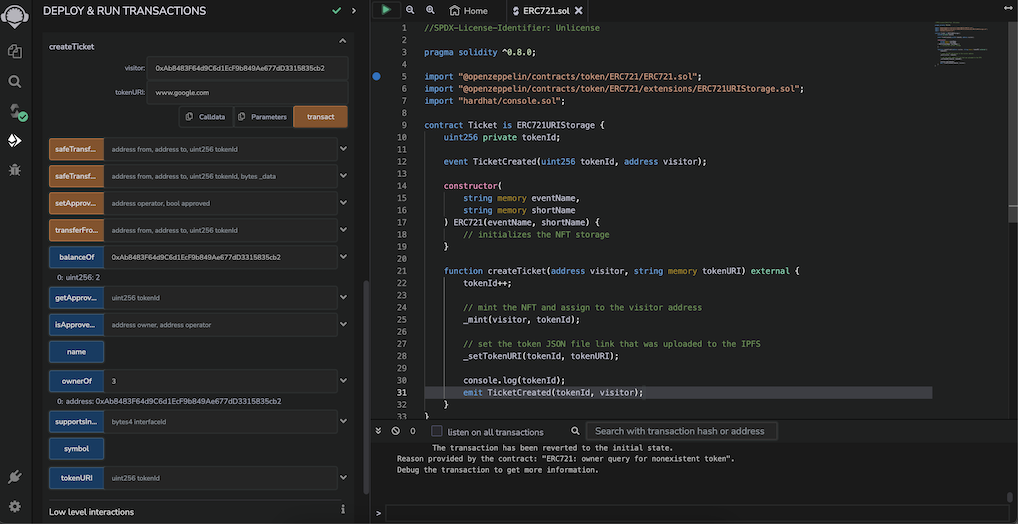
## TL;DR
The non-fungible tokens, or NFTs, differ much from regular ERC-20 tokens. They describe uniqueness. Remember what we discussed at the beginning of this post - NFTs are like humans. Or let me call it differently this time - NFTs are like kitties - there are no two kitties alike. The most commonly used standard that defines NFTs is ERC-721, with metadata extension. It helps to attach metadata to the token, like images which is the most used feature in the crypto world.
## Links
* [Sample code](https://gist.github.com/fassko/5e2e60ce4625f53e82c1bd7d5c379722)
* [EIP-721: Non-Fungible Token Standard](https://eips.ethereum.org/EIPS/eip-721)
* [What is ERC-721? The Ethereum NFT Token Standard](https://decrypt.co/resources/erc-721-ethereum-nft-token-standard)
* [How to create and deploy an ERC-721 (NFT)](https://www.quicknode.com/guides/smart-contract-development/how-to-create-and-deploy-an-erc-721-nft)
* [ERC721 by OpenZepplin](https://docs.openzeppelin.com/contracts/3.x/erc721)
---
### How do Bytes live in Solidity and coexist with Strings?
- URL: https://kristaps.me/blog/solidity-bytes/
- Date: 2022-11-22
- Tags: Solidity, web3, bytes
- Summary: Bytes and Strings have a special place in the Solidity programming language. Both of these types work quite similarly yet differently. Even bytes have two kinds of ways - fixed or dynamic size. Bytes and strings can be converted and vice versa according to our needs to work with them. Let's look more profound in this blog post.
Bytes and Strings have a special place in the Solidity programming language. Both of these types work quite similarly yet differently. Even bytes have two kinds of ways - fixed or dynamic size. Bytes and strings can be converted and vice versa according to our needs to work with them. Let's look more profound in this blog post.
## The fixed size byte array
If we know the size of the bytes we want to store, the best approach is to use the fixed size byte array type. Solidity language allows storing from 1 to 32 bytes in a sequence. Using a known upfront size to store bytes costs much cheaper in terms of gas fees.
To initialize a fixed size byte array, we need to specify the size of how many bytes we would like to store.
```solidity
bytes1 b1 = hex"41";
```
Bytes can be initialized with either a hex string `hex"41"` or a hex value `0X41` which is the letter `A` according to ASCII.
Another important note is that fixed size bytes can be passed between smart contracts in the Solidity programming language.
## The dynamic size byte array
Dynamic size byte array can hold a variable count of bytes.
It is possible to get back the index of bytes which is not the case for string type.
```solidity
function dynamicBytesMemoryNew() external view returns(bytes memory) {
bytes memory _dynamicBytesMemoryNew = new bytes(200);
_dynamicBytesMemoryNew[0] = hex"41";
console.log(string(_dynamicBytesMemoryNew));
return _dynamicBytesMemoryNew;
}
```
There are several ways to allocate bytes in Solidity language in the memory.
### Dynamic size byte array in storage
When allocating dynamic bytes on storage, we need to provide the maximum size of how much we want that to hold.
```solidity
bytes _dynamicBytesStorage = new bytes(200);
```
If we allocate a dynamic size byte array in the storage, we can use the `pop` and `push` methods. Just keep in mind that it can be costly to do.
```solidity
function dynamicBytesStorage() external returns(bytes memory) {
_dynamicBytesStorage.push(hex"41");
console.log(string(_dynamicBytesStorage));
return _dynamicBytesStorage;
}
```
### Dynamic size byte array in memory
When allocating dynamic bytes array in the memory, we don't need to specify the size.
```solidity
function dynamicBytesMemory() external view returns(bytes memory) {
bytes memory _dynamicBytesMemory = hex"41";
console.log(string(_dynamicBytesMemory));
return _dynamicBytesMemory;
}
```
## Strings are bytes (almost)
String type in Solidity is almost like the dynamic array of bytes. It can hold an arbitrary length of data of characters.
This time we won't go more profound about this type but look at it in the context of bytes.
We can cast any string to bytes. That allows us to modify and read characters at the byte level. It means we need to handle characters at the ASCII level.
One critical note is that strings can't be passed between smart contracts. We need to head down to the bytes level for that. But it is doable to convert between these types.
### Converting to bytes
Converting a string to bytes is a straightforward task. We need to initialize bytes passing in the string type. In return, we get a dynamic array of bytes.
```solidity
bytes memory stringBytes = bytes("This is string");
```
If we want to convert to the `bytes32` type, we need to go to the assembly level and write the string on the memory.
```solidity
bytes32 result;
assembly {
result := mload(add("This is string", 32))
}
```
Keep in mind that we can write only up to 32 bytes.
### Converting from bytes
In Solidity language, we can convert back the string value to a dynamic size array of bytes. We can't convert to fixed string bytes because the string type has an unknown size.
```solidity
bytes memory bytesData = hex"41";
string memory stringData = string(bytesData);
```
## TL;DR
Bytes play a vital role in the Solidity programming language. It can hold any data in either fixed or dynamic size byte array. For instance, strings that are very similar to bytes but with limited functionality. Luckily converting between strings and bytes is doable with some minor caveats.
## Links
* [Sample code](https://gist.github.com/fassko/548c83158f4006c38e70e5dceed2a8cb)
* [Fixed length byte arrays](https://solang.readthedocs.io/en/latest/language/types.html#fixed-length-byte-arrays)
* [Dynamic length bytes](https://solang.readthedocs.io/en/latest/language/types.html#dynamic-length-bytes)
* [Solidity Tutorial : all about Bytes](https://jeancvllr.medium.com/solidity-tutorial-all-about-bytes-9d88fdb22676)
---
### Exploring ERC20 fungible token standard in Solidity
- URL: https://kristaps.me/blog/solidity-erc-20/
- Date: 2022-09-05
- Tags: Solidity, web3, ERC20
- Summary: This time let's talk about fungible tokens, one of the main building blocks in DeFi. These tokens can represent coins, gold, grain, and other assets that can be exchanged for them. We will look into one of the first Ethereum Improvement Proposal with number 20. This token standard is widely known as ERC20 and describes an interface for tokens within smart contracts. Functions like token transferring, approving spending, creating, and others are defined by this ERC20 standard.
This time let's talk about fungible tokens, one of the main building blocks in DeFi. These tokens can represent coins, gold, grain, and other assets that can be exchanged for them. We will look into one of the first Ethereum Improvement Proposal with number 20. This token standard is widely known as ERC20 and describes an interface for tokens within smart contracts. Functions like token transferring, approving spending, creating, and others are defined by this ERC20 standard.
To illustrate the ERC20 standard in code, we will use [OpenZepplin ERC20](https://docs.openzeppelin.com/contracts/4.x/erc20) implementation.
## Minting and burning
There are two main actions with total token supply. We can use either mint or burn them. Minting means creating more supply, and burning means decreasing supply once we need to do so.
### Minting
To create a token supply, we need to mint this amount. When we are minting behind, the scenes caller that calls this function receives provided amount of tokens.
Let's create a smart contract that would act as an ERC20 token. In the constructor, we need to provide the total token supply and call OpenZepplin's `ERC20` implementation constructor, providing the token name and symbol.
```solidity
contract FungibleToken is ERC20 {
constructor(uint256 totalSupply) ERC20("MyBestToken", "BTKN") {
_mint(msg.sender, totalSupply);
}
```
When we want to deploy this contract, we should provide the `totalSupply`. I want to mention that we are using [Remix development IDE](https://remix-project.org/).
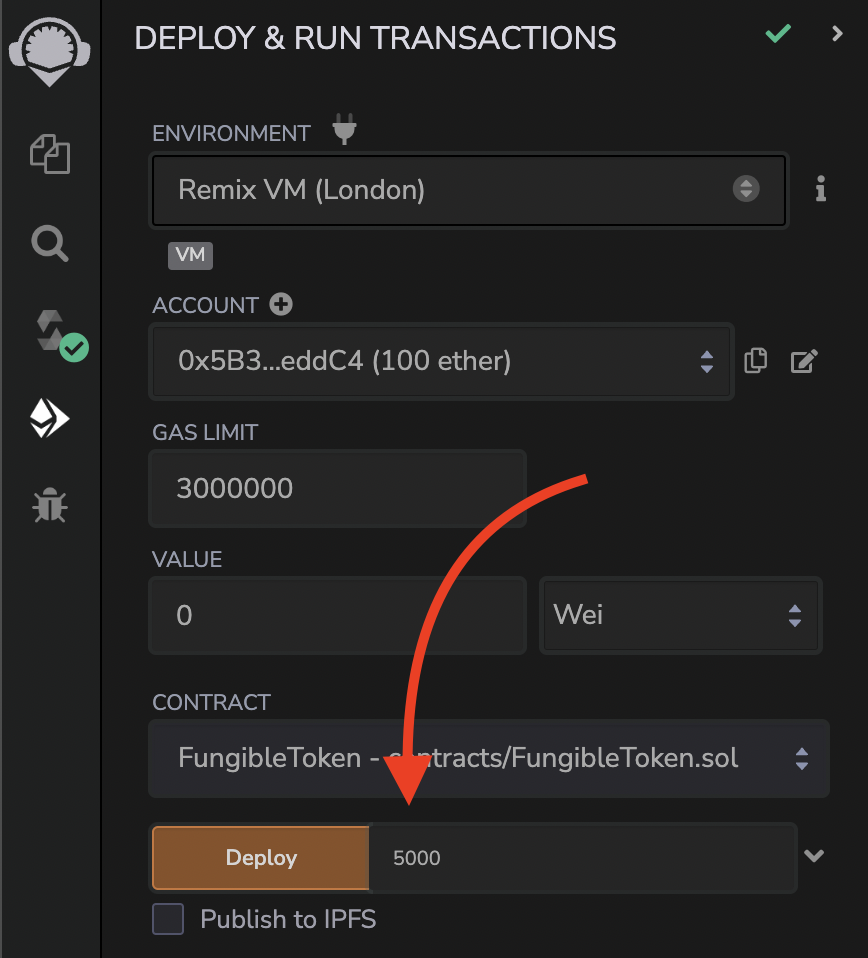
We can issue more tokens if that is needed by minting more.
### Burning
When we need to decrease the value of total tokens available in circulation, we can burn them. Token burning means that we send a specific number of tokens to zero address `0x0000000000000000000000000000000000000000`, and it is locked forever because nobody has an access to this address.
```solidity
function burn(uint256 burnAmount) external {
_burn(msg.sender, burnAmount);
}
```
To burn tokens, we need to pass the address that is the same that minted the tokens and the amount we want to burn.
## Utility functions
A couple of utility functions from the ERC20 standard helps us to find token information and balances.
### Token information
Once the smart contract is deployed on the chain, anyone can see the name, symbol, and decimals. The only thing that is needed is the token smart contract address.
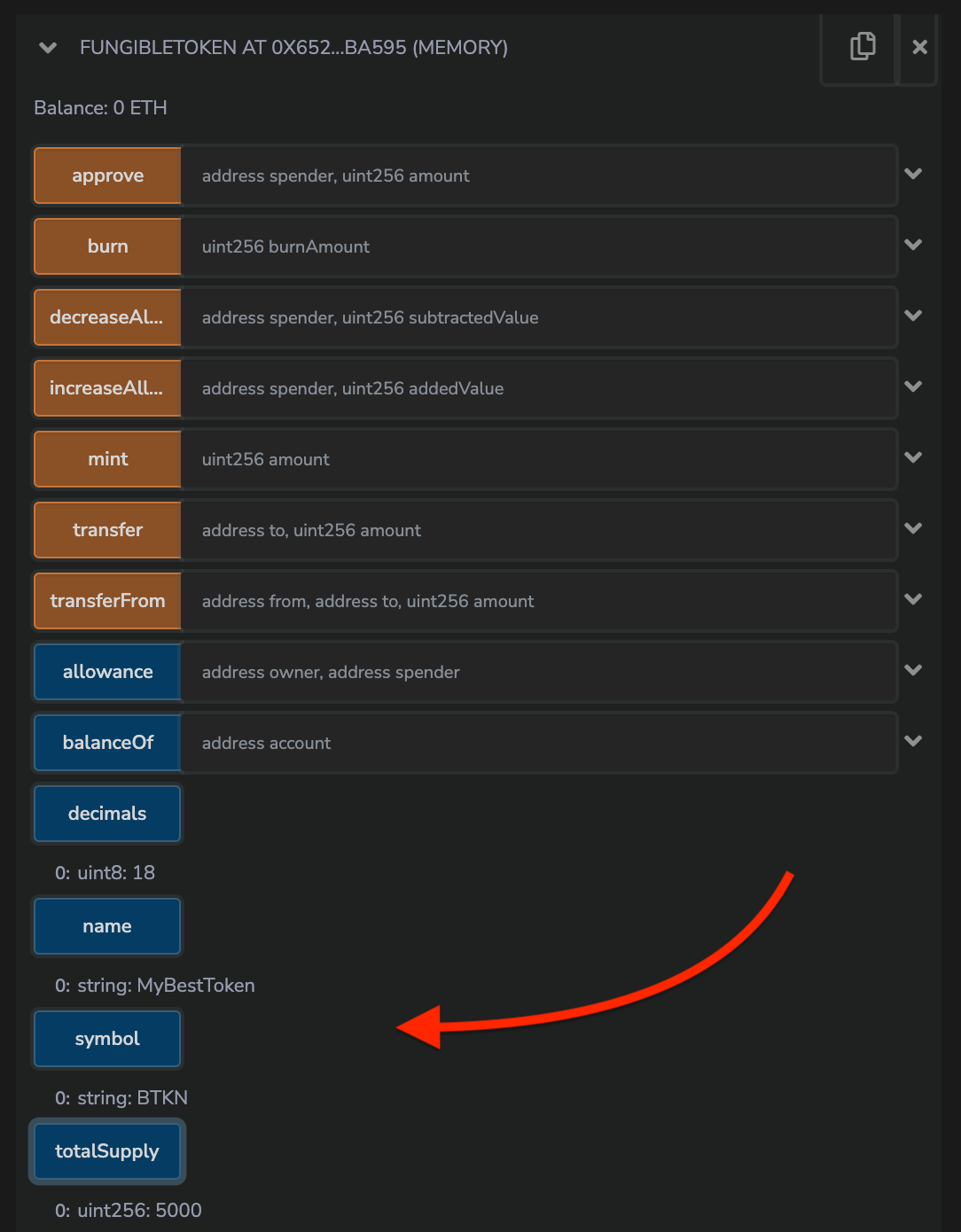
### Balances
ERC20 standard, in essence, holds the mapping of addresses and the amount it has. It means that at any given time, we can ask balance of the specific address. It is publicly visible and accessible. Of course, we don't know who is behind this address, nor can we change the amount.
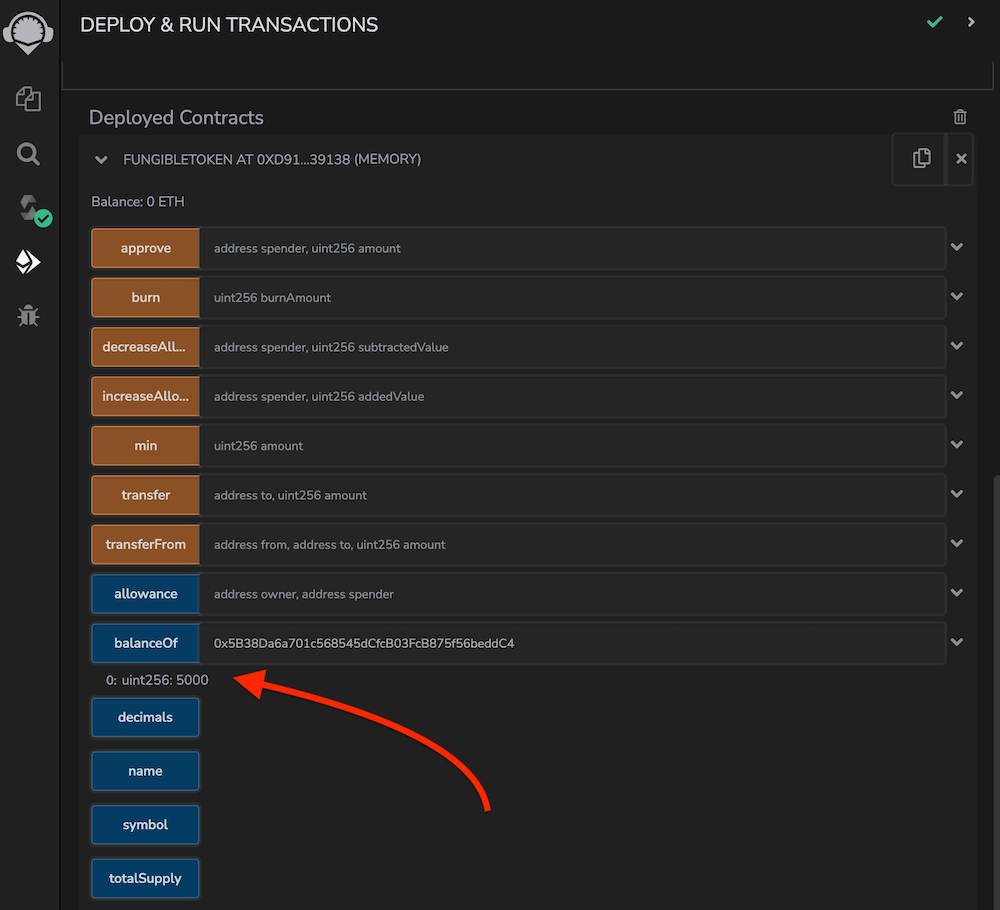
Behind the scenes, the ERC20 OpenZepplin standard keeps balances in a mapping where the key is an address, and the value is `uint256`. No magic at all.
```solidity
mapping(address => uint256) private _balances;
```
## Transfers
I lied a bit when I told you that we couldn't change the amount of tokens that an address holds. We can transfer tokens to an address or give transfer rights to an address. Transfer rights mean we give rights to another address to spend a concrete amount of tokens on our behalf.
### Transfer tokens
Once we hold an amount of ERC20 tokens, we can send it not exceeding the total amount to any address. That also includes zero address `0x0000000000000000000000000000000000000000` which technically means burning.
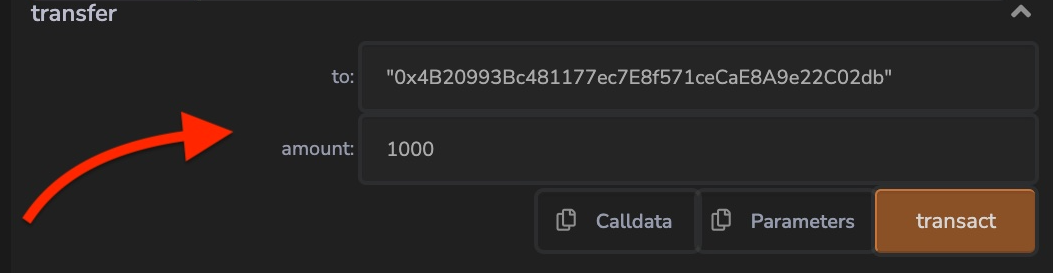
In the ERC20 implementation, it is described that once we transfer tokens, amount we send is deducted from our balance and increased for the address we send it to. It checks if we have enough tokens to transfer and if we're not exceeding our balance. Remember, we are constantly working with the token amount balance sheet.
### Transfer tokens on behalf
Giving transfer rights to someone else might sound complicated, but it is widely used in DeFi, where we provide Ethereum smart contract rights to operate with our tokens. For instance, smart contract swaps tokens put them in a liquidity pool, or we want to take a loan providing collateral for our tokens.
First, we need to give the rights to an address and provide what will be the maximum amount that it can operate with. ERC20 implementation will also check if we are not exceeding available tokens and reserve token allowance in internal mapping.
```solidity
mapping(address => mapping(address => uint256)) private _allowances;
```
This mapping key is the address of the token holder. Then the value is another mapping where the key is the spender address and amount allowed to spend.
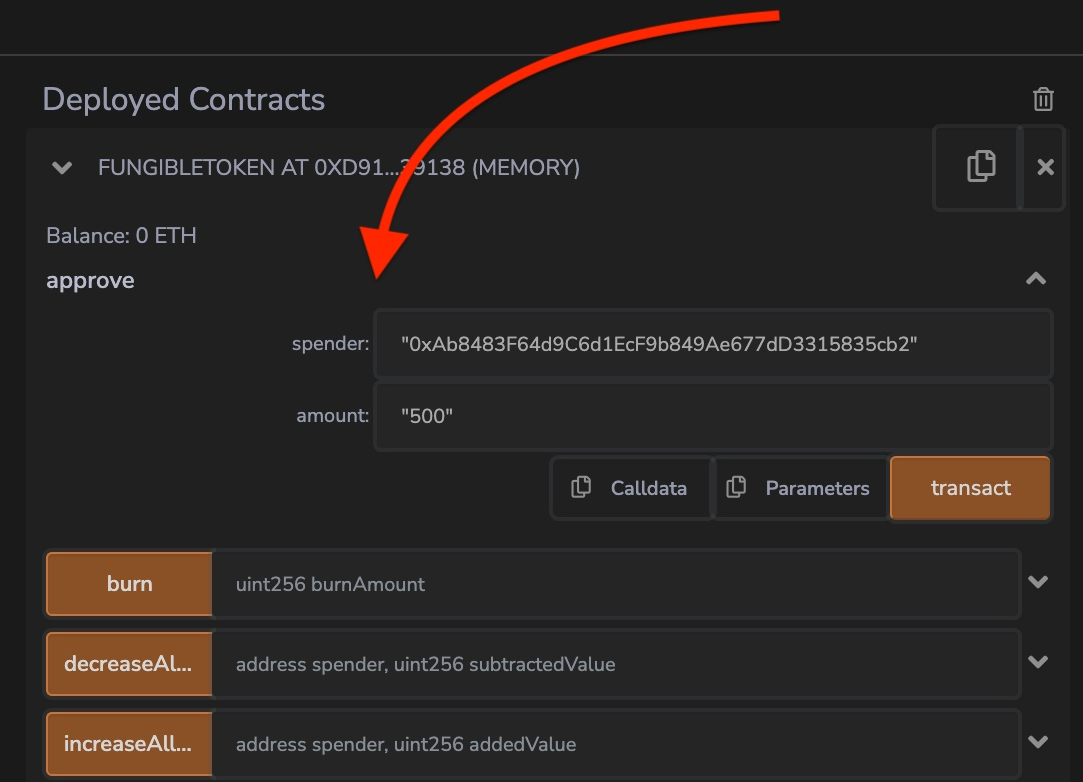
After giving spending rights, we can decrease or increase the allowance for the spender.
Now the spender can send our reserved token amount to any other address providing the token holder address, address sending to, and token amount to be transferred.
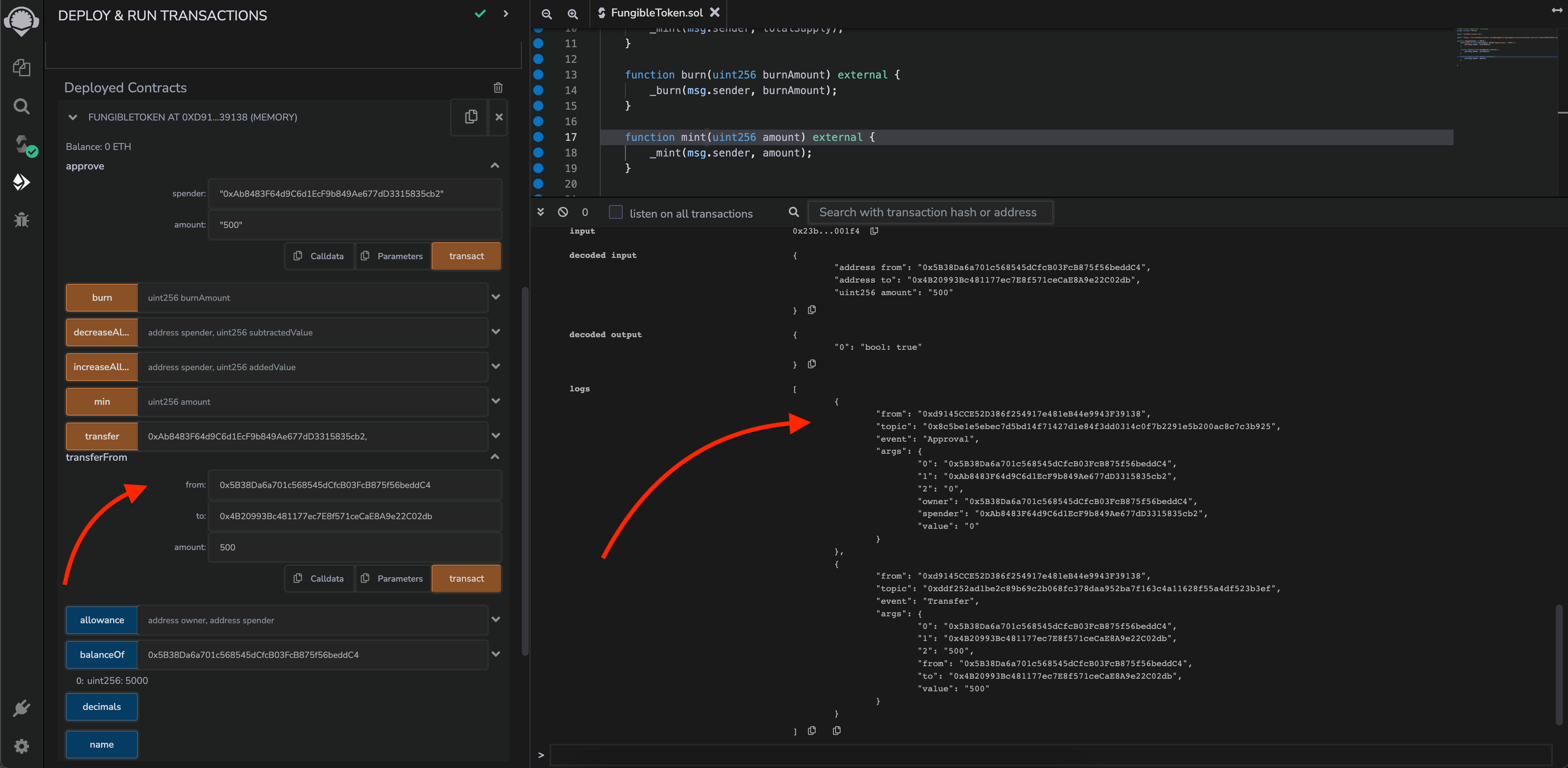
In the ERC20 standard implementation, allowances and balances are being changed accordingly. The spender allowance is decreased by the provided token amount, and the receiver's balance is increased.
## TL;DR
ERC20 is one of the first standards within Ethereum Improvement proposals. It describes a smart contract that holds fungible token balances and transfers between addresses. It also talks about additional features like allowing to spend on behalf of the token holder. It is the gold standard for tokens on EVM chains.
## Links
* [Sample code](https://gist.github.com/fassko/9a25b7249394cf20625d705364ff469b)
* [EIP-20: Token Standard](https://eips.ethereum.org/EIPS/eip-20)
* [ERC-20 - Ethereum documentation](https://ethereum.org/en/developers/docs/standards/tokens/erc-20/)
* [ERC-20 by Investopedia](https://www.investopedia.com/news/what-erc20-and-what-does-it-mean-ethereum/)
* [ERC20 - OpenZepplin documentation](https://docs.openzeppelin.com/contracts/4.x/erc20)
* [ERC20 - OpenZepplin implementation](https://github.com/OpenZeppelin/openzeppelin-contracts/blob/master/contracts/token/ERC20/ERC20.sol)
* [SolidState ERC20 implementation](https://github.com/solidstate-network/solidstate-solidity/blob/master/contracts/token/ERC20/SolidStateERC20.sol)
---
### Absence of null in Solidity
- URL: https://kristaps.me/blog/solidity-absence-of-null/
- Date: 2022-08-31
- Tags: Solidity, web3, null
- Summary: One of the weirdest Solidity programming language's quirks is the absence of null. Coming from Swift, where nullability is one of the core building blocks, it felt foreign. At first, I didn't understand how to code without such a useful feature. This post elaborates on how to find a way around that in Solidity when building smart contracts.
One of the weirdest Solidity programming language's quirks is the absence of null. Coming from Swift, where nullability is one of the core building blocks, it felt foreign. At first, I didn't understand how to code without such a useful feature. This post elaborates on how to find a way around that in Solidity when building smart contracts.
## Concept of undefined
The concept of `undefined`, `null`, `nil`, `None`, etc. exists in languages like JavaScript, Java, Python, Swift, .etc. but it does not exist in Solidity.
In Solidity, we can call it zero or default value concept instead. That is because each value gets a slot in the memory once it is created, and should contain something.
## Default values
To talk about default values, we should split the Solidity types into two blocks:
* **dynamically** sized types like `string`, `bytes`, and arrays;
* **non dynamically** sized types like `int`, `bool` and `address`.
### Non dynamically sized types
With non-dynamically sized types, the game is pretty straightforward. Here are the default values for those:
* `int` or `uint256` default value is zero `0`;
* for `bool` it is `false`;
* `address` type default value is zero address `0x0000000000000000000000000000000000000000`.
If we want to create a `struct`, the default value is a tuple of all its member's default values.
For an `enum` default value is the first case. This can be a very foreign approach, but that is because all the `enum` cases behind the scenes are an array of `uint8` integers.
### Dynamically sized types
With dynamically sized types, it is a different story:
* default value for `string` is an empty `string`;
* array's default value is an empty array;
* `bytes` default value is empty or no bytes.
## Code along
To illustrate default values in the code, let's create an Employee `struct` with an `enum` `EmployeeType`.
```solidity
enum EmployeeType {
Employee,
Contractor,
PartTime
}
struct Person {
EmployeeType employeeType;
bool deleted;
string name;
uint256 yearOfBirth;
address walletAddress;
uint256[] doorAccess;
}
```
Now we can initialize a new instance of the `Employee` `struct`. Remember, we don't need to provide any member values but allocate them in the memory.
```solidity
Person person;
```
If we print out the `person` value, we will get a tuple of default values for each `Person` `struct` member.
```
tuple(uint8,bool,string,uint256,address,uint256[]): 0,false,,0,0x0000000000000000000000000000000000000000,
```
## Checking nullability
Now that we know the default values, we can check if something is "null" or, to precisely say, it has the default value.
```solidity
function check() external view {
console.log(person.deleted == false);
console.log(bytes(person.name).length == 0);
console.log(person.yearOfBirth == 0);
console.log(person.walletAddress == address(0));
console.log(person.employeeType == EmployeeType.Employee);
console.log(person.doorAccess.length == 0);
}
```
Once we execute this function, we get `true` for all the checks. This is how we can understand that there is no value defined.
```
Deleted true
Name true
Year of birth true
Wallet address true
Employee type true
Door access true
```
Worth mentioning is that we converted it to `bytes` for the' string' type and checked its length. There is another way to achieve that, but that we are going to talk about in one of the future posts.
## TL;DR
Solidity programming language doesn't have the nullability feature, which is common in many languages like Swift and JavaScript. Instead, types have the default values, like zero `0` for `uint`. It is vital to know the default values because it comes in handy once we want to check if something is or isn't defined.
## Links
* [Sample code](https://gist.github.com/fassko/86af7e7598ae950ad5ed2fdba7b66309)
* [Official Documentation - Types](https://docs.soliditylang.org/en/v0.8.16/types.html)
* [Scoping and Declarations](https://docs.soliditylang.org/en/v0.8.16/control-structures.html#default-value)
* [StackOverflow discussion](https://ethereum.stackexchange.com/questions/93109/how-to-set-a-require-for-a-string-to-not-be-null)
---
### Mistery revealed about delegatecall in Solidity
- URL: https://kristaps.me/blog/solidity-delegatecall-proxy-pattern/
- Date: 2022-07-29
- Tags: Solidity, web3, proxy, delegatecall
- Summary: This time we will talk about the critical lower-level function `delegatecall`. It is widely used in a proxy pattern, for instance, when using [OpenZepplin upgrades pattern](https://docs.openzeppelin.com/upgrades-plugins/1.x/proxies). Essentially this function executes code in another contract but uses data from the caller concept. Let's dig deeper and explore more.
This time we will talk about the critical lower-level function `delegatecall`. It is widely used in a proxy pattern, for instance, when using [OpenZepplin upgrades pattern](https://docs.openzeppelin.com/upgrades-plugins/1.x/proxies). Essentially this function executes code in another contract but uses data from the caller concept. Let's dig deeper and explore more.
## Storage clash
When using `delegatecall` function, it is vital to note that state variables should be in the same order in both contracts. If it isn't, then bizarre things can happen. For instance, data will be overwritten.
## Data labyrinth
Let's have a contract, `Executor`, that will save our lucky number, sender address, and Ether value sent to it.
```solidity
pragma solidity ^0.8.0;
import "hardhat/console.sol";
contract Executor {
uint256 public luckyNumber;
address public sender;
uint256 public value;
function setLuckyNumber(uint256 _luckyNumber) public payable {
luckyNumber = _luckyNumber;
sender = msg.sender;
value = msg.value;
}
}
```
Let's deploy the `Executor` contract and get the deployed address.
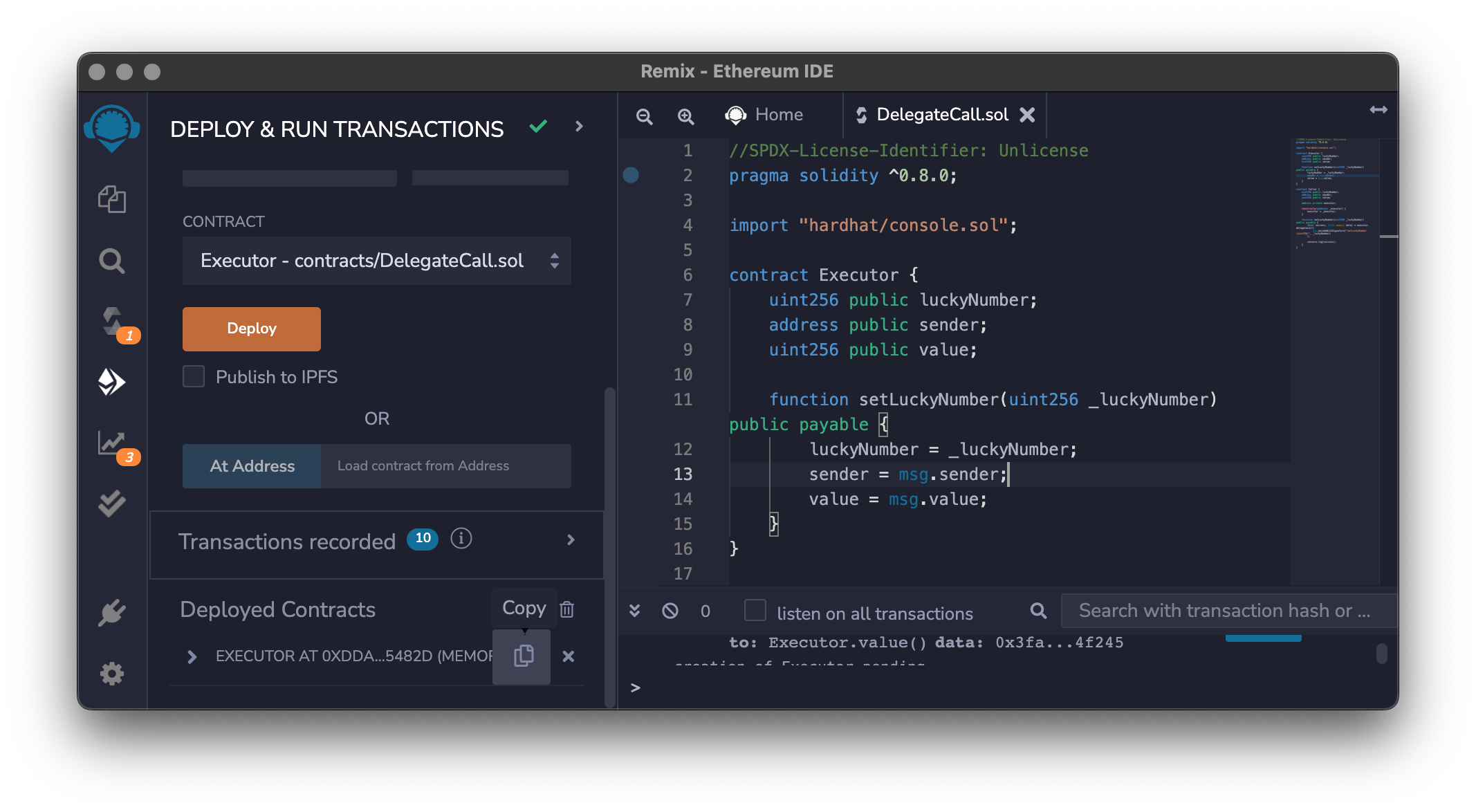
After that, we can create the `Caller` smart contract.
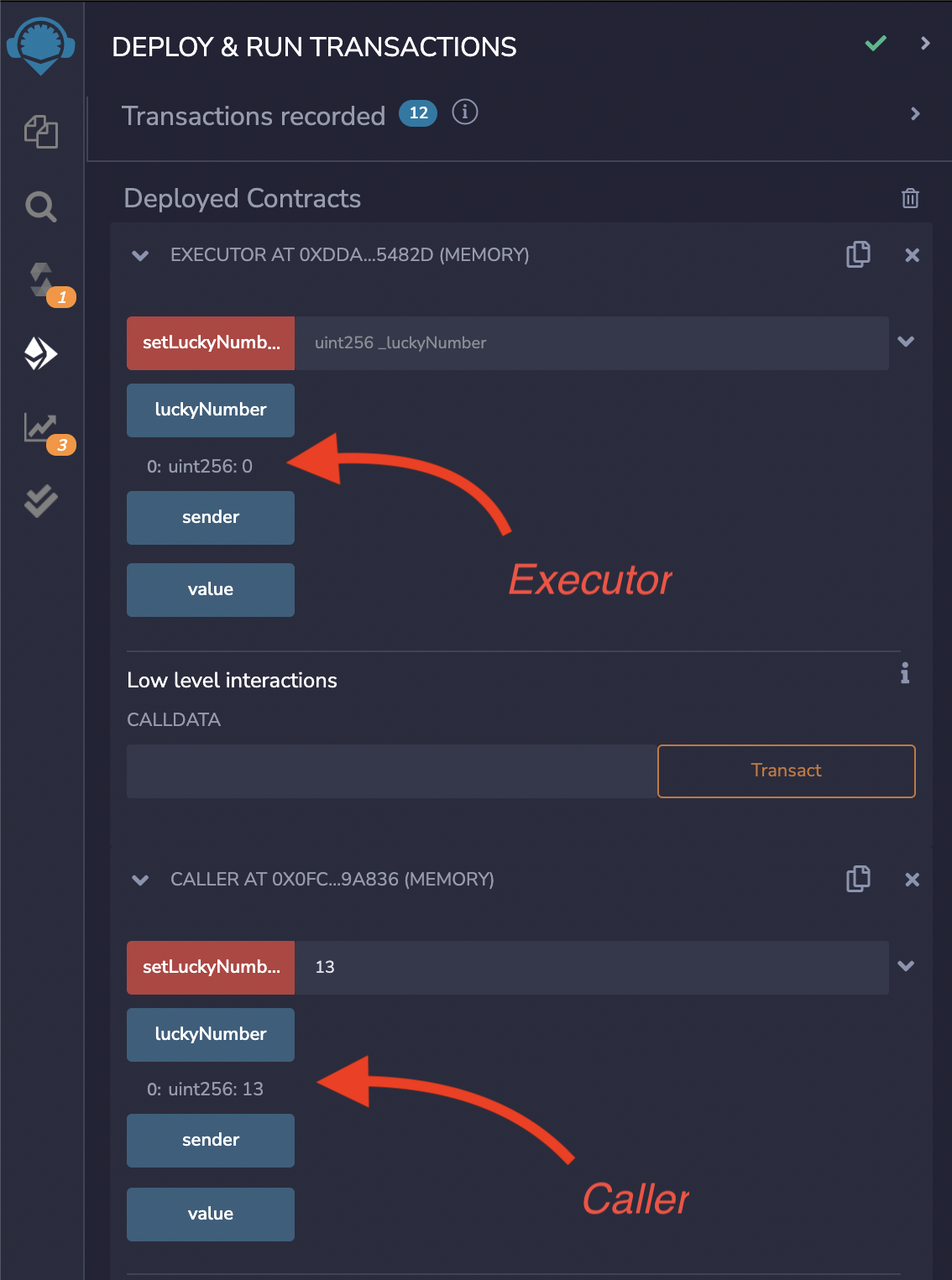
```solidity
contract Caller {
uint256 public luckyNumber;
address public sender;
uint256 public value;
function setLuckyNumber(address executor, uint256 _luckyNumber) public payable {
(bool success, bytes memory data) = executor.delegatecall(
abi.encodeWithSignature("setLuckyNumber(uint256)", _luckyNumber)
);
console.log(success);
}
}
```
Now when we interact with the `Caller` contract and set the lucky number, we can see that data has been changed only in this contract, not in the `Executor` contract. To verify that, we can get the lucky number from both contracts.
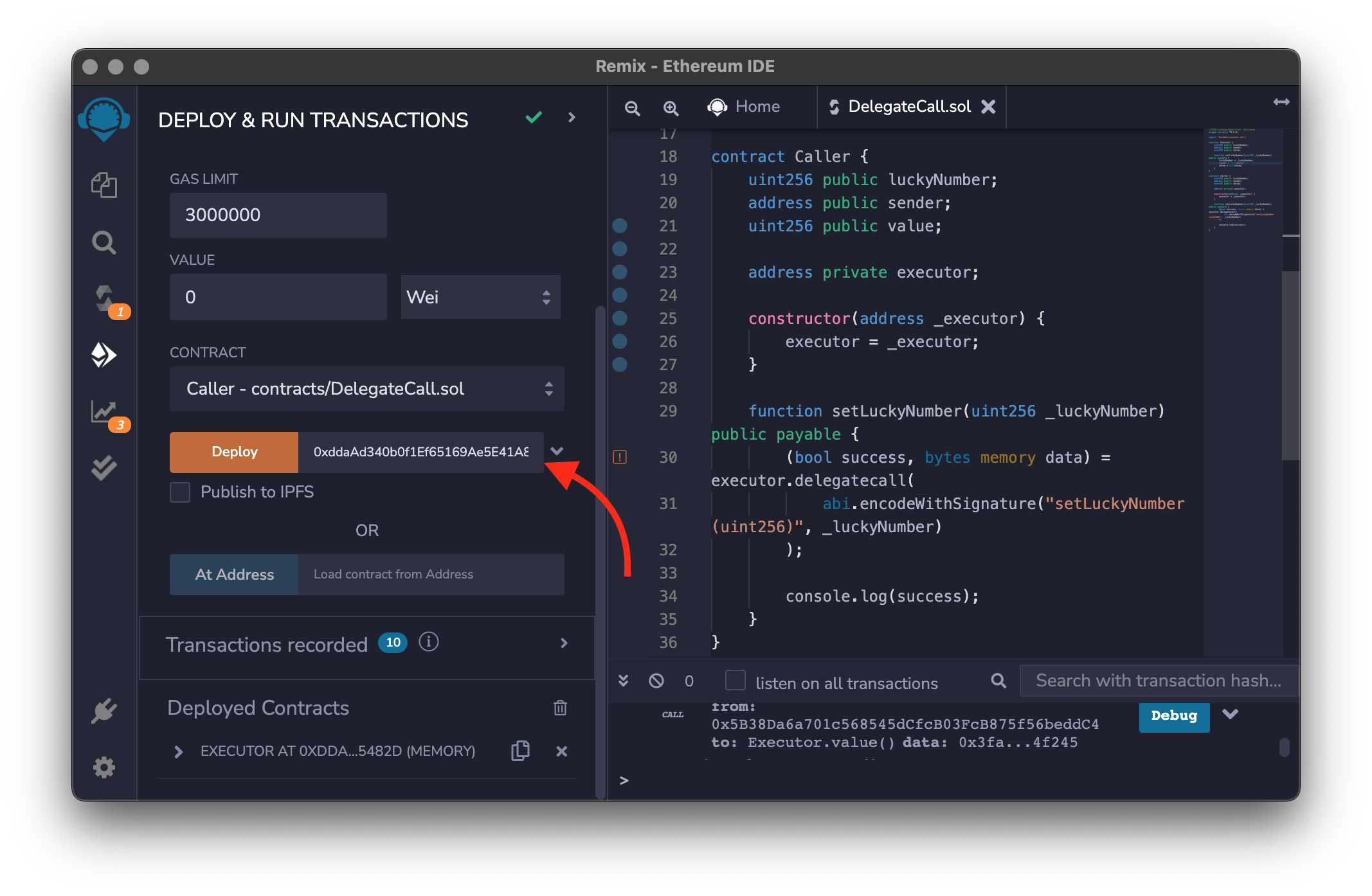
## Potential vulnerability
Using the `delegatecall` function is a compelling feature in Solidity programming language. With great power comes great responsibility. It can be perilous when misused.
Two major vulnerability attacks are mistakes preserving caller context and storage layout mismatch. We won't go into details this time but will follow up on that in future posts.
## TL;DR
The `delegatecall` is a lower-level function in Solidity programming language. It unlocks the possibility to interact from one smart contract with another by using the caller's context. When using `delegatecall` we should be super careful because misusing it can cause serious vulnerabilities.
## Links
* [Sample code](https://gist.github.com/fassko/8af2cca1a71895a03cb28198fe57315f)
* [Official documentation](https://docs.soliditylang.org/en/v0.8.15/introduction-to-smart-contracts.html#delegatecall-callcode-and-libraries)
* [Delegatecall - Solidity by Example](https://solidity-by-example.org/delegatecall/)
* [EIP-1967: Standard Proxy Storage Slots](https://eips.ethereum.org/EIPS/eip-1967)
* [OpenZepplin upgrades](https://docs.openzeppelin.com/contracts/4.x/upgradeable)
* [Delegatecall Vulnerabilities](https://solidity-by-example.org/hacks/delegatecall/)
* [https://blockchain-academy.hs-mittweida.de/courses/solidity-coding-beginners-to-intermediate/lessons/solidity-5-calling-other-contracts-visibility-state-access/topic/delegatecall/](https://blockchain-academy.hs-mittweida.de/courses/solidity-coding-beginners-to-intermediate/lessons/solidity-5-calling-other-contracts-visibility-state-access/topic/delegatecall/)
* [Understanding delegatecall And How to Use It Safely](https://eip2535diamonds.substack.com/p/understanding-delegatecall-and-how)
---
### Storage and memory secrets in Solidity
- URL: https://kristaps.me/blog/solidity-storage-vs-memory/
- Date: 2022-06-20
- Tags: Solidity, web3, memory, storage
- Summary: This time, we will talk about storage locations in Solidity programming language, specifically about the `storage` and `memory` locations. Not knowing what they represent and how they work can cause issues in our smart contracts.
This time, we will talk about storage locations in Solidity programming language, specifically about the `storage` and `memory` locations. Not knowing what they represent and how they work can cause issues in our smart contracts.
## Storage
Storage in smart contracts holds data between function calls. We can imagine that `storage` would be as a hard drive in the computer. Even if we turn it off, the data stays and isn't erased. On the blockchain, what we write in storage is stored.
### Storage by default
#### State variables
By default, Solidity will keep in storage smart contract's state variables.
```solidity
contract StorageContract {
struct LuckyNumber {
uint256 number;
string reason;
}
mapping(address => LuckyNumber) luckyNumbers;
}
```
In this example smart contract's state variables `luckyNumbers` are kept in storage, and data will persist between function calls.
When we add and get the lucky number, we have a predictable outcome.
```solidity
function addLuckyNumber(LuckyNumber memory luckyNumber) external {
require(luckyNumber.number != 0, "Lucky number can't be 0!");
require(luckyNumbers[msg.sender].number == 0, "You already have set lucky number. Edit it if you have another one.");
luckyNumbers[msg.sender] = luckyNumber;
}
function getMyLuckyNumber() external view returns(uint256) {
require(luckyNumbers[msg.sender].number != 0, "You don't have a lucky number set yet.");
LuckyNumber memory luckyNumber = luckyNumbers[msg.sender];
return luckyNumber.number;
}
```
#### Local function variables
Local function variables of struct, array, or mapping are saved in storage by default. It means that if we declare these values in our functions, they are kept in storage, which can cause unexpected issues that are hard to track.
If we add a function `editLuckyNumber` to our code example and mark a local copy as `storage` it will edit the state variable that we expect.
```solidity
function editLuckyNumber(uint256 luckyNumber) external {
require(luckyNumber != 0, "Lucky number can't be 0!");
require(luckyNumbers[msg.sender].number != 0, "You don't have a lucky number set yet.");
LuckyNumber storage _luckyNumber = luckyNumbers[msg.sender];
_luckyNumber.number = luckyNumber;
}
```
## Memory
In memory, Solidity keeps all locally defined value types, which can be uint, string, etc., but not an array, a struct, or a mapping. Function arguments are kept in memory as well. Remember that `memory` can't be used at the smart contract level, only locally in functions.
```solidity
function multiplyByItself(uint256 number) external pure returns(uint256) {
uint256 result = number * number;
return result;
}
```
In this example, the function argument `number` that we pass in our function is stored in memory. Also, locally defined variable of the `result` is stored in memory and will be released as soon as the function's execution ends.
## Pitfall using memory and storage
One of the major pitfalls of wrong usage of the `storage` and `memory` keywords in the Solidity programming language is that we declare a variable either `storage` or `memory` without thinking it through. First, keeping data in `storage` will consume more gas because we need to pay for the block space. Second, we should ask ourselves whether we need to access data that we keep between the function calls. By function calls, there can be even two different functions.
If we define the `_luckyNumber` in function `editLuckyNumber` using the `memory` keyword, it will edit this function locally only, and changes won't be written to the blockchain.
```solidity
function editLuckyNumber(uint256 luckyNumber) external {
require(luckyNumber != 0, "Lucky number can't be 0!");
require(luckyNumbers[msg.sender].number != 0, "You don't have a lucky number set yet.");
LuckyNumber memory _luckyNumber = luckyNumbers[msg.sender];
_luckyNumber.number = luckyNumber;
}
```
This function's outcome will result in editing the lucky number not working because we update it only locally.
## TL;DR
Storing data using Solidity language in our smart contracts is a crucial thing. Life is easier with value types, but with arrays, structs, and mappings, it is more tricky. That's why it is essential to ask whenever we want to save these variables. Do we want data to persist between calling the smart contract or being saved locally while executing the function?
## Links
* [Sample code](https://gist.github.com/fassko/5b19bee0c78e3e41aa5d52573b2e696e)
* [What is the memory keyword? What does it do?](https://docs.soliditylang.org/en/v0.3.3/frequently-asked-questions.html#what-is-the-memory-keyword-what-does-it-do)
* [Storage vs Memory in Solidity](https://www.geeksforgeeks.org/storage-vs-memory-in-solidity/)
* [In Ethereum Solidity, what is the purpose of the "memory" keyword?](https://stackoverflow.com/questions/33839154/in-ethereum-solidity-what-is-the-purpose-of-the-memory-keyword)
---
### How events in Solidity work, and why are they needed
- URL: https://kristaps.me/blog/solidity-events/
- Date: 2022-05-17
- Tags: swift, Solidity, web3, events
- Summary: Events in Solidity programming language help inform when something has happened in the smart contract. Parties like a web frontend, data gathering tools, and more can listen to specific events and react accordingly. In this post, we will dig deeper into Events and how to use them when developing smart contracts on Ethereum-like blockchains.
Events in Solidity programming language help inform when something has happened in the smart contract. Parties like a web frontend, data gathering tools, and more can listen to specific events and react accordingly. In this post, we will dig deeper into Events and how to use them when developing smart contracts on Ethereum-like blockchains.
## Define an event
We need to start with the `event` keyword to define an event.
```solidity
event TicketContractCreated();
```
An event can have additional parameters. It means that it is a struct that can hold data. Data types are the same that we are using in Solidity language.
```solidity
event TicketCreated(address ticketHolder);
```
### Parameters
Event struct can hold multiple parameters. We can name these parameters, but that is optional, and we can provide just the data type.
```solidity
event TicketCreated(address ticketHolder, uint256 ticketId);
```
Suppose we want to filter the logs when listening to the specific events. We need to specify which of the parameters should be indexed. There is a limit that only up to 3 parameters can be indexed. Keep in mind that indexing parameters are cost-efficient and will take more gas fees for the transaction to be mined.
```solidity
event TicketCreated(address indexed ticketHolder, uint256 ticketId);
```
## Emit the event
When a specific action has happened, we can release the event with the `emit` keyword followed by the event name.
```solidity
emit TicketContractCreated();
```
If an event does have any parameters, we can specify those in the parenthesis in the same order as to how we defined them.
```solidity
emit TicketCreated(msg.sender);
```
## See emitted events
To see emitted events can use [Remix IDE](https://remix.ethereum.org/), [Etherscan](https://etherscan.io/) block explorer, or any library to interact with Ethereum like chains like [Ethers.js](https://docs.ethers.io/v5/), [web3.js](https://web3js.readthedocs.io) or any other. How to do that is out of the scope of this blog post.
## TL;DR
Events in Solidity programming language are a great way to inform other parties that something has happened. We can't just rely on the transaction status. An event can hold data, and others can filter events and react upon that, for instance, in the web app.
## Links
* [Sample code](https://gist.github.com/fassko/56c1b327f34c3deb2900df4f090af555)
* [Official documentation](https://docs.soliditylang.org/en/v0.8.14/abi-spec.html#events )
* [Solidity by Example - Events](https://solidity-by-example.org/events)
* [Logging data from smart contracts with events](https://ethereum.org/en/developers/tutorials/logging-events-smart-contracts/)
* [How To Use Events In Solidity](https://hackernoon.com/how-to-use-events-in-solidity-pe1735t5)
---
### The Story behind Mapping in Solidity
- URL: https://kristaps.me/blog/solidity-mapping/
- Date: 2022-04-07
- Tags: swift, Solidity, web3, mapping
- Summary: Mappings in Solidity programming language play a significant role. These are hash tables that can have a key and value. When we use them, there are some caveats, especially from other programming languages. Let's explore them in this article.
Mappings in Solidity programming language play a significant role. These are hash tables that can have a key and value. When we use them, there are some caveats, especially from other programming languages. Let's explore them in this article.
## Mapping Keys and Values
Mappings essentially are hash tables, so it means that the key is saved as a hash. To access the value, key is hashed and found in the mapping table.
### Limitations
Mappings can be state variables, storage reference types in functions, or parameters for library functions. A mapping can't be returned, and it can't be used in structs or arrays that contain arrays.
The key type can be any built-in type, bytes, string, or enum value. Our defined types are not allowed. This is because Solidity knows how to hash the value.
Value types can be any - built-in or our defined types. It can even be a mapping that would create a double hash table.
## Reading and writing from Mapping
Let's go over how we can read and write data in a mapping. Let's imagine we want to build a lucky number registry. Everyone with their wallet address can set and read their lucky number.
At first, we need to set up the mapping of the lucky numbers.
```solidity
mapping(address => uint256) private luckyNumbers;
```
If we set the access level to the public, the getter function is compiled by default.
### Getting the value in the mapping
To get the value from a mapping we need to know the key. Solidity behind the scenes will hash it and find it from the hash table.
```solidity
function getMyLuckyNumber() external view returns(uint256) {
require(luckyNumbers[msg.sender] != 0, "0 can't be lucky");
return luckyNumbers[msg.sender];
}
```
If the value does not exist, we get the default value, which is zero in the case of `uint256`.
### Setting the value in the mapping
We need a key and value of the defined type that mapping can hold when setting the value. Be aware that this also updates the value if it has been already set.
```solidity
function setMyLuckyNumber(uint256 number) external {
require(number > 0, "Can't be set to zero");
luckyNumbers[msg.sender] = number;
}
```
## TL;DR
The mapping type is practically a hash table in the Solidity programming language with a key and value. There are some limitations, especially what we can define as the key. We need the key to get data from the mapping. Remember the default values for the type we're using in the value in case the value has not been set. When we are setting the value, we are also overwriting the old one.
## Links
* [Sample code](https://gist.github.com/fassko/488573feba1cf976b5854faeb1fd2ba8)
* [Official documentation](https://docs.soliditylang.org/en/v0.8.13/types.html)
* [Solidity by Example - Mapping](https://solidity-by-example.org/mapping/)
---
### Mastering Arrays in Solidity
- URL: https://kristaps.me/blog/solidity-array/
- Date: 2022-03-01
- Tags: swift, solidity, web3, array
- Summary: Arrays in Solidity programming language can hold primitive data types like integers, boolean, and string. An array can be initialized with a fixed or dynamic size. If we compare them to other more advanced programming languages, there are pretty limited functions available to work with arrays. Despite that, we can add, remove, get the size of the array, and more.
Arrays in Solidity programming language can hold primitive data types like integers, boolean, and string. An array can be initialized with a fixed or dynamic size. If we compare them to other more advanced programming languages, there are pretty limited functions available to work with arrays. Despite that, we can add, remove, get the size of the array, and more.
## Initialize an array
We can create an array in Solidity, either having a dynamic or fixed size of the elements that it can hold.
Using a fixed-size array can reduce gas costs but not always we can predict the size of the elements.
### Dynamic size
When creating a dynamic array in Solidity, we need to provide the data type that it can hold. Unfortunately, arrays can't have multiple data types in one array.
```
uint256[] array;
```
### Fixed size
Another option is to provide the size of the elements that an array can hold. This can save gas costs, especially when creating smart contracts on the Ethereum blockchain.
```
uint256[10] array;
```
Behind the scenes, Solidity fills the array with default values, which for the `uint256` is 0 (zero).
We can also provide the values when initializing an array.
```
uint256[] array = [1,2,3];
```
## Add an element
We can add a new element for the dynamic type of arrays. To do that, we need to use the `push` method. It adds an element to the end of an array.
Here is an example of adding 100 to the array that holds `uint256` values.
```
array.push(100);
```
## Change an element
When changing an element, we need to provide the index and the new value.
Let's say we want to change the first element's value in the array.
```
array[0] = 101;
```
## Get the size of the array
To get the size of the array then, we should use the `length` function.
```
uint256 size = array.length;
```
## Remove
We can remove an element from array by using the `delete` function. The catch here is that it doesn't change the size of the array. It resets to the default value, which for instance, in the `uint256` case is 0 (zero).
This example resets the first element in the array to 0 (zero).
```
delete array[0];
```
If we want to remove an element and change the array's length, we can move all elements up from the element we want to delete. Then pop the last element because it isn't needed anymore.
```
for (uint256 i = _index; i < _array.length - 1; i++) {
_array[i] = _array[i + 1];
}
_array.pop();
```
## TL;DR
Arrays in Solidity programming language can hold primitive data types like `uint`, `boolean`, `address`, or `string`. We can create a fixed or dynamic size array. A fixed-size array has less implications for gas costs. We can change elements, remove, get the size of the array.
## Links
* [Sample code](https://gist.github.com/fassko/de8a9ca0657d25d656b7ad19b1705ce2)
* [Official documentation](https://docs.soliditylang.org/en/v0.8.11/types.html)
* [Solidity by Example - Array](https://solidity-by-example.org/array/)
---
### Accessibility and visibility in Solidity
- URL: https://kristaps.me/blog/visibility-and-accessibility-in-solidity/
- Date: 2022-01-29
- Tags: solidity, web3
- Summary: Solidity language allows specifying accessibility for contract functions and state variables. That will enable us to set constraints on constructing the smart contract and whether other contracts or addresses can access the data. Contract state variables and functions have a slight difference that we're going to check out. I want to mention that accessibility and visibility are different things in blockchain development context.
Solidity language allows specifying accessibility for contract functions and state variables. That will enable us to set constraints on constructing the smart contract and whether other contracts or addresses can access the data. Contract state variables and functions have a slight difference that we're going to check out. I want to mention that accessibility and visibility are different things in blockchain development context.
## Function visibility
Functions in smart contracts can have four accessibility levels.
### Public
When a function is defined as `public` it can be called from any other contract, including a smart contract that contains it or address.
```solidity
function publicFunction() public {
publicInt += 1;
}
```
### External
Keyword `external` means that a function can be called by other contracts or addresses. If we want to call an `external` function, we can do it using `this` keyword.
```solidity
function externalFunction() external {
externalInt += 1;
}
function callExternalFunction() public {
this.externalFunction();
}
```
### Internal
Internal functions can be called from the same smart contract or any other inherited from it.
```solidity
function internalFunction() internal {
internalInt += 1;
}
```
### Private
Private functions aren't visible and can't be accessed from other smart contracts or addresses. These functions aren't accessible in contracts that inherit a smart contract where this function is defined.
```solidity
function internalFunction() internal {
internalInt += 1;
}
```
## Contract state variable visibility
Smart contract state variables can be `public`, `internal` and `private`.
### Public
Public state variables can be accessed from any smart contract, including those that hold them or any address. Solidity generates for the `public` state variable a getter function.
```solidity
contract Accessibility {
uint public publicInt;
}
// can get and set from other smart contracts
contract AccessPublic {
Accessibility accessibility = new Accessibility();
function accessPublicInt() public view returns(uint) {
uint publicInt = accessibility.publicInt();
return publicInt;
}
}
```
### Internal
Similar to functions, `internal` state variables can be accessed from a contract that defined them or any other that inherits from a smart contract. Important to note that smart contract state variables are `internal` by default.
```solidity
uint internal internalInt;
```
### Private
A `private` state variable has the same characteristics as functions. It can be accessed only within the same contract, not any other contracts.
```solidity
uint private privateInt;
```
## Visibility and accessibility
In blockchain development, visibility and accessibility have a different meaning. Everything inside a smart contract can be visible because all transactions are open in a ledger that anyone can see. Private or internal prevents other contracts or addresses from modifying the data. It can be visible from the outside because nothing can be hidden on the blockchain. It means that you can restrict access to a state variable or a function, but it is visible.
## TL;DR
Solidity programming language has multiple options to define access levels for smart contract functions and state variables. In blockchain development, visibility and accessibility aren't the same. We can restrict access to the functions or state variables, but it can be viewed from the outside.
## Links
* [Sample code](https://gist.github.com/fassko/5b73bdb38f0184f0b54b2f6f5cfda095)
* [Official documentation](https://docs.soliditylang.org/en/v0.8.11/contracts.html#visibility-and-getters)
* [Solidity by Example](https://solidity-by-example.org/visibility/)
* [How to hide a function of all but visible to the owner](https://ethereum.stackexchange.com/questions/11393/how-to-hide-a-function-of-all-but-visible-to-the-owner)
* [Solidity functions - private visibility](https://ethereum.stackexchange.com/questions/6547/solidity-functions-private-visibility)
---
### Solidity for Swift developers: File Structure and Functions
- URL: https://kristaps.me/blog/swift-solidity-structure-functions/
- Date: 2021-12-16
- Tags: swift, solidity, web3
- Summary: Solidity is an object-oriented language to write smart contracts that can be deployed on the blockchain, for instance, Ethereum. The syntax is similar to Javascript, but on the other hand, semantics is closer to C++. We will dig into Solidity language structure and functions from a Swift developer's perspective.
Solidity is an object-oriented language to write smart contracts that can be deployed on the blockchain, for instance, Ethereum. The syntax is similar to Javascript, but on the other hand, semantics is closer to C++. We will dig into Solidity language structure and functions from a Swift developer's perspective.
## Pragma and file extension
Before we jump into the Solidity language structure, we need to know what a `pragma` keyword is and what it means.
Unlike the Objective-C `#pragma` and Swift `MARK`, the' pragma' keyword in Solidity describes what version of the compiler should use. Keep in mind that it instructs the compiler to check if the versions do match. It does not turn on or off any language features.
For instance, if we would like to tell the Solidity compiler that we want to use the 0.8.x version, we can start the source file like this:
```
pragma solidity ^0.8.0;
```
We can also use greater or smaller operations to describe even the version interval, which could be handy.
There are other ways to use the `pragma` keyword, but we won't look into that this time.
Solidity source files are saved with the `.sol` extension.
## Everything starts with a Contract
Contracts in Solidity language are similar to classes in Swift. Contracts contain state variables, functions, function modifiers, events, errors, structs, and enums. This time we are only going to look into function structure.
Like classes, we need to name it and open, and close with braces.
```
contract HelloSwiftFromSolidity {
}
```
## State Variables
State variables are variables that are declared inside the `contract`. Be aware that this information is stored on the blockchain contract storage once you deploy it. We don't need to worry about getters and setters. Solidity compiler generates that for us.
```
contract HelloSwiftFromSolidity {
string hello;
}
```
You can notice now that each execution line should end with the semicolon `;`. That is not the case for the Swift language.
## Functions
Functions can be declared inside and outside the `contract`, similar to Swift. They can execute a piece of code.
```
contract HelloSwiftFromSolidity {
// visibility = public because access from outside
string public hello = "Hello Swift";
// visibility = public because access from outside
// view = just view the data
function helloSwift() public view returns(string memory) {
return hello;
}
}
```
It is going on a lot, so let's break it down. If we want to access the state variable from outside, we need to set the visibility type to `public` and do the same for the function. In our case, the function returns something, and we can mark it as `view`. It returns a string that is stored in the memory and removed after the execution is finished.
The places, where the function variables and return data can be stored, are:
* `memory` - the lifetime of the variable is limited to the function scope, it isn't saved anywhere;
* `storage` - data is stored in the smart contract storage on the blockchain;
* `calldata` - data is stored outside from where the function is being called, we will discuss more details and how to use it in the future.
### Function types
Functions in Solidity can execute instructions, view data. It can be a `view` or `pure` when we view the data. The difference between these two is that pure functions don't modify nor read the state variables.
```
function helloWorld() public pure returns(string memory) {
return "Hello World";
}
```
In the code above, we are not reading nor changing anything on the blockchain but just returning some data.
## TL;DR
Solidity is a language to write the smart contracts that can be deployed on the blockchain. The most popular currently is Ethereum. From a Swift developer's perspective, language is quite similar syntax-wise but very different semantics-wise. First of all, every execution line should end with a semicolon. In Solidity equivalent to the Swift classes are contracts that can contain state variables, functions, and other structures.
## Links
* [Layout of a Solidity Source File](https://docs.soliditylang.org/en/v0.8.10/layout-of-source-files.html)
* [Structure of a Contract](https://docs.soliditylang.org/en/v0.8.10/structure-of-a-contract.html)
* [Ethereum Developer Resources](https://ethereum.org/en/developers/)
---
### Improve iPad sidebar navigation on the iPhone with SwiftUI
- URL: https://kristaps.me/blog/swiftui-sidebar-tabview/
- Date: 2021-11-21
- Tags: swift, ios, swiftui, sidebar, ipad
- Summary: We learned how to add a sidebar for an iPad in the previous blog post, but that approach isn't that great for an iPhone. It looks pretty weird, and once we configure a default view, it automatically navigates to it once iPhone app starts. This isn't great on a phone but makes total sense on an iPad. We can improve that by showing a sidebar for an iPad and a TabView on an iPhone.
We learned how to add a sidebar for an iPad in the previous blog post, but that approach isn't that great for an iPhone. It looks pretty weird, and once we configure a default view, it automatically navigates to it once iPhone app starts. This isn't great on a phone but makes total sense on an iPad. We can improve that by showing a sidebar for an iPad and a TabView on an iPhone.
## Checking if the device is an iPad
At first, we need to distinguish whether an app is running on iPhone or iPad. To do that, we should use the `UIUserInterfaceIdiom` enum. It can answer the question of what kind of device the app is running, starting with a phone and ending with a car within carplay.
This time we are interested in two enum cases:
* `phone` - interface for iPhone or iPod touch;
* `pad` - interface for iPad.
To get the current device interface, we need to access it from the UIDevice class that represents the current running device. To retrieve the user interface idiom, we need to get it from the existing class variable from the UIDevice class. Then from the `userInterfaceIdiom` variable, we get the current device idiom.
To access this in a bit nicer way, we can extend the `UIDevice` class and add a new static variable that would be a shorthand version of the process explained before.
```swift
extension UIDevice {
static var idiom: UIUserInterfaceIdiom {
UIDevice.current.userInterfaceIdiom
}
}
```
To make it even more sugar-coated, we can add two static variables to see if the device is an iPhone or an iPad.
```swift
extension UIDevice {
static var isIpad: Bool {
idiom == .pad
}
static var isiPhone: Bool {
idiom == .phone
}
}
```
## Dividing navigation
Now that we know what kind of device our app users have, we can divide the navigation. That means we are going to use the `TabView` and for an iPad - sidebar for an iPhone.
After creating a new SwiftUI project with the Xcode, we could separate the navigation in the `ContentView.swift` file. Then right in the `body` we can add the logical statement checking if the device is an iPad, and in another way, it can be a phone view.
```swift
struct ContentView: View {
var body: some View {
if UIDevice.isIpad {
// iPad view
} else {
// iPhone view
}
}
}
```
Now we need to go over both steps to add a [sidebar for the iPad](https://kristaps.me/blog/swiftui-sidebar/) and a [tabview for the iPhone](https://kristaps.me/blog/swiftui-tabview/). We have looked into doing both of these tasks before, so we aren't doing that in-depth again. Complete code you can check in the [sample project](https://github.com/fassko/SwiftUITabViewSidebar).
```swift
struct ContentView: View {
var body: some View {
if UIDevice.isIpad {
NavigationView {
List {
NavigationLink(destination: DashboardView()) {
Label("Dashboard", systemImage: "square.dashed")
}
// ...
}
DashboardView()
}
} else {
TabView {
DashboardView()
.tabItem {
Label("Dashboard", systemImage: "square.dashed")
}
// ...
}
}
}
}
```
What we can do is extract both steps to the struct variables to separate the concerns.
```swift
struct ContentView: View {
var body: some View {
if UIDevice.isIpad {
sidebar
} else {
tabview
}
}
private var sidebar: some View {
NavigationView {
List {
NavigationLink(destination: DashboardView()) {
Label("Dashboard", systemImage: "square.dashed")
}
// ...
}
DashboardView()
}
}
private var tabview: some View {
TabView {
DashboardView()
.tabItem {
Label("Dashboard", systemImage: "square.dashed")
}
// ..
}
}
}
```
## Limitations
Life isn't just rainbows and butterflies. There are some limitations to this approach. iPhone tab view can hold up to five items. If there are more tabs, then it goes under the more tab.
We need to consider this approach by showing the tab view instead of the navigation list for an iPhone. Another way could be to show a custom view that we aren't looking into in this article.
## TL;DR
Sidebar is a great way how to show quick navigation to multiple views on an iPad. Sadly, it looks wrong as a list on an iPhone and automatically navigates to the default view. We can improve that by showing a tab view for iPhone and sidebar for iPad user interfaces. We need to remember that a tab view can hold up to five items on an iPhone.
## Links
* [Sample code](https://github.com/fassko/SwiftUITabViewSidebar)
* [UIUserInterfaceIdiom documentation](https://developer.apple.com/documentation/uikit/uiuserinterfaceidiom)
* [UIDevice documentation](https://developer.apple.com/documentation/uikit/uidevice/)
* [The hidden secrets of TabView in iOS with SwiftUI](https://kristaps.me/blog/swiftui-tabview/)
* [How Sidebar works on iPad with SwiftUI](https://kristaps.me/blog/swiftui-sidebar/)
---
### How Sidebar works on iPad with SwiftUI
- URL: https://kristaps.me/blog/swiftui-sidebar/
- Date: 2021-10-20
- Tags: swift, ios, swiftui, sidebar, ipad
- Summary: Starting with iPadOS 14, Apple has redesigned the iPad sidebar by making it easier to navigate within an app. They are explaining that in the [Human Interface Guidelines](https://developer.apple.com/design/human-interface-guidelines/ios/bars/sidebars/). They are already using that in apps such as Photos, Files, Notes, Calendar, and more. This time let's check out how we can build a sidebar for iPad using SwiftUI. Currently, sidebar element is available only for iPads in landscape mode.
Starting with iPadOS 14, Apple has redesigned the iPad sidebar by making it easier to navigate within an app. They are explaining that in the [Human Interface Guidelines](https://developer.apple.com/design/human-interface-guidelines/ios/bars/sidebars/). They are already using that in apps such as Photos, Files, Notes, Calendar, and more. This time let's check out how we can build a sidebar for iPad using SwiftUI. Currently, sidebar element is available only for iPads in landscape mode.
## Creating a Sidebar
To create a sidebar for the iPad with SwiftUI, we need to create a `List` view where we would have all the sections and wrap it in a `NavigationView`. In the list we need to add a `Label` element for each section.
The most crucial step here is to tell SwiftUI that the list should be rendered as the sidebar list type. To do so, we need to set the list style to `SidebarListStyle`.
```swift
NavigationView {
List {
Label("About", systemImage: "info.circle")
Label("Settings", systemImage: "gear")
}
.listStyle(SidebarListStyle())
}
```
Now that we have the Sidebar, let's add a title that would represent the global name. Developers usually choose to put the app name, or, for instance, the Apple Notes app has **Folders** to mean what the Sidebar holds.
```swift
NavigationView {
List {
Label("About", systemImage: "info.circle")
Label("Settings", systemImage: "gear")
}
.listStyle(SidebarListStyle())
.navigationTitle("Sidebar")
}
```
## Navigation from the Sidebar
Now that we have the Sidebar, let's implement navigation for events after user taps on the section. To do that, we need to wrap the `Label` in the `NavigationLink` and provide a destination SwiftUI view.
For instance, if we would add About section in the app, it could look like this:
```swift
NavigationLink {
AboutView()
} label: {
Label("About", systemImage: "info.circle")
}
```
## Default Home Screen
When a user launches the app, they see an empty view until they select something from the Sidebar.
To avoid this misleading behavior, we should tell the SwiftUI layout engine to render a default or call it a home screen. The trick is to add another view inside the `NavigationView` and it will be the default screen when the app is launched for the first time.
```swift
NavigationView {
List {
// ...
}
.listStyle(SidebarListStyle())
.navigationTitle("Sidebar")
Text("Please select section")
.font(.largeTitle)
}
```
A good home screen would be a dashboard, frequently used features, or similar functionality.
## iPhone and iPad portrait mode
We have only looked at how it would look like in the iPad in landscape mode. But how about in portrait mode or on the iPhone?
### iPad portrait mode
Currently, a sidebar on the iPad in portrait mode is rendered off the screen. To show it, we need to press either the back button or swipe from the left side of the device.
### iPhone
On the iPhone, the Sidebar is rendered as the default home screen with a navigation list.
Usually, this isn't what we would want, so in this case, we might need to consider changing it on the iPad size devices. This is out of the scope of this post.
## TL;DR
Sidebar is a great way how to divide different parts of the app into iPad apps. Currently, it is rendered on the iPad in landscape mode and partly in portrait mode. After adding a list of the app sections, we should remember to provide a default home screen. Otherwise, our users will see an empty screen. Apple has implemented this approach in their apps as well in macOS.
## Links
* [Sample code](https://github.com/fassko/SwiftUISidebar)
* [Human Interface Guidelines - Sidebars](https://developer.apple.com/design/human-interface-guidelines/ios/bars/sidebars/)
* [Sidebar official documentation](https://developer.apple.com/documentation/swiftui/sidebarliststyle)
* [Learn how to create a Sidebar navigation for iOS, iPadOS and macOS](https://designcode.io/swiftui-handbook-sidebar)
* [Sidebar navigation in SwiftUI](https://swiftwithmajid.com/2020/07/21/sidebar-navigation-in-swiftui/)
* [How to show and hide a sidebar in a SwiftUI macOS app](https://sarunw.com/posts/how-to-toggle-sidebar-in-macos/)
* [https://betterprogramming.pub/using-sidebar-in-swiftui-without-a-navigationview-94f4181c09b](https://betterprogramming.pub/using-sidebar-in-swiftui-without-a-navigationview-94f4181c09b)
* [How to Make a Sidebar Menu in SwiftUI](https://dev.to/tprezioso/how-to-make-a-sidebar-menu-in-swiftui-ejl)
* [Implementing Three Column Navigation in SwiftUI](https://serialcoder.dev/text-tutorials/swiftui/implementing-three-column-navigation-in-swiftui/)
---
### Three brilliant ways to style button with SwiftUI
- URL: https://kristaps.me/blog/swiftui-three-ways-button/
- Date: 2021-09-24
- Tags: swift, ios, swiftui, button
- Summary: Using mobile apps, we navigate to another view, calculate business expenses, or send a tweet by tapping on a button. SwiftUI makes it a breeze to construct a button. This time we will talk how to do it in three ways using the view modifier approach, building a custom view modifier, and applying the button style.
Using mobile apps, we navigate to another view, calculate business expenses, or send a tweet by tapping on a button. SwiftUI makes it a breeze to construct a button. This time we will talk how to do it in three ways using the view modifier approach, building a custom view modifier, and applying the button style.
We are going to start with the most basic SwiftUI button and style.
```swift
Button("Continue", action: {})
```
## Using a Custom View Modifier
In SwiftUI view modifiers are used to change the view in some kind of way. We can build a custom view modifiers ourselves. We will try to build one to create a custom button.
At first we need to create the custom modifier. To do that we should use the `ViewModifier` protocol that requires to implement one function `func body(content: Content) -> some View` which takes in a view and produces a different version of that view.
```swift
struct CustomButtonModifier: ViewModifier {
func body(content: Content) -> some View {
content
.font(.title)
.foregroundColor(.white)
.padding()
.background(Color.blue)
.clipShape(RoundedRectangle(cornerRadius: 20))
}
}
```
We can apply the newly made view modifier with a `.modifier` modifier to the original view, but we can create an extension to the `View` protocol. That would allow us to use it in a more shorthand way.
```swift
extension View {
func customButton() -> some View {
modifier(CustomButtonModifier())
}
}
```
We can create a SwiftUI button view now and apply our freshly created view modifier.
```swift
Button("Continue", action: {})
.customButton()
```
## Building a Custom View
Now let's look into how we can style a SwiftUI button by building a custom view. We need to create a custom view that we will pass into `label` parameter when constructing the Button with the `init(action: () -> Void, label: () -> Label)` initializer.
```swift
struct CustomButtonView: View {
var body: some View {
Text("Continue")
.font(.title)
.foregroundColor(.white)
.padding()
.background(Color.blue)
.clipShape(RoundedRectangle(cornerRadius: 20))
}
}
```
Now that we have our custom view, we can use it and create the button.
```swift
Button(action: {}, label: {
CustomButtonView()
})
```
## Applying the Button Style
The most popular SwiftUI way of styling a button is by applying the custom button style. SwiftUI comes with couple of built-in button styles, but this time we will create our own. To do that we need to create a custom style struct and conform to the `ButtonStyle` protocol that applies the standard interaction behaviour and we can customize the appearance ourselves.
```swift
struct CusttomButtonStyle: ButtonStyle {
func makeBody(configuration: Configuration) -> some View {
configuration.label
.font(.title)
.foregroundColor(.white)
.padding()
.background(Color.blue)
.clipShape(RoundedRectangle(cornerRadius: 20))
}
}
```
Now that we have defined our custom button style, we can apply it by using the `.buttonStyle` view modifier.
```swift
Button("Continue", action: {})
.buttonStyle(CusttomButtonStyle())
```
## Outcome
Let's put all the buttons one under another in the `VStack` and see the outcome. All of them should be the same.
## TL;DR
A button is a gateway to most of our app functionalities like opening another view, sending a tweet or an email. With SwiftUI we can create a button in various ways like applying a view modifier, creating a custom view and styling it with a custom button style.
## Links
* [Sample code](https://github.com/fassko/SwiftUICustomButton)
* [ViewModifier documentation](https://developer.apple.com/documentation/swiftui/viewmodifier)
* [SwiftUI Button documentation](https://developer.apple.com/documentation/swiftui/button)
* [Mastering buttons in SwiftUI](https://swiftwithmajid.com/2020/02/19/mastering-buttons-in-swiftui/)
* [SwiftUI ButtonStyle](https://sarunw.com/posts/swiftui-buttonstyle/)
* [Customizing Button with ButtonStyle](https://www.hackingwithswift.com/quick-start/swiftui/customizing-button-with-buttonstyle)
* [Exploring SwiftUI's Button styles](https://www.fivestars.blog/articles/button-styles/)
---
### Exploring SwiftUI map custom annotations
- URL: https://kristaps.me/blog/swiftui-map-annotations/
- Date: 2021-08-25
- Tags: swift, ios, swiftui, localization
- Summary: We [explored](https://kristaps.me/blog/swiftui-mapview/) the Mapview in SwiftUI a while back. This time we will look into creating custom map annotations, the limitations, and how to overcome some of them. Placing annotations on the map, like marking a specific place, is one of the most critical tasks when showing a map in our iOS applications.
We [explored](https://kristaps.me/blog/swiftui-mapview/) the Mapview in SwiftUI a while back. This time we will look into creating custom map annotations, the limitations, and how to overcome some of them.
Placing annotations on the map, like marking a specific place, is one of the most critical tasks when showing a map in our iOS applications.
## MapAnnotation protocol
We need to look into the [MapAnnotation](https://developer.apple.com/documentation/mapkit/mapannotation), when working with custom map annotations in SwiftUI. We can customize it exactly how we want and then place it on the map.
As a reminder, to show annotations on the map we need a list of places that conform to the `Identifiable` protocol and then use it when initializing the `Map` view in an array.
```swift
struct Place: Identifiable {
let id = UUID()
var name: String
var coordinate: CLLocationCoordinate2D
}
struct ContentView: View {
@State private var region = MKCoordinateRegion(center: CLLocationCoordinate2D(latitude: 40.748433, longitude: -73.985656), span: MKCoordinateSpan(latitudeDelta: 0.01, longitudeDelta: 0.01))
var empireStateBuilding =
Place(name: "Empire State Building", coordinate: CLLocationCoordinate2D(latitude: 40.748433, longitude: -73.985656))
var body: some View {
Map(coordinateRegion: $region,
annotationItems: [empireStateBuilding]
) { place in
// ... create a custom MapAnnotation
}
}
}
```
Now is the time to create a custom map annotation. Let's make a custom view so we could reuse it. We can use the map circle with fill from the SFSymbols and place a pin on the bottom to show the exact location precisely.
```swift
struct PlaceAnnotationView: View {
var body: some View {
VStack(spacing: 0) {
Image(systemName: "mappin.circle.fill")
.font(.title)
.foregroundColor(.red)
Image(systemName: "arrowtriangle.down.fill")
.font(.caption)
.foregroundColor(.red)
.offset(x: 0, y: -5)
}
}
}
```

We can use it in our 'Map' closure block now.
```swift
Map(coordinateRegion: $region,
annotationItems: [empireStateBuilding]
) { place in
MapAnnotation(coordinate: place.coordinate) {
PlaceAnnotationView()
}
}
```
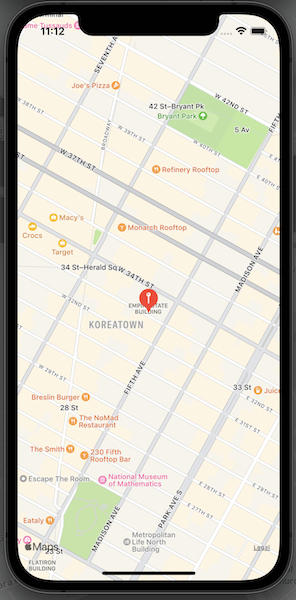
When zooming in or out, we see that annotation is placed precisely where the Empire State Building is located.
After we have the annotation on the map, we would like to somehow interact with it. Let's explore in the following sections how to show an annotation title and navigate when clicking on it.
## Show and hide the annotation title
To show (and hide) the annotation title, we need to include it in the custom annotation view because we are constructing it manually.
We can add the title in the `PlaceAnnotationView` `VStack` and show or hide it when a user taps it.
```swift
struct PlaceAnnotationView: View {
@State private var showTitle = true
let title: String
var body: some View {
VStack(spacing: 0) {
Text(title)
.font(.callout)
.padding(5)
.background(Color(.white))
.cornerRadius(10)
.opacity(showTitle ? 0 : 1)
Image(systemName: "mappin.circle.fill")
.font(.title)
.foregroundColor(.red)
Image(systemName: "arrowtriangle.down.fill")
.font(.caption)
.foregroundColor(.red)
.offset(x: 0, y: -5)
}
.onTapGesture {
withAnimation(.easeInOut) {
showTitle.toggle()
}
}
}
}
```
We can make it appear and disappear with animation using the view state variable and changing the opacity accordingly. It would give that additional nice touch.
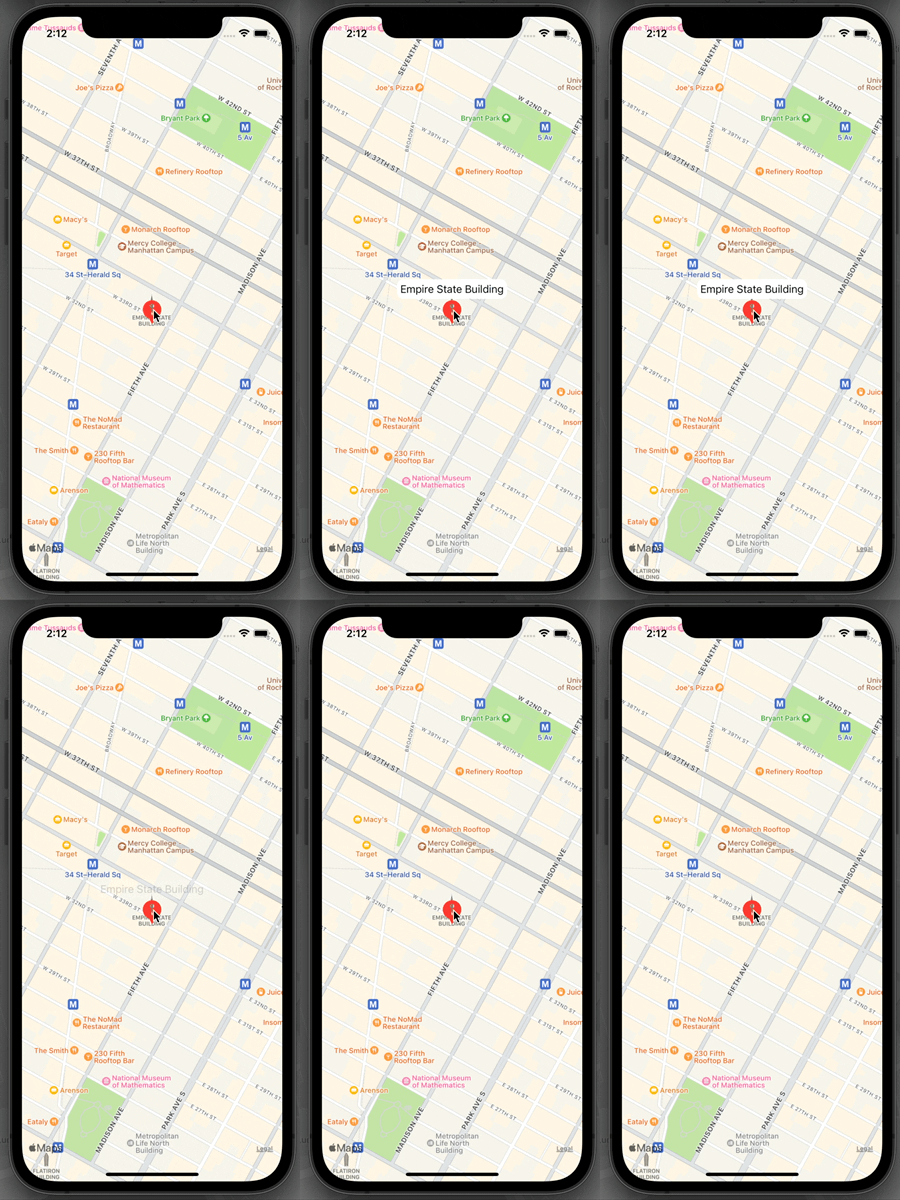
Another option is to show the annotation title all the time. In that case, our app users would understand without tapping what this place is.
```swift
struct PlaceAnnotationView: View {
let title: String
var body: some View {
VStack(spacing: 0) {
Text(title)
.font(.callout)
.padding(5)
.background(Color(.white))
.cornerRadius(10)
Image(systemName: "mappin.circle.fill")
.font(.title)
.foregroundColor(.red)
Image(systemName: "arrowtriangle.down.fill")
.font(.caption)
.foregroundColor(.red)
.offset(x: 0, y: -5)
}
}
}
```
## Navigation from map annotation
When a user taps the annotation, we would like to navigate to a different view and show extra information about this place on the map. To do so, we can put the custom annotation view inside the `NavigationLink` and then navigate to the location details view.
```swift
MapAnnotation(coordinate: place.coordinate) {
NavigationLink {
LocationDetailsView(place: place)
} label: {
PlaceAnnotationView(title: place.name)
}
}
```
A user will be brought to the details screen after tapping the annotation. That's it!
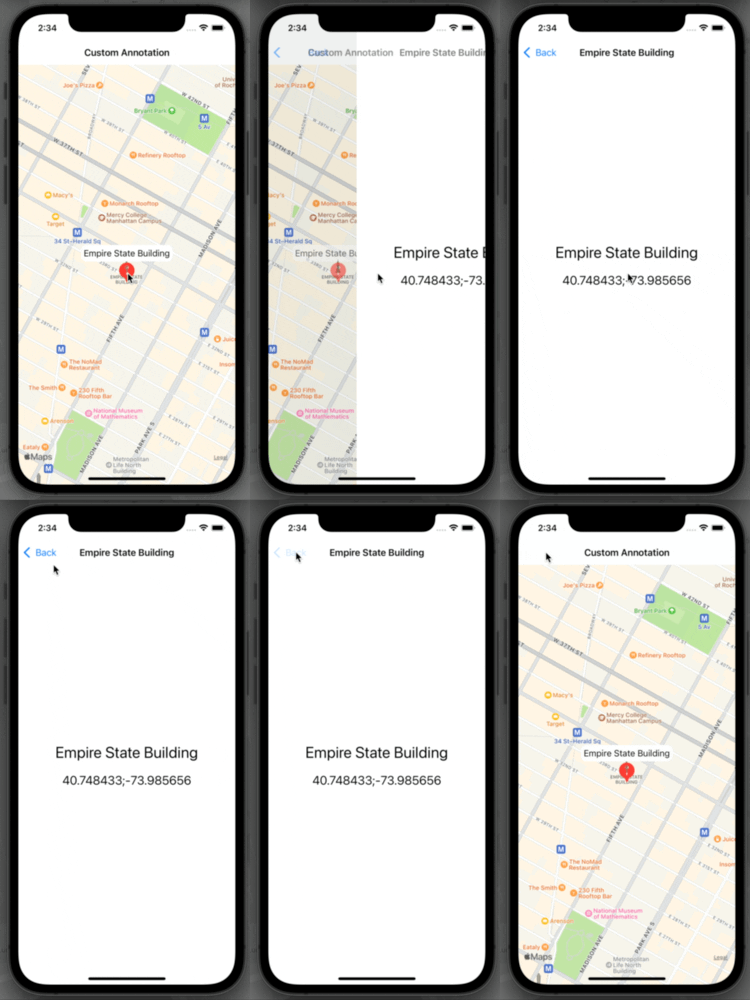
## TL;DR
Marking a place on the map with annotation is a significant feature when using a map view in iOS apps. We want to do it with a custom annotation view in many cases.
With SwiftUI, we can create custom annotations and show them on the map in a straightforward manner. It is very nice to use this approach because we have all the SwiftUI features like stacks, navigation, and more at our disposal.
## Links
* [Sample code](https://github.com/fassko/SwiftUIMapCustomAnnotations)
* [MapAnnotation documentation](https://developer.apple.com/documentation/mapkit/mapannotation)
* [MapAnnotationProtocol documentation](https://developer.apple.com/documentation/mapkit/mapannotationprotocol)
* [Adding Annotations to Map in SwiftUI](https://www.youtube.com/watch?v=vfWxwDfX30I)
* [Map with Annotations in SwiftUI](https://swiftuirecipes.com/blog/map-with-annotations-in-swiftui)
* [How to show annotations in a Map view](https://www.hackingwithswift.com/quick-start/swiftui/how-to-show-annotations-in-a-map-view)
* [How to Work with SwiftUI Maps and Annotations](https://www.appcoda.com/swiftui-map/)
---
### How to translate SwiftUI applications
- URL: https://kristaps.me/blog/swiftui-localization/
- Date: 2021-07-10
- Tags: swift, ios, swiftui, localization
- Summary: Localizing our applications is more critical than we think. We usually stick with English as the primary language. Only 4.9% of the world’s 7.8 billion inhabitants speak English. Most of the people aren’t native English speakers. In the grand scheme of things, only 360 million people speak English as their first language.
Localizing our applications is more critical than we think. We usually stick with English as the primary language. Only 4.9% of the world’s 7.8 billion inhabitants speak English. Most of the people aren’t native English speakers. In the grand scheme of things, only 360 million people speak English as their first language.
SwiftUI gives us great and easy-to-use options to translate our applications into multiple languages. We might all be familiar with the `Localizable.strings` file where we put all the translations. I’m not going into how to create this for your projects.
In addition, Xcode has the option to change build settings and change the default language without changing the system language itself.
In this article, we will discuss how to translate our SwiftUI apps by checking out built-in features. We will also see how to translate dynamically changing text.
## Text approach
Almost all SwiftUI building blocks like `Text`, `Button`, `TextField`, and more come with initializers using localization behind the scenes.
For instance, let’s say we create a `Text` view with the title `Name`. We can add that to the `Localizable.strings` file and it would be translated without us doing anything. If the translation isn’t provided, it will fall back to the specified default title. We can say that SwiftUI takes care of translating our apps without us doing extra work.
Let’s dig in a bit deeper and check out the `Text` initializer.
```swift
init(_ key: LocalizedStringKey, tableName: String? = nil, bundle: Bundle? = nil, comment: StaticString? = nil)
```
We can see that the first parameter is `LocalizedStringKey`. Let’s explore it.
## What is LocalizedStringKey?
The `LocalizedStringKey` is the magic that powers all the translations in our SwiftUI apps. What it does is looks up in the `Localizable.strings` file and checks if there is a translation with this key. It conforms to `ExpressibleByStringLiteral` and that’s why we can use it in our SwiftUI view initializers.
Another way of using `LocalizedStringKey` is when a translation is passed into the view. Let’s say we have a greetings view that takes in a greeting text as a parameter. In such a case, we need to create a parameter that has type `LocalizedStringKey`. When constructing this, we pass in not the `String` value but initialized `LocalizedStringKey` by using the `LocalizedStringKey(_ value: String)` initializer. In this case, it isn’t treated as just text, but a key from the translations strings file.
## String interpolation
Now we know how static translations work, but how does it work with dynamically created texts? For instance, we have a text view that would show a greeting with a user-provided name. It would be `Hello, Mary!`, but `Mary` would be substituted with an entry from the text field. To translate this kind of text, we should use string interpolation.
In the example above, we should add in the `Localizable.strings` file entry `Hello, %@!` and the `%@` would be a `String` parameter we pass in when creating the `LocalizedStringKey` like this:
```swift
Text("Hello, \(name)!")
```
Behind the scenes, it is using the String formatting that can format numbers, dates, currency, and more, taking into consideration your user’s locale. In this blog post, we are not going to dig deeper into that topic.
## TL;DR
Only 4.9% of all people on the planet speak English as their first language. This means that we have to translate our apps to reach a wider audience and make them more accessible.
SwiftUI has a great set of built-in features to facilitate translations. Most of the view elements can be translated by adding translations to the `Localizable.strings` file.
With dynamic text, we should use the string interpolation and format it accordingly, either passed in the parameter is a text, number, or date. And SwiftUI will format that in the user's defined locale.
## Links
* [Sample code](https://github.com/fassko/SwiftUILocalization)
* [Spanish translation](https://www.ibidemgroup.com/edu/traducir-aplicaciones-swiftui/)
* [Localization guide by Apple](https://developer.apple.com/documentation/xcode/localization)
* [Localization in SwiftUI](https://swiftwithmajid.com/2019/10/16/localization-in-swiftui/)
* [Localization in SwiftUI forum thread](https://developer.apple.com/forums/thread/650492)
* [Localization with SwiftUI, how to preview your localized content](https://benoitpasquier.com/localization-swiftui-how-top-preview-localized-content/)
* [Localization with Zach Brass](https://www.empowerapps.show/96)
* [Introduction to SwiftUI Localization tutorial](https://www.ibabbleon.com/swiftui_localization_tutorial.html)
* [Localize your SwiftUI app WWDC talk](https://developer.apple.com/videos/play/wwdc2021-10220)
* [Preparing Views for Localization](https://developer.apple.com/documentation/swiftui/preparing-views-for-localization)
---
### How to master grid layout in iOS with SwiftUI
- URL: https://kristaps.me/blog/swiftui-gridview/
- Date: 2021-06-30
- Tags: swift, ios, swiftui, gridview
- Summary: Grid layouts enable us to show views in a grid that expands either vertically or horizontally. We've all seen it, for instance, in the iOS Photos application. Those who have worked with UIKit might recognize it as [UICollectionView](https://developer.apple.com/documentation/uikit/uicollectionview).
Grid layouts enable us to show views in a grid that expands either vertically or horizontally. We've all seen it, for instance, in the iOS Photos application. Those who have worked with UIKit might recognize it as [UICollectionView](https://developer.apple.com/documentation/uikit/uicollectionview).
SwiftUI offers two excellent options - `LazyVGrid` and `LazyHGrid`. This time, we will dig deeper and understand how we can use these components. The great thing about these two components is their usage; views are loaded lazily, which means when those appear on the screen.
I want to point out that `HStack` and `VStack` are available from iOS 14 and upward. If you're going to use grid layout in iOS 13, you should look into `HStack` and `VStack`, but the drawback is that those don't support lazy loading.
## Creating a grid layout
Three steps are involved in creating a grid layout - have data set to show, configure the grid system, and initialize the grid layout itself. We are going to look into the last two. How to provide the data is an extensive topic and out of the scope of this post.
The initialization of a `LazyVGrid` is done by providing the columns, alignment of the items, spacing between the items, pinned views to the footer or header, and the content itself.
```swift
var columns = [
GridItem(.flexible()),
GridItem(.flexible()),
GridItem(.flexible()),
GridItem(.flexible())
]
var body: some View {
ScrollView {
LazyVGrid(columns: columns, spacing: 20, pinnedViews: .sectionHeaders) {
Section(header: Text("Smilies").font(.title),
footer: Text("Emoji smilies").font(.subheadline)) {
ForEach(Emoji.smilies, id: \.self) { emoji in
Text(emoji)
.font(.largeTitle)
}
}
Section(header: Text("Animals").font(.title),
footer: Text("Emoji animals").font(.subheadline)) {
ForEach(Emoji.animals, id: \.self) { emoji in
Text(emoji)
.font(.largeTitle)
}
}
Section(header: Text("Food").font(.title),
footer: Text("Emoji food").font(.subheadline)) {
ForEach(Emoji.food, id: \.self) { emoji in
Text(emoji)
.font(.largeTitle)
}
}
}
.padding(.horizontal)
}
}
```
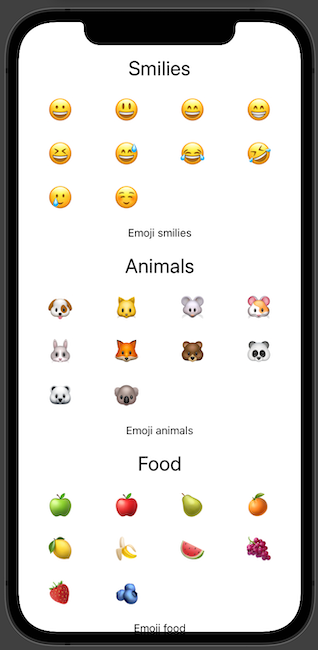
With the `LazyHGrid`, it is pretty similar. We just need to exchange `columns` parameter to `rows.
## Configure the grid layout
When initializing the grid layout, it is paramount to specify how it would look like - rows for vertical-style and horizontal-style grid layout.
SwiftUI has a component to describe a single grid item, `GridItem`. Grid item is either row or column.
When initializing the `GridItem,` these three parameters are vital:
* `size` - size of the item;
* `spacing` - spacing between the items;
* `alignment` - alignment when placing each grid item.
### Grid item size
We have three options to specify the size of the grid item:
* `flexible(minimum: CGFloat, maximum: CGFloat)` - single flexible item in available space with optional parameters for min and max size;
* `adaptive(minimum: CGFloat, maximum: CGFloat)` - multiple items in available space;
* `fixed(CGFloat)` - single item with a fixed size in available space.
Let's see how each case works in practice with `LazyVGrid` and `LazyHGrid`.
#### Flexible
With the flexible grid item size, we can provide minimum and maximum, but it works great even without that. The item size is calculated by dividing available space by item count.
```swift
[
GridItem(.flexible()),
GridItem(.flexible()),
GridItem(.flexible()),
GridItem(.flexible())
]
```
##### Vertical
##### Horizontal
#### Adaptive
Adaptive grid layout size is the most suitable and appropriate 'GridItem` size. We need to provide the minimum and optionally maximum size, and the SwiftUI layout guide will take all the heavy-duty work away from us.
```swift
[
GridItem(.adaptive(minimum: 50))
]
```
##### Vertical
##### Horizontal
#### Fixed
Fixed `GridItem` layout size is meant to use when we know the item size, and it is constant.
```swift
[
GridItem(.fixed(100)),
GridItem(.fixed(100)),
GridItem(.fixed(100))
]
```
##### Vertical
##### Horizontal
## TL;DR
Grid layout or previously known UICollectionView from UIKit times is a prominent building block to present data in a grid system. SwiftUI affords us components to build a grid layout either vertically or horizontally in a lazy manner; it means that items are loaded only when needed. These two components are `LazyVGrid` and `LazyHGrid`.
To create a grid layout with SwiftUI, we need to provide a data set, columns or rows, spacing between the items, and optionally pinned views (header and footer).
## Links
* [Sample code](https://github.com/fassko/SwiftUIGridView)
* [LazyVGrid Documentation](https://developer.apple.com/documentation/swiftui/lazyvgrid)
* [LazyHGrid Documentation](https://developer.apple.com/documentation/swiftui/lazyhgrid)
* [GridItem documentation](https://developer.apple.com/documentation/swiftui/griditem)
* [Section documentation](https://developer.apple.com/documentation/swiftui/section)
* [How to position views in a grid using LazyVGrid and LazyHGrid](https://www.hackingwithswift.com/quick-start/swiftui/how-to-position-views-in-a-grid-using-lazyvgrid-and-lazyhgrid)
* [Mastering grids in SwiftUI](https://swiftwithmajid.com/2020/07/08/mastering-grids-in-swiftui/)
* [https://swiftui-lab.com/impossible-grids/](https://swiftui-lab.com/impossible-grids/)
---
### Cracking the Navigation Bar Secrets with SwiftUI
- URL: https://kristaps.me/blog/swiftui-navigationview/
- Date: 2021-05-25
- Tags: swift, ios, swiftui, navigationview
- Summary: Navigating from one view to another, or simply showing a title and buttons, is one of the most crucial building blocks of modern iOS applications. Almost every app has this feature. SwiftUI brings some new approaches for how to show the Navigation Bar, set the title, and add buttons. So let's check it out.
Navigating from one view to another, or simply showing a title and buttons, is one of the most crucial building blocks of modern iOS applications. Almost every app has this feature. SwiftUI brings some new approaches for how to show the Navigation Bar, set the title, and add buttons. So let's check it out.
## Showing Navigation View
To show a Navigation Bar using SwiftUI, we should use the `NavigationView` component that is responsible for this purpose. It requires that we provide the `Content` that is a `View` type. The `Content` can be anything from a text field to scrollable content. In short, it can be any SwiftUI view.
To show a title for the navigation, SwiftUI has a completely different approach than we are used to with UIKit. We should set it as a view modifier, not for the `NavigationView`, but the `Content`.
```swift
var body: some View {
NavigationView {
Text("Hello, world!")
.navigationTitle("Title")
}
}
```
SwiftUI framework provides a means to specify the size of the `NavigationView`. We want to use the `.navigationBarTitleDisplayMode` modifier for the `Content` and provide a display mode. `DisplayMode` type is an enum that has three cases:
* `automatic` - inherits from the previous navigation item;
* `inline` - small navigation size;
* `large` - large navigation size.
Let's see how to use it in the code.
```swift
NavigationView {
Text("Hello, world!")
.navigationTitle("Title")
.navigationBarTitleDisplayMode(.inline)
}
```
When we want to change the `NavigationView` to a larger size, we simply change the `.inline` to `.large`.
```swift
NavigationView {
Text("Hello, world!")
.navigationTitle("Title")
.navigationBarTitleDisplayMode(.large)
}
```
## Add Navigation View Buttons
Now that we know how to show the `NavigationView`, let's explore how to add buttons. I want to point out that previously with SwiftUI, we used the `.navigationBarItems` view modifier, but this is now deprecated. With the latest SwiftUI version, we should call the `.toolbar` modifier. Let's dig deeper into how to use it in various scenarios.
### Add a Single Button
Let's add a `Button` to the leading and trailing side of the `NavigationView`. To achieve this, we need to use the `.toolbar` view modifier and pass the `.ToolbarItem` view. To initialize the `.ToolbarItem`, we should provide the placement and content. The placement parameter is a type `ToolbarItemPlacement`, which is a struct. There are a couple ways to manage the placement, but for now we will look into two of them:
* `navigationBarLeading` - shows the button on the leading side of the navigation bar;
* `navigationBarTrailing` - shows the button on the trailing side of the navigation bar.
```swift
var body: some View {
NavigationView {
Text("Buttons Example")
.navigationTitle("Buttons")
.toolbar {
ToolbarItem(placement: .navigationBarLeading) {
Button(action: {
print("Refresh")
}) {
Label("Send", systemImage: "paperplane.fill")
}
}
ToolbarItem(placement: .navigationBarTrailing) {
Button(action: {
print("Refresh")
}) {
Label("Refresh", systemImage: "arrow.clockwise")
}
}
}
}
}
```
### Add multiple buttons
Now that we know how to add a single button, let's learn how to add multiple buttons. This time we need to use the `ToolbarItemGroup` that represents a group of toolbar items.
```swift
.toolbar {
ToolbarItemGroup(placement: .navigationBarLeading) {
Button(action: {
print("Send")
}) {
Label("Send", systemImage: "paperplane.fill")
}
}
ToolbarItemGroup(placement: .navigationBarTrailing) {
Button(action: {
print("Refresh")
}) {
Label("Refresh", systemImage: "arrow.clockwise")
}
Button(action: {
print("Edit")
}) {
Label("Edit", systemImage: "slider.horizontal.3")
}
}
}
```
When adding multiple buttons, we shouldn't go too crazy. Eventually it may become difficult to use the app because the buttons could cover up the the navigation bar title.
## Change Navigation View Color
Right now, SwiftUI doesn’t have the option to change the color of the `NavigationView`. For that we need to turn back to UIKit and use the `UINavigationBarAppearance` object to customize the navigation bar.
To change the color of the SwiftUI navigation bar, we can add the `init` method to the SwiftUI view and change the navigation bar appearance inside there, like this:
```swift
init() {
let coloredAppearance = UINavigationBarAppearance()
coloredAppearance.configureWithOpaqueBackground()
coloredAppearance.backgroundColor = .systemRed
coloredAppearance.titleTextAttributes = [.foregroundColor: UIColor.white]
coloredAppearance.largeTitleTextAttributes = [.foregroundColor: UIColor.white]
UINavigationBar.appearance().standardAppearance = coloredAppearance
UINavigationBar.appearance().compactAppearance = coloredAppearance
UINavigationBar.appearance().scrollEdgeAppearance = coloredAppearance
UINavigationBar.appearance().tintColor = .white
}
var body: some View {
NavigationView {
Text("Navigtion Bar with different color")
.navigationTitle("Title")
}
}
```
We can see from the code that we are doing multiple things, like changing the background color and title text color. We can use either system colors or bring in colors from the iOS app assets catalog.
## TL;DR
The Navigation Bar is a vital element of modern iOS and iPadOS applications. A majority of apps have more than one screen and our users have to navigate back and forth inside our apps.
SwiftUI comes with a new view, `NavigationView`, and we are required to completely shift our thinking about the navigation and how to use it compared with the UIKit.
With SwiftUI, it is very straightforward to add navigation on the screen, change the title, and add buttons to the Navigation Bar. But if we want to change the color, we should go back to the UIKit. I believe this will change quite soon.
## Links
* [Sample code](https://github.com/fassko/SwiftUINavigationView)
* [The Complete Guide to NavigationView in SwiftUI](https://www.hackingwithswift.com/articles/216/complete-guide-to-navigationview-in-swiftui)
* [SwiftUI NavigationView tutorial with examples](https://www.simpleswiftguide.com/swiftui-navigationview-tutorial-with-examples/)
* [Navigation Bar Styling in SwiftUI](https://youtu.be/kCJyhG8zjvY)
* [Navigation bar styling in SwiftUI](https://swiftuirecipes.com/blog/navigation-bar-styling-in-swiftui)
* [Customizing SwiftUI Navigation Bar](https://medium.com/@francisco.gindre/customizing-swiftui-navigation-bar-8369d42b8805)
* [Custom NavigationView Bar in SwiftUI](https://medium.com/swlh/custom-navigationview-bar-in-swiftui-4b782eb68e94)
* [https://www.hackingwithswift.com/quick-start/swiftui/how-to-add-bar-items-to-a-navigation-view](https://www.hackingwithswift.com/quick-start/swiftui/how-to-add-bar-items-to-a-navigation-view)
* [Customizing SwiftUI Navigation Bar](https://medium.com/@francisco.gindre/customizing-swiftui-navigation-bar-8369d42b8805)
---
### The hidden secrets of TabView in iOS with SwiftUI
- URL: https://kristaps.me/blog/swiftui-tabview/
- Date: 2021-04-22
- Tags: swift, ios, swiftui, tabview
- Summary: TabBar is a vital component of iOS and has been from iOS 2.0. This element appears at the bottom of the iOS and iPadOS devices and allows our app users to switch between different views or functions quickly. It is a major element of Apple's apps like Music, Podcasts, and App Store.
TabBar is a vital component of iOS and has been from iOS 2.0. This element appears at the bottom of the iOS and iPadOS devices and allows our app users to switch between different views or functions quickly.
It is a major element of Apple's apps like Music, Podcasts, and App Store.
In SwiftUI, we have a new element name `TabView` instead of `UITabBar` in UIKit. In this post, we will look into how to use it, especially how the `TabView` can be used to show page indicators.
## Ways to initialize TabView in SwiftUI
Right now we have two options to create a tab view with SwiftUI. We can either take control of the selected tab or avoid it whatsoever. Let's look into both of these approaches.
### Create the TabView with SwiftUI
To create a `TabView` element, we need to pass the `Content` that is a list of SwiftUI views. To mark this view as a tab bar item, we need to use the `tabItem` view modifier passing inside a `Label` that describes a title and image.
Let's now put all this together in the code.
```
TabView {
Text("The First Tab")
.tabItem {
Label("First", systemImage: "1.square.fill")
}
Text("The Second Tab")
.tabItem {
Label("Second", systemImage: "2.square.fill")
}
Text("The Third Tab")
.tabItem {
Label("Third", systemImage: "3.square.fill")
}
}
```
Now we can unpack the code above. Each tab is just a `Text` view, and the tab item is a `Label` with a title and system image that is an SF Symbol.
### Control the selected tab programmatically
Suppose we want to control the selected tab programmatically. In that case, we need to use the second approach to initialize the method where besides the content, we need to pass a state variable that keeps the currently selected tab. Another critical step is to mark each tab with a `tag` modifier with a value that conforms to the `Hashable` protocol. This is how the SwiftUI layout engine differs between the tabs and can understand the uniqueness.
```
TabView(selection: $selectedTab) {
VStack {
Button("Move to Second Tab") {
selectedTab = 2
}
}
.tabItem {
Label("First", systemImage: "1.square.fill")
}
.tag(1)
VStack {
Button("Move to Third Tab") {
selectedTab = 3
}
}
.tabItem {
Label("Second", systemImage: "2.square.fill")
}
.tag(2)
VStack {
Button("Move to First Tab") {
selectedTab = 1
}
}
.tabItem {
Label("Third", systemImage: "3.square.fill")
}
.tag(3)
}
```
Let's go over the code above step by step.
Firstly we are using the `VStack` views with a `Button` inside to select the next tab or the last the first accordingly.
Then we are using the `tag` modifier for each of the tab items. We are using the `Int` value type to keep track of the currently selected tab. We are not limited to the `Int` value type, which conforms to the `Hashable` protocol, but we can use our type if we want to. For the sake of simplicity, we are using the `Int` this time.
## Customize TabView
Sadly there aren't many options for customizing the `TabView` in SwiftUI. We can change the image and title for the tabs, but that is quite understandable.
We can change the default accent color. Let's change it to purple.
```
TabView {
// ...
}
.accentColor(.purple)
```
## TabView styles in SwiftUI
In SwiftUI, we are not limited to the regular tab bar style. Right now, we have three ways how to change the `TabView` styles:
* `DefaultTabViewStyle ` - regular style that we all know;
* `PageTabViewStyle` - scrolling pages with the page indicator;
* `CarouselTabViewStyle` - specific style for watchOS that we're not going to look into in this post.
### Create scrolling pages
To create scrolling pages with the `TabView` in SwiftUI, we need to call the view modifier `tabViewStyle ` and pass an instance of ` PageTabViewStyle` style.
```
TabView {
Color.gray
Color.green
Color.blue
}
.tabViewStyle(PageTabViewStyle())
```
If we want to hide the page indicator, we specify the `indexDisplayMode` parameter for the `PageTabViewStyle` instance and set it to `.never`.
```
TabView {
// ...
}
.tabViewStyle(PageTabViewStyle(indexDisplayMode: .never))
```
## TL;DR
TabBar on the bottom of the screen is one of the most important building blocks for modern iOS applications. Apple themselves is using it frequently in their apps.
With SwiftUI, this element now has the new name `TabView`. It allows us to add the tab view and control the currently selected tab programmatically.
The hidden feature of the `TabView` is that we can use it to show the multiple tabs with page indicators, and those can be controlled by scrolling between them. In UIKit, it was `UIPageViewController`.
## Links
* [Sample code](https://github.com/fassko/SwiftUITabView)
* [Human Interface Guidelines - Tab Bars](https://developer.apple.com/design/human-interface-guidelines/ios/bars/tab-bars/)
* [SwiftUI documentation - TabView](https://developer.apple.com/documentation/swiftui/tabview)
* [How to Create a Tab Bar in SwiftUI with TabView](https://www.iosapptemplates.com/blog/swiftui/tabview-swiftui)
* [Adding TabView and tabItem()](https://www.hackingwithswift.com/quick-start/swiftui/adding-tabview-and-tabitem)
* [How to embed views in a tab bar using TabView](https://www.hackingwithswift.com/quick-start/swiftui/how-to-embed-views-in-a-tab-bar-using-tabview)
* [Introducing SwiftUI TabView and Working with Tab Bar Customization](https://www.appcoda.com/swiftui-tabview/)
* [Working with the Tab View in SwiftUI](https://serialcoder.dev/text-tutorials/swiftui/working-with-the-tab-view-in-swiftui/)
---
### How to show and hide content with DisclosureGroup using SwiftUI
- URL: https://kristaps.me/blog/swiftui-disclosure-group/
- Date: 2021-03-20
- Tags: swift, ios, swiftui
- Summary: Showing and hiding some parts of information is a vital feature in mobile apps, especially considering that phone screens are much smaller than those on laptops or desktop computers. Now with the new SwiftUI capabilities, we can collapse content with `DisclosureGroup`. Let's see how we could use it in various ways.
Showing and hiding some parts of information is a vital feature in mobile apps, especially considering that phone screens are much smaller than those on laptops or desktop computers.
Now with the new SwiftUI capabilities, we can collapse content with `DisclosureGroup`. Let's see how we could use it in various ways.
## Display a collapsable content
Let's start with the most straightforward way to set up a collapsable view that we could show or hide. It comes with a disclosure arrow indicator and nice animation.
In this blog post, let's use an example showing weather conditions that would be a SwiftUI view `WeatherDetailsView` and show temperature and wind information.
If we would like to show or hide that information, we can use the `DisclosureGroup` initializer by just passing a string value and content out the `WeatherDetailsView` view.
```swift
DisclosureGroup("Current Weather Details") {
WeatherDetailsView()
}
```
## Modify `DisclosureGroup`
Now let's check out how we can modify the `DisclosureGroup`. Currently, we can't do much, and it is pretty limited, but we can change the accent color and disable it.
Let's start with disabling the option to show and hide the weather information. We could do this by using the `disabled` modifier.
```swift
DisclosureGroup("Current Weather Details") {
WeatherDetailsView()
}
.disabled(true)
```
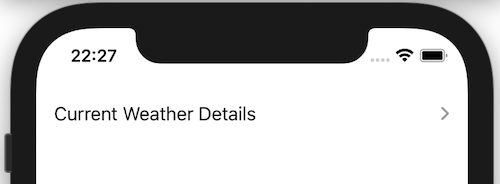
By default, the disclosure arrow comes in blue color. By using the `accentColor` modifier, we could switch to our desired color. We could use a system color or a defined color in the Assets catalog.
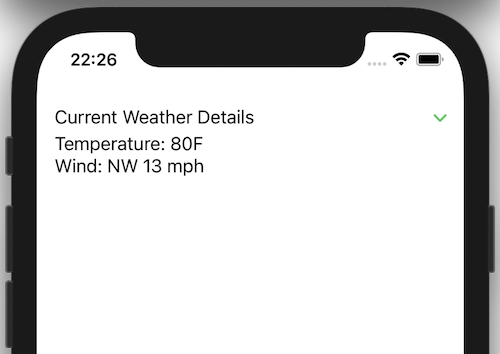
## Configure `DisclosureGroup` title
So far, we have only changed the inner content of the disclosure group view. How about if you would like to change the title to a label view? The new [Label](https://developer.apple.com/documentation/swiftui/label) comes with an initializer to pass the textual title and a system image's use that. For that, we can use a special `DisclosureGroup` initializer providing a custom label.
```swift
DisclosureGroup(
content: {
WeatherDetailsView()
},
label: {
Label("Current Weather Details", systemImage: "thermometer")
.font(.headline)
}
)
```
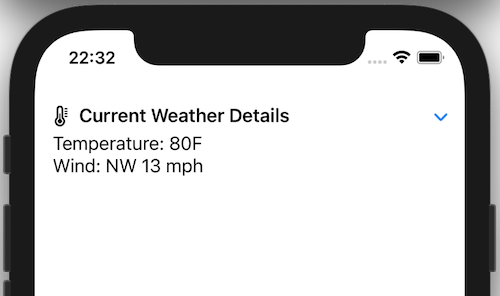
## Manually control show/hide state
To either show or hide the disclosure group's content, we relied on the user to click on the arrow. There can be cases where we would like to change this behavior using a toggle button. To do this, we could use a state boolean variable that indicates either the disclosure group is expanded or not.
```swift
@State private var isExpanded = false
/// ...
Toggle("Show Current Weather Details", isOn: $isExpanded)
DisclosureGroup("Current Weather Details", isExpanded: $isExpanded) {
WeatherDetailsView()
}
```
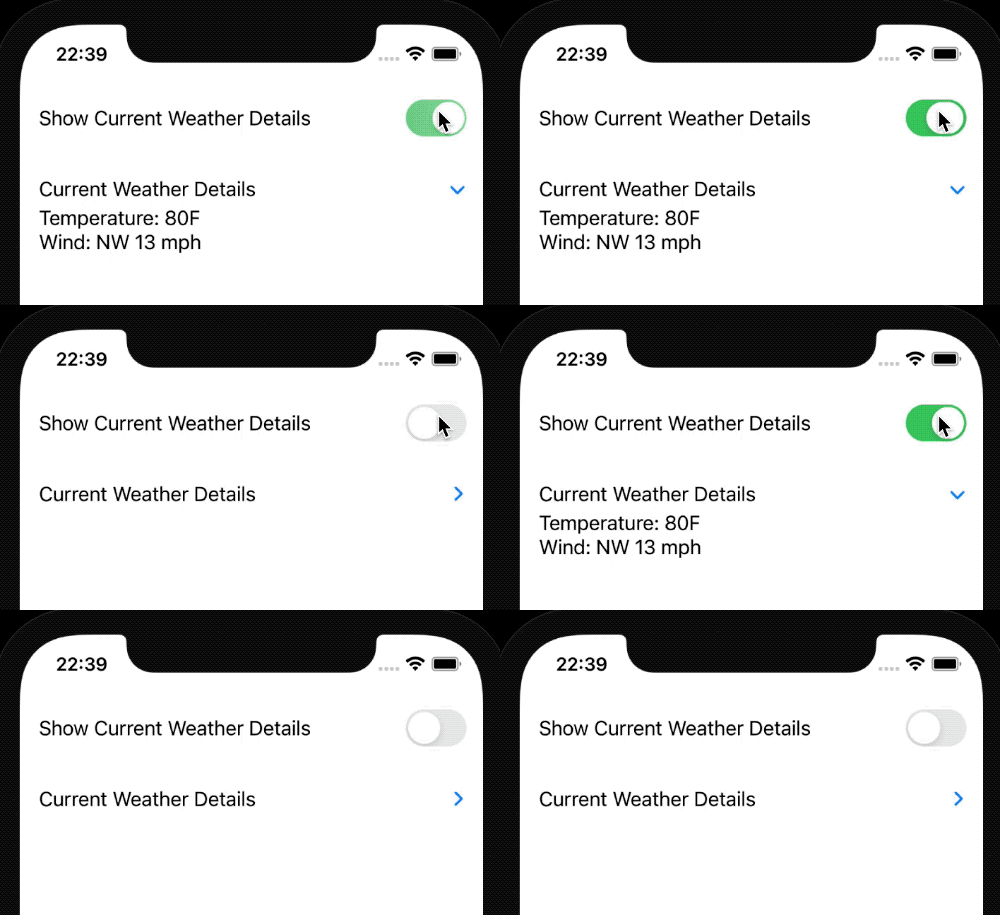
It is odd that once you press on the title, it does not expand; instead, we need to point our finger and press on the disclosure arrow button. We could fix it by implementing the title as a button and control the `isExpanded` property.
```swift
DisclosureGroup(
isExpanded: $isExpanded,
content: { WeatherDetailsView() },
label: {
Button("Current Weather Details") {
withAnimation {
isExpanded.toggle()
}
}
}
)
```
## TL;DR
Showing and hiding some information is a nice touch for mobile applications because of the limiting screen size.
The New SwiftUI version gives us a component out of the box specifically for `DisclosureGroup`.
Currently, it is pretty limited but offers some possibilities to customize it if we need to.
## Links
* [Sample code](https://github.com/fassko/swiftui-DisclosureGroup)
* [Official documentation](https://developer.apple.com/documentation/swiftui/disclosuregroup)
* [How to hide and reveal content using DisclosureGroup](https://www.hackingwithswift.com/quick-start/swiftui/how-to-hide-and-reveal-content-using-disclosuregroup)
* [SwiftUI DisclosureGroup Tutorial](https://www.ioscreator.com/tutorials/swiftui-disclosure-group-tutorial)
* [SwiftUI’s GroupBox, OutlineGroup, and DisclosureGroup in iOS 14](https://betterprogramming.pub/swiftuis-groupbox-outlinegroup-and-disclosuregroup-in-ios-14-cf9fb127cdc0)
---
### How to use Alert with SwiftUI
- URL: https://kristaps.me/blog/swiftui-alert/
- Date: 2021-02-14
- Tags: swift, ios, swiftui, alert
- Summary: Alerts are one of the most crucial building blocks of iOS applications. We can use them to inform users about an error if something takes more time, like downloading a file or ensuring that everything is OK. Another use case with alerts is asking confirmation if our app users want to delete something or make a wire transfer.
Alerts are one of the most crucial building blocks of iOS applications. We can use them to inform users about an error if something takes more time, like downloading a file or ensuring that everything is OK. Another use case with alerts is asking confirmation if our app users want to delete something or make a wire transfer.
SwiftUI has the `Alert` component, and there are a couple of ways how to use it. Let's check it out.
## Alert
One of the easiest ways how to show the alert with SwiftUI is to have a local state variable to indicate if the alert should be visible or not. After that, we need to add a view modifier `.alert` that requires returning the `Alert` view.
```swift
@State private var showAlert = false
var body: some View {
VStack {
Button("Show alert") {
showAlert = true
}
.alert(isPresented: $showAlert) {
Alert(title: Text("Title"))
}
}
}
```
In the previous example, we saw that the `showAlert` state variable keeps a `bool` value. At first, the alert isn't visible, and it is `false`. When we press the button, we need to change the state variable to `true` which triggers the alert to be visible on the screen.
We can see that by default, the alert has an OK button to dismiss it. We will try to add more buttons later in this post.
For the `Alert` view, we can provide not only `title` but also a `message` field that is one under another.
```swift
Alert(title: Text("Title"),
message: Text("Message"))
```
## Alert with identifiable item
Another way to present an alert in the SwiftUI is by using an identifiable view state variable. Using this approach SwiftUI layout system passes the value of this state variable, and we can populate the alert title, message, or event buttons using its contents. The bonus is that once this item changes, the SwiftUI layout system would update the alert with the new value, which is a pretty neat feature that we get for free.
Let's see how to do it in the code. At first, we need to set up an object that implements the `Identifiable` protocol. Let's create a user structure. We need to create an `id` constant, and we could use the `UUID` structure that represents a globally unique value that can identify values between them.
```swift
struct User: Identifiable {
let id: UUID
let name: String
}
```
Next, let's move to the SwiftUI part and create our view.
```swift
@State private var user: User?
var body: some View {
VStack {
Button("Show alert") {
user = User(id: UUID(), name: "Kristaps")
}
.alert(item: $user) { user in
Alert(title: Text("Hello, \(user.name)!"))
}
}
}
```
It is important to note that the view state variable is optional because SwiftUI determines if the alert should be visible on the screen.
When using the `.alert` view modifier, we have the closure with an input variable which is the current value of the state variable. This way, we could populate, for instance, the alert title.
## Alert Buttons
Now we know how to show an alert on the screen using SwiftUI with two different approaches. But how to show more than one button and customize them?
To add buttons for the alert, we could use either the `Alert` initializer specifying the dismiss button, or have the way to initialize the `Alert`, providing the primary and secondary button.
Let's create a confirmation alert that would ask our users if they want to delete something from a list.
```swift
@State private var showAlert = false
var body: some View {
VStack {
Button("Show alert") {
showAlert = true
}
.alert(isPresented: $showAlert) {
Alert(title: Text("Do you want to delete this item?"),
primaryButton: .cancel(),
secondaryButton: .destructive(Text("Delete")) {
print("Delete item")
}
)
}
}
}
```
Let's unwrap the code. To show the alert, we are using our first approach with the view state variable that indicates when we want to show the alert on the screen.
Inside the `.alert` view modifier where we are constructing the `Alert` representation, we see that we are using a different initializer to provide information about alert buttons. That is a specific [button](https://developer.apple.com/documentation/swiftui/alert/button) that represents an operation of an alert. There are four different styles of buttons we could use in SwiftUI:
* default;
* cancel - indicates cancellation with a system provided label;
* cancel - similar like above, but with a custom label;
* destructive - indicates destructive action, for example, deletion.
We are using the cancel and destructive button styles for our confirmation alert because our users could cancel or delete the item from a list.
## Show multiple alerts
To show multiple alerts on a view, we have two ways.
### Using state variables
The first is to keep a view state variable per each alert. But we need to add the `.alert` modifier, not for the full view, but we can add it, for example, for the button that invokes the alert. If we add two `.alert` modifiers one after another, the SwiftUI layout engine will show only the first one.
```swift
@State var firstAlertShown = false
@State var secondAlertShown = false
var body: some View {
VStack(spacing: 50) {
Button("Show first alert") {
firstAlertShown = true
}
.alert(isPresented: $firstAlertShown) {
Alert(title: Text("First alert"))
}
Button("Show second alert") {
secondAlertShown = true
}
.alert(isPresented: $secondAlertShown) {
Alert(title: Text("Second alert"))
}
}
}
```
### Using identifiable state variable
I like the second approach much better - it is more type safe. At first, we need to set up a structure representing the alert that conforms to the `Identifiable` protocol. Inside this structure, we have a local enumeration type representing all alerts types we would like to show and return the specific alert view. Ideally, it should be separated, but to show this example, I kept it like this.
```swift
struct AlertIdentifier: Identifiable {
enum ActiveAlert {
case first
case second
var alertView: Alert {
switch self {
case .first:
return Alert(title: Text("First alert"))
case .second:
return Alert(title: Text("Second alert"))
}
}
}
var id: ActiveAlert
}
```
Next, we want to create the SwiftUI view and use it. Our view would have the local state variable with our new `AlertIdentifier` type when invoking and constructing the alert. We can use it and the computed `alertView` property that we had built before inside the `ActiveAlert` enum.
```swift
struct MultipleAlertsViewIdentifiable: View {
@State var alert: AlertIdentifier?
var body: some View {
VStack(spacing: 50) {
Button("Show first alert") {
alert = AlertIdentifier(id: .first)
}
Button("Show second alert") {
alert = AlertIdentifier(id: .second)
}
}
.alert(item: $alert) {
$0.id.alertView
}
}
}
```
A lot to unpack here, but the main point is that it's safe to show multiple alerts on the same view without adding a state variable for each alert. Using this approach, we don't need to worry if our alert would be shown to the user because we don't have multiple `.alert` view modifiers scattered around the view itself.
## TL;DR
Showing an alert to inform our app users or ask for confirmation is essential for the user interface. We can show the alert with SwiftUI in two ways. The first one is by using a state variable that indicates if the alert is visible. The second uses an identifiable state variable that can be used to populate the alert title, message, and buttons.
We can set up multiple types of buttons for the alert. If we would like to show more than two, we need to use the SwiftUI sheets.
To present multiple alerts in the same view, we can achieve it either by multiple view state variables or by using one identifiable structure that would be responsible for creating the alert itself.
## Links
* [Sample code](https://github.com/fassko/swiftui-alert)
* [Alert official documentation](https://developer.apple.com/documentation/swiftui/alert)
* [Alert Button official documentation](https://developer.apple.com/documentation/swiftui/alert/button)
* [How to show an alert](https://www.hackingwithswift.com/quick-start/swiftui/how-to-show-an-alert)
* [Working with Identifiable items in SwiftUI](https://www.hackingwithswift.com/books/ios-swiftui/working-with-identifiable-items-in-swiftui)
* [SwiftUI: Alert](http://www.thomashanning.com/swiftui-alert/)
---
### How to show text inside a circle with SwiftUI
- URL: https://kristaps.me/blog/swiftui-text-in-circle/
- Date: 2021-01-24
- Tags: swift, circle, ios, swiftui, images
- Summary: This time, we will look at several ways to show a text label inside a circle using SwiftUI. We will dig deeper into three different ways using the `ZStack` view and `.background` and `.overlay` modifiers. As a small bonus, we will check out how to present a text label over a circle using the `.clipShape` modifier.
This time, we will look at a couple of ways to show a text label inside a circle using SwiftUI. We will dig deeper into three different ways using the `ZStack` view, `.background` and `.overlay` modifiers. In the end, as a small bonus, we will check out how to present a text label over a circle using the `.clipShape` modifier.
Our end goal is something like this:

## Layout out with `ZStack`
`ZStack` in SwiftUI is a unique view that shows all its children on top of each other. It works similarly to `z-index` in CSS. So let's try to show a `Circle` view and then the `Text` view on top. To not allow the `Circle` to fill the whole screen, we need to set a constant view width and height.
```swift
ZStack {
Circle()
.stroke(circleColor, lineWidth: 4)
Text("13")
}
.frame(width: 40, height: 40)
```
## Practicing the `.background` modifier
Now let's see how to use the `.background` modifier. Sadly Apple has not provided us with any documentation on how to use it, so we need to understand it ourselves the hard way. We can check out the source code and try to understand what is this view modifier doing.
```swift
func background(_ background: Background, alignment: Alignment = .center) -> some View where Background : View
```
By applying this modifier, we need to pass in a `View` and optionally specify the alignment in both axes. Let's set how can we use it for our `Text` field. This time we are not going to check out the `alignment` parameter. We want to show a circle as a background for the `Text` field.
```swift
Text("13")
.background(
Circle()
.stroke(circleColor, lineWidth: 4)
.padding(6)
)
```

The outcome is not exactly what we wanted. To improve it, we need some space between the text and the circle to look a bit better.
To have a nice gap between the number and the circle, we could use the `.padding()` modifier. Now the text and the circle have some room to breathe between them.
```swift
Text("13")
.padding()
.background(
Circle()
.stroke(circleColor, lineWidth: 4)
.padding(6)
)
```

## Untangling the `overlay` modifier
This time Apple hasn't provided documentation explanation again. Let's read the source code. It is relatively straight forward and similar to `.background` modifier.
```swift
func overlay(_ overlay: Overlay, alignment: Alignment = .center) -> some View where Overlay : View
```
It places the view on top of it, not under. We should not forget about the `.padding()` modifier to have a gap between the number and the circle. Using the previous example and changing `background` to `overlay` we have the same outcome.
```swift
Text("13")
.padding()
.overlay(
Circle()
.stroke(circleColor, lineWidth: 4)
.padding(6)
)
```
Although it looks identical, it works differently. This approach comes in handy if we would like to show an interactable view on top. Let's say we would like to present a tappable button on top. I wouldn't specifically advise doing so, but it explains the idea.
## Bonus: Clipping as Shape
As a bonus tip, let's check out how we can use the `.clipShape` modifier to show a text field inside the circle filled with a color. The `.clipShape` modifier clips the view to a specific shape that we should pass as a parameter. For that, we can use a couple of shapes provided by Apple like circles, capsules, rectangles, and [more](https://developer.apple.com/documentation/swiftui/shape). Or we can draw a shape ourselves with the help of the `Path` outline. Custom shapes we are leaving out of the scope of this blog post.
```swift
Text("13")
.padding()
.background(circleColor)
.clipShape(Circle())
```

## TL;DR
With SwiftUI achieving the same thing visually can be done in various ways. Placing a circle around the text can be done either stacking all the views on top of them using `ZStack`. Another approach is using `.background` or `.overlay` modifier.
## Links
* [Sample code](https://github.com/fassko/text-in-circle-swiftui)
* [`ZStack` documentation](https://developer.apple.com/documentation/swiftui/zstack)
* [`clipShape` documentation](https://developer.apple.com/documentation/swiftui/view/clipshape(_:style:))
* [Shape documentation](https://developer.apple.com/documentation/swiftui/shape)
* [Drawing Paths and Shapes tutorial](https://developer.apple.com/tutorials/swiftui/drawing-paths-and-shapes)
* [Path documentation](https://developer.apple.com/documentation/swiftui/path)
* [SwiftUI masks and overlays](https://ordinarycoding.com/articles/swiftui-masks-and-overlays/)
---
### How to select images using PHPickerViewController with SwiftUI
- URL: https://kristaps.me/blog/swiftui-select-image-with-phpickerviewcontroller/
- Date: 2021-01-09
- Tags: swift, apple, ios, swiftui, images
- Summary: Selecting images from our iPhone library is needed when changing a profile picture, posting an update, or sharing the photo of your pet. In this post, we are going to look into how to use `PHPickerViewController` with SwiftUI. Apple announced this view controller at WWDC2020.
Selecting images from our iPhone library is needed when changing a profile picture, posting an update, or sharing the photo of your pet. In this post, we are going to look into how to use `PHPickerViewController` with SwiftUI. Apple announced this view controller at [WWDC2020](https://developer.apple.com/wwdc20/).
## What is PHPickerViewController?
`PHPickerViewController` is a view controller that gives way for our app users to pick assets from their photo library. It provides a well-known user interface, and we don’t need to bother about building that.
One nicety that comes with this approach is that we don’t need to worry about adding information to access our user’s photo library in `Info.plist` file. Users can decide to allow access either to all photo library or selectively grant access to particular photos. That solves privacy concerns where apps could read the whole library and even [track people](https://krausefx.com/blog/ios-privacy-detectlocation-an-easy-way-to-access-the-users-ios-location-data-without-actually-having-access).
### Creating a `PHPickerViewController`
To create a `PHPickerViewController` we need to initialize it by passing configuration, which is an instance of `PHPickerConfiguration`. For the configuration, we need to specify what type of pictures we want and set the selection limit.
For the `PHPickerViewController` itself, we set the delegate that needs to implement `PHPickerViewControllerDelegate` protocol. It has just one method that gives a signal when our user has selected photos.
## Integrate with SwiftUI
To use the `PHPickerViewController` in SwiftUI apps, we need to use the `UIViewControllerRepresentable` to represent an UIKit view controller. Let’s go over all the steps required in doing that.
### Setting up the UIKit view controller
`UIViewControllerRepresentable` is a protocol and requires to implement two methods:
* `makeUIViewController` - create and configure the view controller;
* `updateUIViewControoler` - update the state of the view controller.
We are going to create and configure the `PHPickerViewController` in the `makeUIViewController` method. We don’t need to update it, so we can leave the `updateUIViewControoler` empty.
```swift
struct PhotoPicker: UIViewControllerRepresentable {
@Binding var pickerResult: [UIImage] // pass images back to the SwiftUI view
@Binding var isPresented: Bool // close the modal view
func makeUIViewController(context: Context) -> some UIViewController {
var configuration = PHPickerConfiguration(photoLibrary: PHPhotoLibrary.shared())
configuration.filter = .images // filter only to images
configuration.selectionLimit = 0 // ignore limit
let photoPickerViewController = PHPickerViewController(configuration: configuration)
photoPickerViewController.delegate = context.coordinator // Use Coordinator for delegation
return photoPickerViewController
}
func updateUIViewController(_ uiViewController: UIViewControllerType, context: Context) { }
}
```
### Coordinator
Now we can present the `PHPickerViewController`, but how can we transfer back the selected images? We need to use the `makeCoordinator` method and create the `Coordinator` class that implements the `PHPickerViewControllerDelegate` protocol. It is a thoughtful approach to how the SwiftUI can communicate with the UIKit delegation pattern idea.
```swift
struct PhotoPicker: UIViewControllerRepresentable {
// ...
func makeCoordinator() -> Coordinator {
Coordinator(self)
}
// Create the Coordinator, in this case it is a way to communicate with the PHPickerViewController
class Coordinator: PHPickerViewControllerDelegate {
private let parent: PhotoPicker
init(_ parent: PhotoPicker) {
self.parent = parent
}
func picker(_ picker: PHPickerViewController, didFinishPicking results: [PHPickerResult]) {
}
}
}
```
## Using UIKit with SwiftUI
Let’s put it all together. We need to create a SwiftUI view to present the photo picker view and present it as a modal. You can read more about how to display a modal view in SwiftUI in my [previous post](/blog/swiftui-modal-view/).
```swift
.sheet(isPresented: $photoPickerIsPresented) {
// Present the photo picker view modally
PhotoPicker(pickerResult: $pickerResult,
isPresented: $photoPickerIsPresented)
}
```
### Passing data from UIKit to SwiftUI
To get photos of what users have selected, let’s use `@State` variable and pass it to the `PhotoPicker` view using `@Binding` [property wrapper](https://swiftuipropertywrappers.com/#binding).
Now we can fully complete the `PHPickerViewControllerDelegate` protocol for our `Coordinator` class.
```swift
func picker(_ picker: PHPickerViewController, didFinishPicking results: [PHPickerResult]) {
parent.pickerResult.removeAll() // remove previous pictures from the main view
// unpack the selected items
for image in results {
if image.itemProvider.canLoadObject(ofClass: UIImage.self) {
image.itemProvider.loadObject(ofClass: UIImage.self) { [weak self] newImage, error in
if let error = error {
print("Can't load image \(error.localizedDescription)")
} else if let image = newImage as? UIImage {
// Add new image and pass it back to the main view
self?.parent.pickerResult.append(image)
}
}
} else {
print("Can't load asset")
}
}
// close the modal view
parent.isPresented = false
}
```
What we are doing here is unpacking selected items from the photo library and set them to the parent’s `@Binding` variable. By doing so, we are transferring the data back to the main view.
### Present the selected images
To present the picked photos, we can iterate over and show them in a `ScrollView`.
```swift
ScrollView {
ForEach(pickerResult, id: \.self) { uiImage in
ImageView(uiImage: uiImage)
}
}
```
An important fact is that the type of image is `UIImage`, but luckily SwiftUI provides a nice initializer for the `Image` view passing the `UIImage` type.
You can check out the full implementation [here](https://github.com/fassko/PHPickerViewController-SwiftUI).
## TL;DR
Selecting images and using them in our apps is an essential feature in modern iOS applications. Apple announced in WWDC2020 a new way to do it in a more secure and granular way - `PHPickerViewController`. Note that it is available only from iOS14 and later versions.
To use the `PHPickerViewController` with SwiftUI, we need to implement the `UIViewControllerRepresentable` protocol. It allows communicating from and to UIKit view controllers flawlessly.
## Links
* [Sample code](https://github.com/fassko/PHPickerViewController-SwiftUI)
* [PHPickerViewController documentation](https://developer.apple.com/documentation/photokit/phpickerviewcontroller)
* [iOS Privacy: detect.location - An easy way to access the user's iOS location data without actually having access](https://krausefx.com/blog/ios-privacy-detectlocation-an-easy-way-to-access-the-users-ios-location-data-without-actually-having-access)
* [Adopting the new PHPicker](https://www.kairadiagne.com/2020/11/04/adopting-the-new-photo-picker.html)
* [Checking out the new PHPickerViewController in iOS 14](https://nemecek.be/blog/30/checking-out-the-new-phpickerviewcontroller-in-ios-14-to-select-photos-or-videos)
* [Replacing UIImagePickerController with PHPickerViewController](https://ohmyswift.com/blog/2020/08/29/replacing-uiimagepickercontroller-with-phpickerviewcontroller/)
* [Using PHPickerViewController Images in a Memory-Efficient Way](https://christianselig.com/2020/09/phpickerviewcontroller-efficiently/)
* [Accessing the photo library in SwiftUI](https://codakuma.com/the-library-is-open/)
---
### Background Color with SwiftUI
- URL: https://kristaps.me/blog/background-swiftui/
- Date: 2020-12-27
- Tags: swift, apple, ios, swiftui
- Summary: Once you create a SwiftUI view, it has the default background color. White for light mode and black for dark mode respectively. But how to change it to something different? Let's look into that today.
Once you create a SwiftUI view, it has the default background color. White for light mode and black for dark mode respectively. But how to change it to something different? Let's look into that today.
In this article, we will talk about different techniques that we can use to change the default background for our SwiftUI views.
## Using modifier
First approach that comes in mind is using `.background()` [modifier](http://apple.co/3mSzqar). Sadly Apple hasn't provided documentation for this. It takes in a view that is set as a background for the view we are adding this modifier to.
In this case, we want to change the background color. We can pass in, for instance, `Color.gray`.
```swift
Text("Hello, world!")
.background(Color.gray)
```
We see that it sets the background color only for the text view. That is how SwiftUI works. We want to set it for the whole screen. We could approach it using `VStack`, `HStack`, and a couple of `Spacer()` views.
```swift
VStack {
Spacer()
HStack {
Spacer()
Text("Test")
Spacer()
}
Spacer()
}.background(Color.gray)
```
It looks a bit better, but we want to set it for the whole screen, ignoring the safe area. We can do it using `.edgesIgnoringSafeArea` [modifier](http://apple.co/38HHk1c). Using this modifier, we can tell the SwiftUI layout engine to extend outside the screen's safe area. It takes in a parameter that defines which edges we can expand. In this case, we will pass in `.all`.
```swift
.background(Color.gray.edgesIgnoringSafeArea(.all))
```
It looks exactly how we wanted. The issue is that the code is quite cumbersome and has a lot of nesting views and spacers. Let's look at it in another way.
## Using `ZStack`
We could dramatically improve the code readability and complexity is to utilize the `ZStack` [view](https://developer.apple.com/documentation/swiftui/zstack). Using this view, we can layer multiple views on top of each other. Our approach would be to add the background color and then the content on top of it.
```swift
ZStack {
Color.gray
.edgesIgnoringSafeArea(.all)
Text("Hello, world!")
}
```
The code looks much cleaner now, and we have a gray background and text on top of it. The best part of this approach is that we ignore the safe area only for the background color view. Other views won't extend outside the safe area.
> [Dimi Chakarov](https://twitter.com/gimly) [posted](https://twitter.com/gimly/status/1347300659691999233) about how to create [a `ViewModifier` to apply to a view](https://gist.github.com/dchakarov/d841e709ccb0bcc961302b2a248912ec).
## Multiple colors
Now that we know how to change background color to one single color, how about setting it to two colors vertically and horizontally?
We could achieve that by using the approach with `ZStack` and wrapping colors in a `VStack` [view](https://developer.apple.com/documentation/swiftui/vstack) for vertical alignment or `HStack` [view](https://developer.apple.com/documentation/swiftui/hstack) for vertical alignment.
### Vertical alignment
Let's use two colors - gray and black. By wrapping them in `VStack` view and using `ZStack` we can split the screen in half vertically. One of them is filled with gray and the other with black color.
```swift
ZStack {
VStack(spacing: 0) {
Color.gray
Color.black
}
.edgesIgnoringSafeArea(.all)
}
```
### Horizontal alignment
By changing the `VStack` to `HStack` we can fill the screen horizontally with gray and black colors.
```swift
ZStack {
HStack(spacing: 0) {
Color.gray
Color.black
}
.edgesIgnoringSafeArea(.all)
}
```
### Chess table background
Let's do something a bit crazy by building a background that would look like a chess table. We can iterate a couple of times the previous example with multiple colors vertically and horizontally.
```swift
ZStack {
VStack(spacing: 0) {
ForEach((1...10).reversed(), id: \.self) { i in
HStack(spacing: 0) {
ForEach((1...5).reversed(), id: \.self) { i in
Color.gray
Color.black
}
}
HStack(spacing: 0) {
ForEach((1...5).reversed(), id: \.self) { i in
Color.black
Color.gray
}
}
}
}.edgesIgnoringSafeArea(.all)
}
```
Here we see the power of the SwiftUI layout engine and Swift code combined.
## TL;DR
SwiftUI views come with default background color - white on light mode and black in dark mode. In many cases, we would like to change it to something else. The first way would be to use the `.background` modifier and pass `Color`which is a view in SwiftUI. The second approach would be using `ZStack` and add one color or multiple colors wrapped in `VStack` for vertical and `HStack` for horizontal layout.
If you have other ideas about changing the background color for a SwiftUI view, let me know. Thank you for reading.
## Links
* [Sample code](https://github.com/fassko/swiftui-view-background-color)
* [Colors and frames](https://www.hackingwithswift.com/books/ios-swiftui/colors-and-frames)
* [SwiftUI Background Color Tutorial](https://www.ioscreator.com/tutorials/swiftui-background-color-tutorial)
* [`.background` modifier](http://apple.co/3mSzqar)
---
### How to deal with modal views (a.k.a. sheets) with SwiftUI
- URL: https://kristaps.me/blog/swiftui-modal-view/
- Date: 2020-11-22
- Tags: swift, apple, ios, swiftui, modal, sheet
- Summary: When presenting a small piece of extra information on the screen, showing a modal view is essential. With UIKit, we could do this with `presentViewController:animated:completion:` [function](https://developer.apple.com/documentation/uikit/uiviewcontroller/1621380-presentviewcontroller). However, using SwiftUI, we need to twist our thinking towards using view or environment state, as the modal view is now called a sheet.
When presenting a small piece of extra information on the screen, showing a modal view is essential. With UIKit, we could do this with `presentViewController:animated:completion:` [function](https://developer.apple.com/documentation/uikit/uiviewcontroller/1621380-presentviewcontroller).
However, using SwiftUI, we need to twist our thinking towards using view or environment state, as the modal view is now called a sheet.
Let's check it out in detail.
> Thank you [Jānis Kiršteins](https://twitter.com/janiskirsteins) for a great [suggestion](https://twitter.com/janiskirsteins/status/1337398222386434053) to use `@ViewBuilder` instead of `AnyView`.
## Open modal view (a.k.a. sheet)
SwiftUI sheets help us show a modal view to users. `sheet` is an instance method to the [View Presentation](https://developer.apple.com/documentation/swiftui/view-presentation). It describes how we can show our SwiftUI views, covering specific user journey scenarios.
Let's say we want to display information about our app to users.
Firstly, we need to define whether the app should show a modal view or not, binding this with the `Bool` value.
The keyword here is 'should' because once we dismiss, the presented view value is set back to `false`. This value is decorated with a `@State` property wrapper, or could come from `ObservableObject` ViewModel. For simplicity reasons, we're not going to talk about ViewModels in this post.
Secondly, we need to change the view or, in some cases, the environment state. Once we are using the `@State` property wrapper, we can just set it to `true` and SwiftUI will do the rest to present the modal view.
Let’s look how we can do it in the code:
```swift
struct ContentView: View {
@State var showInfoModalView: Bool = false
var body: some View {
VStack(spacing: 50) {
Text("Main View")
.font(.largeTitle)
Button(action: {
showInfoModalView = true
}, label: {
Label("Show Info View", systemImage: "info.circle")
})
}
.sheet(isPresented: $showInfoModalView) {
InfoView()
}
}
}
```
When we run the app, we can now open the modal view and see the detailed information.
## Close modal view programmatically
Our app users can simply slide the modal view down, and it will hide with a nice animation. Set the state to false to hide this from the view responsible for showing the modal view.
Now is the question of how to do it from the modal view itself? We have these two options at our disposal:
* using `@Environment` property `presentationMode`;
* passing the state to the modal view as binding.
### Using Environment
Property wrapper `@Environment` allows us to read and change the values of the view environment state. To hide the modal view, we need to change the `presentationMode` property.
At first, we need to define our view. To do this, we add it to the modal view properties. To dismiss the modal view, we need to alter the presentation mode wrapped value.
```swift
struct InfoView: View {
@Environment(\.presentationMode) var presentationMode
var body: some View {
VStack(spacing: 50) {
Text("Information view.")
.font(.largeTitle)
Button(action: {
presentationMode.wrappedValue.dismiss()
}, label: {
Label("Close", systemImage: "xmark.circle")
})
}
}
}
```
This method is quite cumbersome, and dealing with environmental properties can cause accidental issues that are difficult to track down and debug.
### Using a binding
Using a binding between the view that is presenting the modal view and the modal view itself is another method to hide it from the code.
First, we need to add a new property to the modal view structure using `@Binding` property wrapper. This describes that this value comes from somewhere else outside the view scope.
```swift
struct InfoView: View {
@Binding var isPresented: Bool
var body: some View {
VStack(spacing: 50) {
Text("Information view.")
.font(.largeTitle)
Button(action: {
isPresented = false
}, label: {
Label("Close", systemImage: "xmark.circle")
})
}
}
}
```
Now when we are initializing the `ModalView` we need to pass the `isPresented`:
```swift
.sheet(isPresented: $showInfoModalView) {
InfoView(isPresented: $showInfoModalView)
}
```
Using this approach, we are sure that this variable only belongs to these two views. It is more straightforward to test and debug.
## Multiple sheets on one SwiftUI view
Now we know how to present a modal view, but how can we show multiple modal views?
Imagine we would like to present information about the app and the settings view from the primary app view.
We can do this using these two approaches:
* using multiple sheets presenting functions;
* using `Identifiable` enum to keep the state of the currently shown sheet.
### Multiple sheet functions in one SwiftUI view
We can attach `sheet` function to any SwiftUI view or control, for instance to the `Button`:
```swift
struct ContentView: View {
@State var showInfoModalView: Bool = false
@State var showSettingsModalView: Bool = false
var body: some View {
VStack(spacing: 50) {
Text("Main View")
.font(.largeTitle)
Button(action: {
showInfoModalView = true
}, label: {
Label("Show Info View", systemImage: "info.circle")
})
.sheet(isPresented: $showInfoModalView) {
InfoView()
}
Button(action: {
showSettingsModalView = true
}, label: {
Label("Show Settings View", systemImage: "gear")
})
.sheet(isPresented: $showSettingsModalView) {
SettingsView()
}
}
}
}
```
It can be fine to have two buttons, but let's say we have more than that. It can get quite messy, so we should deal with many `@State` variables.
### Using enumeration of all modal views
If we look at Apple's official documentation, there is another [function](https://developer.apple.com/documentation/swiftui/view/actionsheet(item:content:)) to show a sheet. Let's try to use it.
At first, we will define an `enum` with all modal view options:
```swift
enum Sheet: Identifiable {
case info
case settings
}
```
Now we can use this in the SwiftUI view. We need a new `@State` variable with the optional type `Sheet` and to use this to determine which modal view we would like to present.
```swift
enum Sheet: Identifiable {
case info
case settings
var id: Int {
hashValue
}
}
struct ContentView: View {
@State var activeSheet: Sheet?
var body: some View {
VStack(spacing: 50) {
Text("Main View")
.font(.largeTitle)
Button(action: {
activeSheet = .info
}, label: {
Label("Show Info View", systemImage: "info.circle")
})
Button(action: {
activeSheet = .settings
}, label: {
Label("Show Settings View", systemImage: "gear")
})
}
.sheet(item: $activeSheet) { sheet in
switch sheet {
case .info:
InfoView()
case .settings:
SettingsView()
}
}
}
}
```
We don't need to stop here. We can declutter this code by adding a computed property to `Sheet` enum:
```swift
extension Sheet {
@ViewBuilder
var modalView: some View {
switch self {
case .info:
InfoView()
case .settings:
SettingsView()
}
}
}
```
Then we can use it when opening the sheet:
```swift
.sheet(item: $activeSheet) { $0.modalView }
```
Using the fancy new keypaths functionality in closures, we can simplify this even more:
```swift
.sheet(item: $activeSheet, content: \.modalView)
```
One caveat to this approach is that we need to change part of our process to hide the view from the code. To do this, we set it to `nil` instead of `false`.
This approach is much safer, because we use the enumeration type to keep everything well organized.
Let's see it in action.
## TL;DR
Modal views in SwiftUI are presented using the sheet modifier on a view or control. The simplest way is to have `@State` property to indicate when it should be visible.
To hide the modal view, we can use the environment parameter or pass a binding to the modal view object.
Showing multiple sheets can be achieved either with multiple sheet modifiers or using an object with all possible modal view enumerations.
## Links
* [Demo app - there are multiple branches for everything we talked about](https://github.com/fassko/ModalViewApp)
* [Apple official documention](https://developer.apple.com/documentation/swiftui/view/sheet(ispresented:ondismiss:content:))
* [How to present a sheet modally in SwiftUI](https://www.simpleswiftguide.com/how-to-present-sheet-modally-in-swiftui/)
* [Alerts, Action Sheets, Modals and Popovers in SwiftUI](https://swiftwithmajid.com/2019/07/24/alerts-actionsheets-modals-and-popovers-in-swiftui/)
* [How to present a new view using sheets](https://www.hackingwithswift.com/quick-start/swiftui/how-to-present-a-new-view-using-sheets)
* [How to manage multiple sheets in SwiftUI](https://masilotti.com/multiple-sheets-swiftui/)
* [Thread in StackOverflow](https://stackoverflow.com/questions/58837007/multiple-sheetispresented-doesnt-work-in-swiftui)
* [Enums for Multiple Sheets](https://www.youtube.com/watch?feature=player_embedded&v=7dZfpAn_P2g)
* [MultiSheet](https://github.com/davdroman/MultiSheet)
---
### Launch Screen with SwiftUI
- URL: https://kristaps.me/blog/swiftui-launch-screen/
- Date: 2020-10-31
- Tags: swift, apple, ios, swiftui
- Summary: Launch Screen is the first interaction that users see when using our apps. That's why investing time in making our app launch screens feel responsive and visually appealing is important. We are playing with the perceived time and it can be a great first impression.
Launch Screen is the first interaction that users see when using our apps. That's why investing time in making our app launch screens feel responsive and visually appealing is important. We are playing with the perceived time and it can be a great first impression.
Apple in the last WWDC 2020 introduced a new way how to implement launch screen for SwiftUI apps in iOS 14 using Xcode 12. When we create a new SwiftUI app, this is the new way to make launch screens. We can still use the old way with the Storyboard launch screen with our existing apps.
## Launch Screen in Info.plist
All the setup is done in the Info.plist file. We can see that there is an empty key `Launch Screen` with the Dictionary type. When we press the plus button there are a couple of options.
Now let's go over all of these options and learn how we can use them to set up our Launch Screens.
## Background color
At first, we can change the launch screen background color. It is a `String` value of the color name from the Asset catalog. By default, iOS is using the `systemBackground` color.
Let's add a new Color Set in our Assets catalog and name it `launchScreenBackground`:
Then we can add a new key `launchScreenBackground` to the `Launch Screen` dictionary in the Info.plist file. Now when we run the app we'll see this color background on the launch screen.
## Background Image
After the background color is set let's show an image in front of it. There are two options we can use to configure that:
* `Image Name` is an image name from the Assets catalog.
* `Image respects safe area insets` is a `Boolean` describing if the image needs to respect the safe area, respectively it won't go outside the safe area borders.
Let's say we have a Swift logo in the Assets catalog which is an SVG file. In Xcode 12 SVG images are fully supported (finally). The name for this image is `swift`:
Now we can add the image in the Info.plist in the `Launch Screen` dictionary using the key `Image Name`. By setting the `Image respects safe area insets` option to `true` we are sure that it scales correctly and does not go outside the safe area. The image is in SVG file format and scales perfectly without sacrificing the image quality.
Now when launching the app we can see the background color and the Swift logo on top of it.
## Extra options
There are a couple of options more we can use to configure the Launch Screen:
* `Show Navigation bar` - show the navigation bar with an image.
* `Show Tab bar` - show the tab ar with an image.
* `Show Toolbar` - show the toolbar with an image.
This time we won't look more into these options, because most of the time the launch screen would consist of background color and image.
## TL;DR
Launch screen "perceived time" should feel fast for the user.
In WWDC 2020 Apple introduced a new way for SwiftUI apps on how to create the launch screens by using Info.plist and Assets catalog capabilities.
The old way with storyboard launch screens still works fine, but we can assume that in the future it may be deprecated.
## Links
* [Launch Screens and the SwiftUI App Life Cycle on iOS 14](https://danielbernal.co/creating-a-launch-screen-with-swift-ui/)
* [Customize your app’s Launch Screen using its Info Plist](https://wwdcbysundell.com/2020/launch-screen-info-plist/)
* [Launch screens in Xcode: All the options explained](https://www.avanderlee.com/xcode/launch-screen/)
* [Human Interface Guidelines - Launch Screen](https://developer.apple.com/design/human-interface-guidelines/ios/visual-design/launch-screen/)
* [Dropping launch storyboards](https://useyourloaf.com/blog/dropping-launch-storyboards/)
---
### Use Custom Font with Dynamic Type in iOS apps
- URL: https://kristaps.me/blog/custom-font-dynamic-type/
- Date: 2020-09-26
- Tags: dynamic type, swift, apple, ios
- Summary: A while back we looked into dynamic type with the system font. This time we are going to check out how to use the dynamic type with a custom font in our iOS apps. Apple provides great APIs to make our apps accessible even if we're using custom font styles.
A while back we [looked into](/embracing-dynamic-type/) dynamic type with the system font. This time we are going to check out how to use the dynamic type with a custom font in our iOS apps. Apple provides great APIs to make our apps accessible even if we're using custom font styles.
## Add custom font to app
At first, we need to add our custom font to the project. There are several steps involved so let's go over them.
We need to add a font file to the Xcode app project. Currently **True Type Font** (.ttf) and **Open Type Font** (.otf) files are being supported. Just drag and drop files in your XCode project. Be careful and select targets you want to use this font in.
If you forget to add the font to specific target membership in your Xcode project, you will run into an issue when the font file is not found.
To fix that just check the checkbox and add it to your designated target.
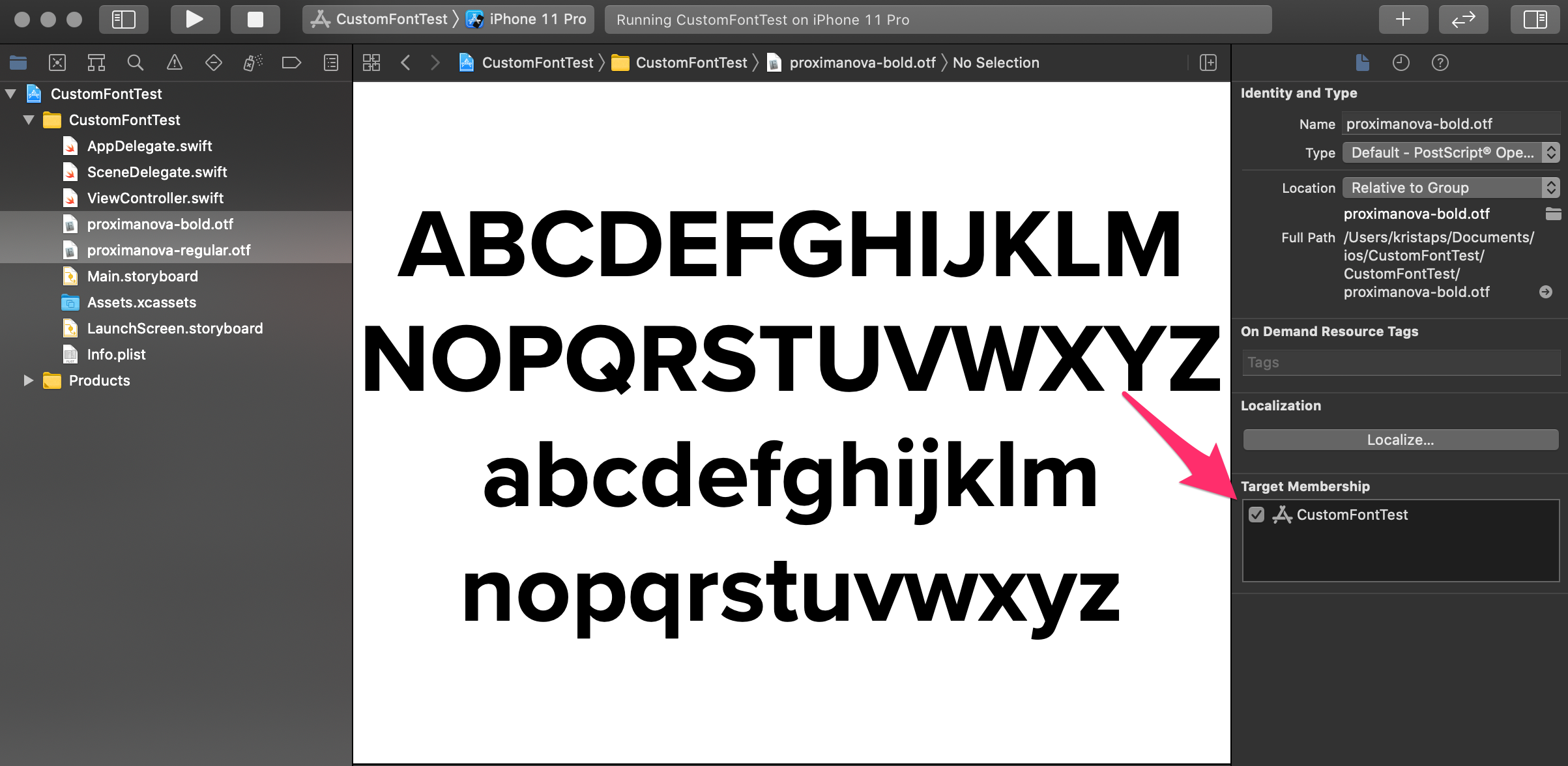
After that is done head down to the `Info.plist` file and add a new entry with key `Fonts provided by application`. There we need to provide an array with all the font files we have added to the project.
Check that the font files have been added and that we can use this piece of code to print all available font families and names:
```swift
UIFont.familyNames.sorted().forEach { fontFamily in
print("Family: \(fontFamily)")
UIFont.fontNames(forFamilyName: fontFamily).forEach { fontName in
print("name: \(fontName)")
}
}
```
Just paste this code in your `AppDelegate` `didFinishLaunchingWithOptions` and when you run the app it will print font families and names in the console.
## Use Custom Font with Dynamic type
To use Dynamic Type with custom fonts we need to use `UIFontMetrics`. It is a utility object that helps to obtain custom fonts that scale accordingly to text size presences and accessibility settings. In other words, this class helps us to show the custom font taking into account user font and accessibility settings.
To do it at first we need to initialize an instance of a custom font with a concrete size. To determine specific size we can use the dynamic type sizes [table](https://developer.apple.com/design/human-interface-guidelines/ios/visual-design/typography/) from the human interface guidelines typography section.

Let’s say we have added a label that has a large title behavior, so it means we need to use a 34 point size font. Then we use `UIFontMetrics` and initialize an instance for a specific text style. In the end, we set the font for our label using the `scaledFont` function and provide our custom font.
```swift
guard let font = UIFont(name: "Proxima Nova-Regular", size: 34) else {
fatalError("Can't find the custom font")
}
let fontMetrics = UIFontMetrics(forTextStyle: .largeTitle)
label.font = fontMetrics.scaledFont(for: font)
```
## Update upon Text Size changes
To test how everything works we can enable text size in Xcode Environment Overrides.
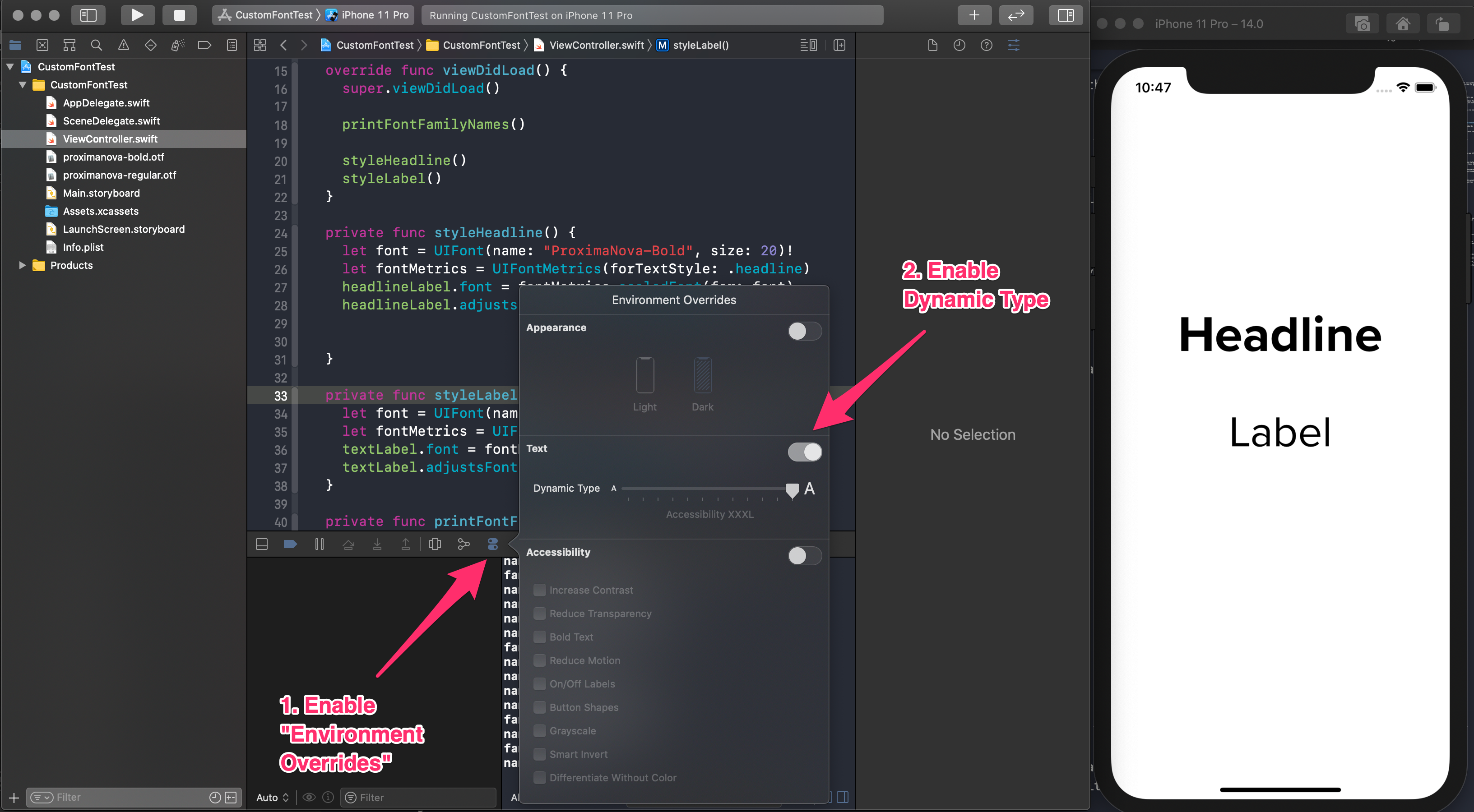
If you change it you can notice that nothing is happening in our app. To enable automatic change we need to set `adjustsFontForContentSizeCategory`. It indicates that the object should automatically update it’s font when device category changes.
```swift
label.adjustsFontForContentSizeCategory = true
```
Now we can fully test and we should see that our label font adjusts according to the text size and accessibility settings.
## TL;DR
Supporting Dynamic Type with custom font might sound like a tricky task to do, but it doesn't have to be.
Using the `UIFontMetrics` utility object we can scale our custom font according to what the user has specified in text size or accessibility settings.
## Links
* [Example app](https://github.com/fassko/custom-font-dynamic-type)
* [Building Apps with Dynamic Type](https://developer.apple.com/videos/play/wwdc2017/245/)
* [How to resize a custom font using UIFontMetrics](https://www.hackingwithswift.com/example-code/uikit/how-to-resize-a-custom-font-using-uifontmetrics)
* [Using A Custom Font With Dynamic Type](https://useyourloaf.com/blog/using-a-custom-font-with-dynamic-type/)
* [The iOS Font Size Guidelines](https://learnui.design/blog/ios-font-size-guidelines.html)
* [Adding a Custom Font to Your App](https://developer.apple.com/documentation/uikit/text_display_and_fonts/adding_a_custom_font_to_your_app)
* [Typography - Human Interface Guidelines](https://developer.apple.com/design/human-interface-guidelines/ios/visual-design/typography/)
---
### Mapview with SwiftUI
- URL: https://kristaps.me/blog/swiftui-mapview/
- Date: 2020-07-27
- Tags: swiftui, swift, apple, ios
- Summary: Finding places, navigating our way, or simply checking what's around - these are essential things that smartphones can help with. This year Apple added maps functionality to the SwiftUI framework. Let's check out how we can use it and what are the current problems.
Finding places, navigating our way, or simply checking what's around - these are essential things that smartphones can help with. This year Apple added maps functionality to the SwiftUI framework. Let's check out how we can use it and what are the current problems.
> I would like to point out that this covers Xcode 12 beta software and it can change in future releases.
## Present the MapView
To show MapView we need to use MapKit's structure `Map` that is specifically designed to use with SwiftUI. It is a view that displays an embedded map interface. We can use it to configure user-allowed interactions, show and track current location, and add annotations on the map.
It comes with several [initialize methods](https://developer.apple.com/documentation/mapkit/map). Let's see how to create a map specifying the map visible map region and add annotations.
The coordinate region defines the area that is visible on the map. It is a `Binding` that takes an `MKCoordinateRegion` object that is a combination of center coordinate and a coordinate span around it.
```swift
struct MapView: View {
@State var coordinateRegion = MKCoordinateRegion(
center: CLLocationCoordinate2D(latitude: 56.948889, longitude: 24.106389),
span: MKCoordinateSpan(latitudeDelta: 0.2, longitudeDelta: 0.2))
var body: some View {
Map(coordinateRegion: $coordinateRegion)
.edgesIgnoringSafeArea(.all)
}
}
```
Now we have a map showing the capital city of Latvia - Riga. With this init method we can specify other things like interaction capabilities, showing user location, and more.
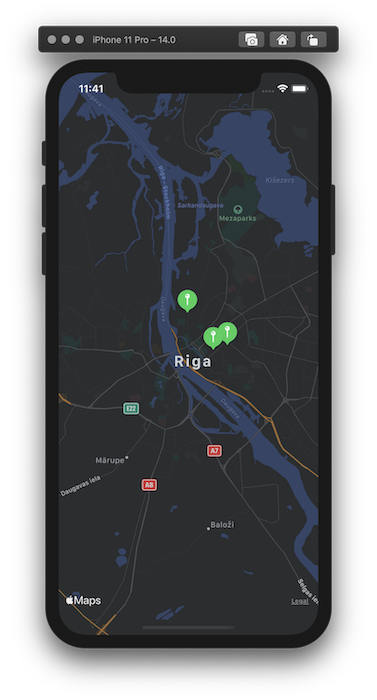
## Add annotations on the map
If we want to add annotation on the map we need to use a different initializer method that takes `MKCoordinateRegion`, identifiable collection of annotations and block that creates returns `MapAnnotationProtocol` protocol object.
Right now MapKit offers three simple annotation views:
* `MapPin` - pin-shaped annotation
* `MapMarker` - balloon-shaped annotation
* `MapAnnoation` - custom view annoation
The simplest way is to use the first two annotation types, in this blog post we're going to look into `MapMarker` annotation type. To [initalize](https://developer.apple.com/documentation/mapkit/mapmarker/3601335-init) need to pass a coordinate and optional tint color.
```swift
MapMarker(coordinate: place.coordinate, tint: .green)
```
By putting it all together, we can show couple of annoations on the map like this:
```swift
struct MapViewWithAnnotations: View {
let veganPlacesInRiga = [
VeganFoodPlace(name: "Kozy Eats", latitude: 56.951924, longitude: 24.125584),
VeganFoodPlace(name: "Green Pumpkin", latitude: 56.967520, longitude: 24.105760),
VeganFoodPlace(name: "Terapija", latitude: 56.9539906, longitude: 24.13649290000000)
]
@State var coordinateRegion = MKCoordinateRegion(
center: CLLocationCoordinate2D(latitude: 56.948889, longitude: 24.106389),
span: MKCoordinateSpan(latitudeDelta: 0.2, longitudeDelta: 0.2))
var body: some View {
Map(coordinateRegion: $coordinateRegion,
annotationItems: veganPlacesInRiga) { place in
MapMarker(coordinate: place.coordinate, tint: .green)
}.edgesIgnoringSafeArea(.all)
}
}
```
Let's not forget those collection elements should conform to `Identifiable` - provide `ID` value. The easiest way is to just use the `UUID` like this:
```swift
struct VeganFoodPlace: Identifiable {
var id = UUID()
let name: String
let latitude: Double
let longitude: Double
var coordinate: CLLocationCoordinate2D {
CLLocationCoordinate2D(latitude: latitude, longitude: longitude)
}
}
```
As we see that there is no way how to initialize an annotation with the title right now. For that, we need to use `MapAnnotation` that allows us to create custom map annotation.
## Current drawbacks
Adding Map view with SwiftUI is a very straight forward task, but current implementation lacks some important components. Let's discuss some of the drawbacks.
Adding a callout view for map annotation is one of the most essential things that is lacking with the current implementation.
After clicking on an annotation and showing a callout usually, there is the navigation or a modal view is presented. With a custom `MapAnnoation` we can partially do it, but for sure it is not a great solution.
Right now you can add only add annotations on the map. There isn't support for polyline or other elements.
## TL;DR
Adding Map view with SwiftUI is simple. It comes with ways to add binding to the map region, specify annotation list, track user's location, and more. Sadly with current Xcode Beta 3, it lacks features like showing titles for annotations, callout view, and SwiftUI way of navigation. Let's hope Apple will add it in the future.
## Links
* [https://developer.apple.com/documentation/mapkit/map](Map official documentation)
* [https://www.hackingwithswift.com/quick-start/swiftui/how-to-show-a-map-view](Hacking with Swift article)
* [https://github.com/fassko/RigaVeganMap](SwiftUI Map view implementation)
* [https://swiftwithmajid.com/2020/07/29/using-mapkit-with-swiftui/](Using MapKit with SwiftUI)
* [https://codakuma.com/swiftui-mapkit-fun/](Adventures in SwiftUI 2's MapKit support)
---
### Embracing the Dynamic Type
- URL: https://kristaps.me/blog/embracing-dynamic-type/
- Date: 2020-05-22
- Tags: dynamic type, accessibility, apple, ios
- Summary: Every year the third Thursday of May is the Global Accessibility Awareness Day. This time I want to focus on Dynamic Type in our iOS, iPadOS, and macOS projects. By implementing font scaling we can improve lives for loads of people with disabilities and impairments.
Every year the third Thursday of May is the [Global Accessibility Awareness Day (GAAD)](https://en.wikipedia.org/wiki/Global_Accessibility_Awareness_Day). This time I want to focus on Dynamic Type in our iOS, iPadOS, and macOS projects. By implementing font scaling we can improve lives for loads of people with disabilities and impairments.
[More than 40%](https://twitter.com/browgrammer/status/1031630345551065089) of iOS users have changed the font size to non-default one. It isn’t just a bigger font size. Quite a large chunk of folks have set it to smaller just because more information fits on the screen.
We should take into account how users want to interact with the apps we build. Apple - a huge accessibility advocate has written in [Human Interface Guidelines](https://developer.apple.com/design/human-interface-guidelines/accessibility/overview/introduction/) that we should use text styles that provide flexibility and adaptability by default.
## What is Dynamic Type
Dynamic Type is a feature to help developers to trigger and change text size according to the user’s text settings. It has been available from iOS 7 and we should embrace it.
Users can change text size in Settings app > General > Accessibility > Larger Text. By default text size slider is in the center.
## How to support Dynamic Type
The easiest way to support Dynamic Type in your apps is to use system provided text styles. By using this option we get Dynamic Type support without putting in any extra effort. For our disposal there are many text styles for titles, body, captions, and more.
Starting from iOS 11 we can implement scaling for custom fonts with UIFontMetrics. During this post, we won’t look into that.
Let’s see how we can use system text styles using UIKit and SwiftUI.
### UIKit
With good old UIKit we can use Dynamic Text Styles either with Storyboard or programmatically. We will not start a battle on which one is better during this post. :)
#### Storyboard
In Storyboard let’s say we have a Label view. In Inspector pane we need to check the Dynamic Type checkbox.
Once that is done then just change the font by selecting one of the provided Text Style.
#### Programmatically
If we wish to create the user interface from code we need to use `preferredFont(forTextStyle:)` and set `adjustsFontForContentSizeCategory` to true. It does the same that we saw with Storyboard approach.
```swift
label.font = UIFont.preferredFont(forTextStyle: .largeTitle)
label.adjustsFontForContentSizeCategory = true
```
### SwiftUI
SwiftUI supports font scaling out of the box for free. But once we want to set custom font we can use Dynamic Text System Style. For that, we need to use `.font` directive passing a text style.
```swift
struct TextView: View {
let text: String
var body: some View {
VStack(alignment: .leading) {
Text(text)
.font(.headLine)
}
}
}
```
## How to test Dynamic Type
When developing apps we can test Dynamic Type support in two ways - changing font size using Environment Overrides or Accessibility inspector. Both options can give quick and rapid feedback.
When running our app either in Simulator or on the device we can change environment variables from Debug Menu. That allows quickly to change text size and more.
The second option is to use the Accessibility Inspector tool. This option is tailored to check how our apps support accessibility features and quickly enable, disable, or change each of them.
## TL;DR
Accessibility has been an important topic in last couple of WWDC and overall in technology. By making our apps and solutions accessible we help our current users and support new users who previously couldn’t use our apps.
Dynamic Type is an iOS feature that scales font according to the user settings. More than 40% of iOS users have changed the default system font size. Both larger and smaller.
The easiest way to support Dynamic Type is to use System Font Styles either from Storyboard or programmatically with UIKit. With SwiftUI font scaling comes out of the box, but sure enough we can use System Styles let’s say for titles and captions.
## Links
* [Apple Human Interface Guidelines](https://developer.apple.com/documentation/uikit/uifont/scaling_fonts_automatically)
* [Building Apps with Dynamic Type - WWDC 2017](https://developer.apple.com/videos/play/wwdc2017/245/)
* [Supporting Dynamic Type with Custom Fonts on iOS](https://blog.timroesner.com/supporting-dynamic-type)
* [Introduction to supporting Dynamic Type](https://fluffy.es/introduction-to-dynamic-type/)
* [Improving Dynamic Type Support](https://pspdfkit.com/blog/2018/improving-dynamic-type-support/)
* [Dynamic Type in SwiftUI](https://swiftwithmajid.com/2019/10/09/dynamic-type-in-swiftui/)
* [How to use Dynamic Type with a custom font](https://www.hackingwithswift.com/quick-start/swiftui/how-to-use-dynamic-type-with-a-custom-font)
* [Dynamic Type project with UIKit and SwiftUI](https://github.com/fassko/DynamicType)
* [iPS 288: Accessibility, Dynamic Type, and Voiceover with Jeff Watkins](https://devchat.tv/iphreaks/ips-288-accessibility-dynamic-type-and-voiceover-with-jeff-watkins/)
---
### Different flavors of WebSockets on Vapor with Swift
- URL: https://kristaps.me/blog/different-flavors-of-websockets-vapor/
- Date: 2020-04-23
- Tags: nstimer, cadisplaylink, apple, ios
- Summary: Swift on the server lately is getting more traction despite IBM leaving the club. One of the most popular frameworks out there is Vapor. It is built on top of Apple’s SwiftNIO and written fully in Swift programming language. This time we will look into how to work with WebSockets using Vapor framework. We are going to see how to create a client and server using Vapor’s module WebSocketKit and Vapor framework itself.
Swift on the server lately is getting more traction despite [IBM leaving the club](https://forums.swift.org/t/december-12th-2019/31735). One of the most popular frameworks out there is [Vapor](https://vapor.codes/). It is built on top of Apple’s [SwiftNIO](https://github.com/apple/swift-nio) and written fully in Swift programming language.
This time we will look into how to work with WebSockets using Vapor framework. We are going to see how to create a client and server using Vapor’s module [WebSocketKit](https://github.com/vapor/websocket-kit) and Vapor framework itself.
## WebSocketKit
[WebSocketKit](https://github.com/vapor/websocket-kit) is a WebSocket client library built on SwiftNIO. Vapor framework consists of many smaller modules and this is one of them. WebSocketKit is hiding away SwiftNIO lower-level complexity and nicely abstracting the event loops. Let’s see how can we use it.
### Client
When creating a WebSocket client with WebSocketKit we need to follow a couple of steps.
At first, we need to create an event loop group where we can receive the WebSocket events such as receiving a text.
```swift
var eventLoopGroup = MultiThreadedEventLoopGroup(numberOfThreads: 2)
```
After that, we should create a WebSocket promise within the created event loop group. Within the promise, we specify the WebSocket events. In this example, we are sending `hello` String value and printing out text that we receive back.
```swift
let port: Int = 8080
let promise = eventLoopGroup.next().makePromise(of: String.self)
WebSocket.connect(to: "ws://localhost:\(port)", on: eventLoopGroup) { ws in
ws.send("hello")
ws.onText { ws, string in
print(string)
}
}.cascadeFailure(to: promise)
```
After that, we need to wait for executing events within this promise and event loop group.
```swift
_ = try promise.futureResult.wait()
```
### Server
Creating a server with WebSocketKit is a bit more complicated - let’s move step by step.
Similarly, when creating the client we need to create the event loop group.
```swift
var eventLoopGroup = MultiThreadedEventLoopGroup(numberOfThreads: 2)
```
A `GET` connection can be transformed into WebSocket connection via upgrade dance. When using this approach, we need to configure that ourselves.
```swift
let upgradePipelineHandler: (Channel, HTTPRequestHead) -> EventLoopFuture = { channel, req in
WebSocket.server(on: channel) { ws in
ws.send("You have connected to WebSocket")
ws.onText { ws, string in
print("received")
ws.send(string.trimmingCharacters(in: .whitespacesAndNewlines).reversed())
}
ws.onBinary { ws, buffer in
print(buffer)
}
ws.onClose.whenSuccess { value in
print("onClose")
}
}
}
```
Now as we have created the WebSocket upgrade pipeline let’s use it. To do that we need to create the promise in which we will receive the events.
```swift
let promise = eventLoopGroup.next().makePromise(of: String.self)
let server = try ServerBootstrap(group: eventLoopGroup).childChannelInitializer { channel in
let webSocket = NIOWebSocketServerUpgrader(
shouldUpgrade: { channel, req in
return channel.eventLoop.makeSucceededFuture([:])
},
upgradePipelineHandler: upgradePipelineHandler
)
return channel.pipeline.configureHTTPServerPipeline(
withServerUpgrade: (
upgraders: [webSocket],
completionHandler: { ctx in
// complete
})
)
}.bind(host: "localhost", port: port).wait()
```
To boot up the server we need to start waiting for the events with the freshly created promise and server object.
```swift
_ = try promise.futureResult.wait()
try server.close(mode: .all).wait()
```
Now we have a running server using WebSocketKit framework. When a client sends text message we are reversing all the characters. For example when a client sends `Hello` we are sending back `olleH`.
## Vapor app approach
All this seems quite complicated, but don’t worry - by using Vapor app approach, all this complexity goes away.
### Client
Creating a client is much easier within Vapor app. You just need to create a new WebSocket instance using an event loop group from `app` object. Then connect to the network address. Within a closure, you get WebSocket object on which you can register events you want to trigger.
```swift
let url = "wss://echo.websocket.org"
let _ = WebSocket.connect(to: url, on: app.eventLoopGroup) { ws in
ws.onText { ws, text in
print(text)
}
ws.send("Hello")
}
```
In this example, client sends `Hello` to the server once connected and prints out to the console any text that is received.
### Server
When creating a server we need to provide an endpoint where clients can connect to. Then within a closure, we get WebSocket object and request object.
Similarly, like with the client, we can specify what we want to do when these events are triggered. For instance, once the server receives text it will reverse it and send back.
```swift
app.webSocket("") { request, ws in
ws.send("You have been connected to WebSockets")
ws.onText { ws, string in
ws.send(string.trimmingCharacters(in: .whitespacesAndNewlines).reversed())
}
ws.onClose.whenComplete { result in
switch result {
case .success():
print("Closed")
case .failure(let error):
print("Failed to close connection \(error)")
}
}
}
```
Additional to that we can can react once client disconnects and many [more](http://api.vapor.codes/websocket/latest/WebSocket/Classes/WebSocket.html).
## TL;DR
Swift on the server has gained a lot of popularity especially now since iOS developers can create apps and backend services in the same language.
Most of the Swift server frameworks are built on top of SwiftNIO framework that gives a very granular way to configure WebSockets.
Using Vapor tools like WebSocketKit and app framework itself we can ease this complicated process. You can check out the [code samples](https://github.com/fassko/vapor-websockets) and start using Swift when you need to deal with WebSockets on the backend.
## Links
* [WebSocketKit on Github](https://github.com/vapor/websocket-kit)
* [WebSocketKit documentation](http://api.vapor.codes/websocket/latest/WebSocket/index.html)
* [Vapor 4.0 WebSockets documentation](https://github.com/fassko/vapor-websockets)
* [Vapor WebSockets code samples](http://api.vapor.codes/websocket/latest/WebSocket/index.html)
* [SwiftNIO](https://github.com/apple/swift-nio)
---
### NSTimer vs CADisplayLink
- URL: https://kristaps.me/blog/nstimer-vs-cadisplaylink/
- Date: 2020-03-27
- Tags: nstimer, cadisplaylink, apple, ios
- Summary: `NSTimer` or just `Timer` in Swift world is a commonly used way to execute something repeatedly with an interval. For instance, a countdown timer is a perfect example. A hidden gem is `CADisplayLink` - a special flavor of timer that is linked to the device screen refresh rate. Usually, it is 60 frames per second, but in new iPads, it is 120 frames per second.
`NSTimer` or just `Timer` in Swift world is a commonly used way to execute something repeatedly with an interval. For instance, a countdown timer is a perfect example.
A hidden gem is `CADisplayLink` - a special flavor of timer that is linked to the device screen refresh rate. Usually, it is 60 frames per second, but in new iPads, it is 120 frames per second.
## What is (NS)Timer?
With [Timer](https://developer.apple.com/documentation/quartzcore/cadisplaylink) you can line up one or multiple tasks in the future. You can specify if the timer needs to repeat.
```swift
let timer = Timer.scheduledTimer(withTimeInterval: 1.0, repeats: true) { timer in
print("1 second passed")
}
```
In the example above timer will fire every 1 second indefinitely.
To stop the timer you need to invalidate it.
```swift
timer.invalidate()
```
Timers are fired on the main thread. If the app is UI heavy timers won’t fire. To fix that you can:
- attach to non-default `RunLoop` mode like common mode - it will allow a timer to fire even UI (main thread) is busy
```swift
RunLoop.current.add(timer, forMode: .common)
```
OR
- you can synchronize with your screen updates with `CADisplayLink`.
## What is CADisplayLink?
`CADisplayLink` is a special flavor of Timer that lets your apps run a piece of code every time right after the screen has refreshed. Usually, it is 60 frames per second, but in selective devices like new iPads, it is 120 frames per second.
It is a great way to create smooth animations and calculate the next frame. This way you have a perfect timing between the frames unlike the classical `Timer` which is not guaranteed to fire on the exact time when the screen is refreshing.
```swift
class DisplayLink {
@objc func displayRefreshed(displayLink: CADisplayLink) {
print(displayLink.timestamp)
}
init() {
let displayLink = CADisplayLink(target: self, selector: #selector(displayRefreshed(displayLink:)))
displayLink.add(to: .main, forMode: .default)
}
}
```
When you create a `DisplayLink` it should be linked to an object and specified an `objc` function as a selector. This function will be fired as soon as redraw on the screen happens. We can see it by printing out the timestamp.
```text
...
93095.013681187
93095.11224511401
93095.12891178101
93095.145578448
93095.162245115
93095.178911782
93095.19557844901
93095.21224511601
...
```
`CADisplayLink` has a property `preferredFramesPerSecond` that lets you specify a callback rate calculated in frames per second. It means you can specify your refresh rate when you want the timer to fire. It is a great way if you don’t need to execute your code every time screen refreshes.
## Timer vs CADisplayLink
`Timer` and `CADisplayLink` both are ways to fire piece of code with an interval. These two approaches are different.
`Timer` is useful when you just want to execute something let’s say every 5 seconds without it being tied to screen redrawing.
`CADisplayLink` is tied to screen refresh rate which is either 60 or 120 frames per second. It is fired right after screen redraws and you have maximum amount of time to execute the code before the next screen refresh. This approach shines if you need to create seamless animations or it can be useful in game development where you can’t avoid any screen refresh drops.
## TL;DR
We all might know `NSTimer` (or just `Timer`) which is good for executing piece of code after an interval with or without repeating it.
In some cases it’s worth to consider `CADisplayLink` especially if you want to work with animations and get most of the time between screen redraws itself.
## Links
* [NSTimer official documentation](https://developer.apple.com/documentation/foundation/nstimer?language=objc)
* [CADisplayLink official documentation](https://developer.apple.com/documentation/quartzcore/cadisplaylink)
* [Timer tutorial](https://www.raywenderlich.com/113835-ios-timer-tutorial)
* [How to use Timer](https://www.hackingwithswift.com/articles/117/the-ultimate-guide-to-timer)
* [How to use CADisplayLink](https://www.hackingwithswift.com/example-code/system/how-to-synchronize-code-to-drawing-using-cadisplaylink)
* [In depth article about CADisplayLink](https://medium.com/@dmitryivanov_54099/cadisplaylink-and-its-applications-bfafb760d738?source=linkShare-edb1354ca2c4-1583337923)
* [Discussion about CADisplayLink and animations](https://stackoverflow.com/questions/30955847/ios-animation-cadisplaylink-vs-cashapelayer)
---
### Clearing up after subscribing to Swift WebSockets
- URL: https://kristaps.me/blog/clearing-subscriptions/
- Date: 2020-02-25
- Tags: websockets, apple, ios, apollo
- Summary: Opening and keeping a WebSocket connection alive isn't enough when dealing with it. The connection needs to be closed either from user or sever side. That is [mentioned](https://tools.ietf.org/html/draft-hixie-thewebsocketprotocol-76#section-6) in the official WebSocket protocol. Previously we have seen how to implement WebSockets using [Starscream library](/websockets-swift/), [URLSessionWebSocketTask](/websockets-ios-13-swift/) and [GraphQL](https://kristaps.me/graphql-subscriptions/) in Swift projects. This time we will look into cleaning up the connection after you don’t need it anymore.
Opening and keeping a WebSocket connection alive isn't enough when dealing with it. The connection needs to be closed either from user or sever side. That is [mentioned](https://tools.ietf.org/html/draft-hixie-thewebsocketprotocol-76#section-6) in the official WebSocket protocol.
Previously we have seen how to implement WebSockets using [Starscream library](/websockets-swift/), [URLSessionWebSocketTask](/websockets-ios-13-swift/) and [GraphQL](https://kristaps.me/graphql-subscriptions/) in Swift projects. This time we will look into cleaning up the connection after you don’t need it anymore.
If you leave the connection open and don’t clean up properly various problems can arise: memory leaks, server overworking and data corruptions.
## Closing the WebSocket
As we are looking at how to close connection from user agent there are couple of things to consider. When closing the connection we need to inform server about the reason using "close" code which can be useful for server developers. There are several "close" codes which you can check out in [RFC 6455](https://tools.ietf.org/html/rfc6455#section-7.4.1) specification or simplified version [here](https://developer.mozilla.org/en-US/docs/Web/API/CloseEvent).
If anything goes wrong with the connection on user side connection should be closed. It is important to note that when user agent notices that server has closed its connection, it should do the same on the other side. That means you need to explicitly inform the server about such event (regardless of the closure on the user side). That is clearly [stated](https://tools.ietf.org/html/draft-hixie-thewebsocketprotocol-76#section-6.3) in the official WebSocket protocol.
## Cancel the URLSessionWebSocketTask
To cancel a `URLSessionWebSocketTask` you need to call a `cancel` [method](https://developer.apple.com/documentation/foundation/urlsessionwebsockettask/3181200-cancel).
When calling this instance method you need to provide a [close code](https://developer.apple.com/documentation/foundation/urlsessionwebsockettask/closecode) and a reason.
```swift
let url = URL(string: "wss://echo.websocket.org")!
let webSocketTask = URLSession.shared.webSocketTask(with: url)
// ...
webSocketTask.cancel(with: .goingAway, reason: nil)
```
## Disconnect with Starscream
To close a WebSocket created with library [Starscream](https://github.com/daltoniam/Starscream) you need to call a `disconnect` method. If you want to specify it in the close code you can do so, but it is optional.
```swift
let socket = WebSocket(url: URL(string: "ws://localhost:8080/")!)
// ...
socket.disconnect(closeCode: CloseCode.normal.rawValue)
```
## Cancel subscriptions with GraphQL
When using GraphQL with subscriptions Apollo protocol handles all the heavy duty work behind the scenes. Clients can get immediate data changes from the server.
In Apollo iOS SDK library subscriptions are `Cancellable` [protocol](https://github.com/apollographql/apollo-ios/Sources/Apollo/Cancellable.swift) types. It is an object that can be cancelled when in progress and it has just one method `cancel`.
In order to clean up after GraphQL subscriptions are not needed anymore the easiest way is to keep track of all subscriptions and cancel when needed or do the cleanup within object `deinit` method.
```swift
var subscriptions: [Cancellable]
// ...
let newPricesSubcriprion = ApolloClient.subscribe(NewPricesSubscription()) { ... }
// ...
subscriptions.forEach { subscription in
subscription.cancel()
}
```
## TL;DR
When working with WebSockets we need to remember to close connections and clean up. Forgetting to do so we can run into multiple issues which can later be hard to debug and understand.
We can use WebSockets in our Swift projects in multiple ways and each one requires a different approach to close the connection. But most importantly as WebSocket protocol tells us we need to do it either connection is closed from the user or server side.
## Links
* [Closing the connection from WebSocket protocol](https://tools.ietf.org/html/draft-hixie-thewebsocketprotocol-76#section-6)
* [Cancel URLSessionWebSocketTask](https://developer.apple.com/documentation/foundation/urlsessionwebsockettask/3181200-cancel)
* [Starscream library documentation](https://github.com/daltoniam/Starscream)
* [GraphQL subscriptions](https://www.apollographql.com/docs/ios/subscriptions/)
---
### Ignorance of the URLRequest cache
- URL: https://kristaps.me/blog/ignorance-of-cache/
- Date: 2020-01-18
- Tags: cache, apple, ios, apollo
- Summary: Caching and invalidating cache is one of the hardest things in computer science [according to](https://martinfowler.com/bliki/TwoHardThings.html) Martin Fowler. Recently I was dealing with cache and invalidating it in three of my applications. I had some serious issues with that and wanted to dig deeper. This time we will discuss `URLRequest` caching strategies and how to use it in your apps. I will share some of my learnings and problems that I found.
Caching and invalidating cache is one of the hardest things in computer science [according to](https://martinfowler.com/bliki/TwoHardThings.html) Martin Fowler.
Recently I was dealing with cache and invalidating it in three of my applications. I had some serious issues with that and wanted to dig deeper. This time we will discuss `URLRequest` caching strategies and how to use it in your apps. I will share some of my learnings and problems that I found.
## Creating URLRequest with cache
Not so many of us use caching strategy when creating `URLRequest` and hitting the network. If the server you’re accessing doesn’t have caching strategy implemented then making network requests can cause data corruption in your apps.
I had these issues with just a simple request and getting new `JSON` data from the network. For some reason, `URLRequest` thought that nothing has changed and returned data from internal app cache rather than the network.
The reason for this is that `NSURLCache` is set for the application by default according to the [documentation](https://developer.apple.com/documentation/foundation/urlcache#//apple_ref/occ/clm/NSURLCache/setSharedURLCache:). The cache will be purged when the device runs low on disk space, but mostly this isn’t the case. You can control `NSURLCache` behavior when launching the app but let’s leave that for another post.
## Caching strategies
`NSURLRequest` has a [property](https://developer.apple.com/documentation/foundation/nsurlrequest/1407944-cachepolicy) `cachePolicy` which sets the caching strategy for the request you’re creating. It is an enum and has several [choices](https://developer.apple.com/documentation/foundation/nsurlrequest/cachepolicy) defined as constants:
* `case useProtocolCachePolicy`
> Use the caching logic defined in the protocol implementation, if any, for a particular URL load request.
* `case reloadIgnoringLocalCacheData`
> The URL load should be loaded only from the originating source.
* `case reloadIgnoringLocalAndRemoteCacheData`
> Ignore local cache data, and instruct proxies and other intermediates to disregard their caches so far as the protocol allows.
* `static var reloadIgnoringCacheData: NSURLRequest.CachePolicy`
> Replaced by NSURLRequest.CachePolicy.reloadIgnoringLocalCacheData
* `case returnCacheDataElseLoad`
> Use existing cache data, regardless of age or expiration date, loading from originating source only if there is no cached data.
* `case returnCacheDataDontLoad`
> Use existing cache data, regardless of age or expiration date, and fail if no cached data is available.
* `case reloadRevalidatingCacheData`
> Use cache data if the origin source can validate it; otherwise, load from the origin
If you just read the documentation then all of these constants look confusing and hard to choose the right now. Let’s try to understand which of the caching policy you need to choose for your `URLRequest` and when.
## Which one to choose?
The default policy for URL load requests is `useProtocolCachePolicy`. If a cached response does not exist then it is fetched from the originating source. Otherwise, if a response doesn’t tell to revalidate then a response is returned from the cache. For more detailed information you can go to [RFC 2616 detailed documentation](https://www.w3.org/Protocols/rfc2616/rfc2616-sec13.html#sec13). Here is an image to illustrate how this policy works.
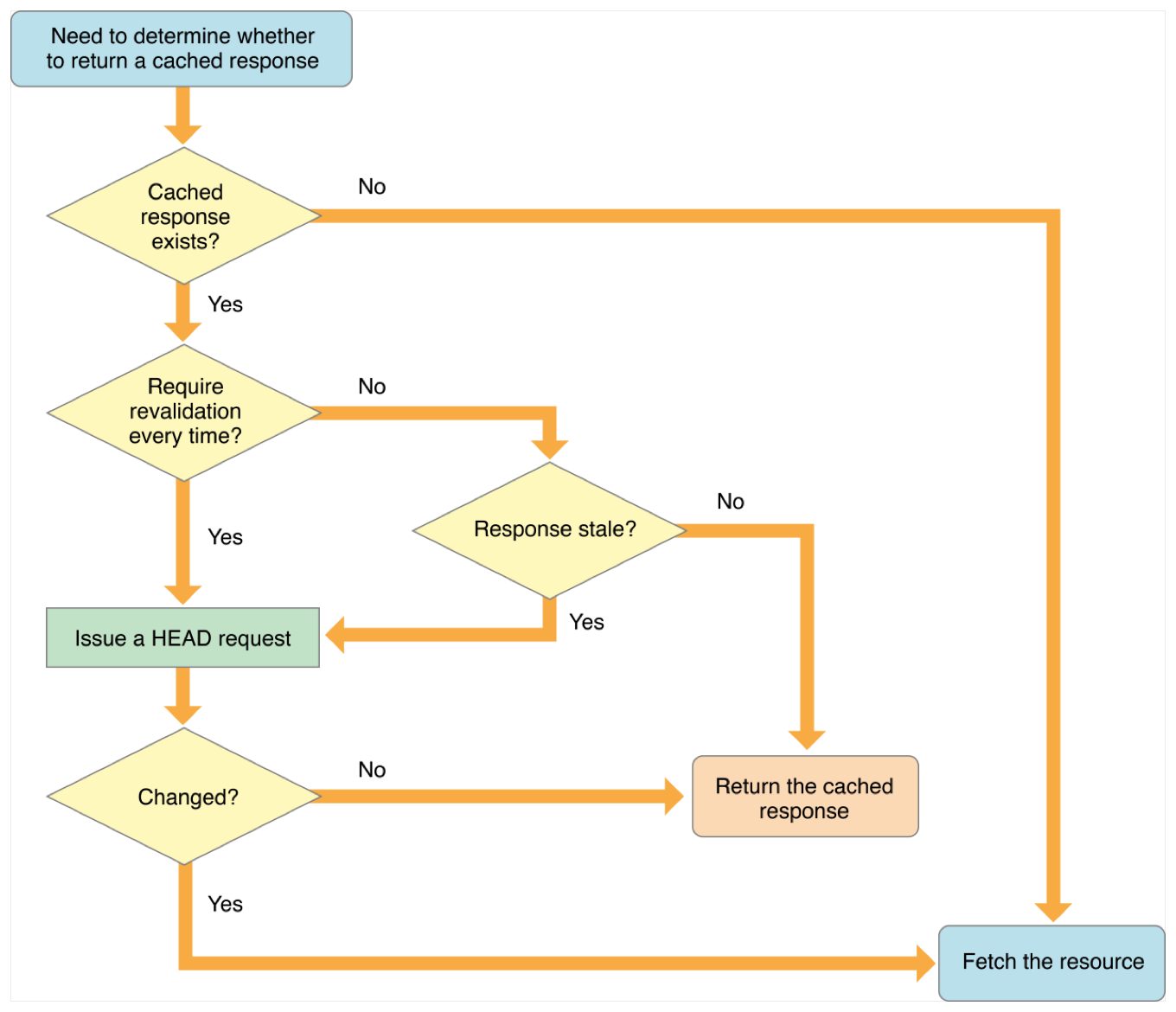
Option `reloadIgnoringLocalCacheData` ignores the local cache and `reloadIgnoringLocalAndRemoteCacheData` ignores local and remote cache.
With `returnCacheDataElseLoad` you tell to use cache no matter how out of date it is. If the cached request doesn’t exist it will be loaded from the network.
Option `returnCacheDataDontLoad` is the most confusion one. It means offline mode. Only cached data will be used and it won’t load from the network.
But the story doesn’t end here, if we check `reloadRevalidatingCacheData` [documentation](https://developer.apple.com/documentation/foundation/nsurlrequest/cachepolicy/reloadrevalidatingcachedata) then we see that previous versions than macOS 15, iOS 13, watchOS 6, and tvOS 13 don’t implement this constant. [Mattt](https://twitter.com/mattt) was [warning](https://nshipster.com/nsurlcache/) us about that years ago. There is a [radar](http://openradar.appspot.com/radar?id=1755401) opened in May 2012.
So which one to choose? There isn’t a right or wrong answer, but the rule of thumb is - if you want partial cache with default settings then choose `useProtocolCachePolicy`. If you want to load a request without cache then choose either `reloadIgnoringLocalCacheData` or `reloadIgnoringLocalAndRemoteCacheData`.
## TL;DR
Handling cache and cache invalidation are one of the hardest topics in Computer Science. In iOS, macOS, tvOS and watchOS it isn’t easy and straight forward. The official documentation is confusing and isn’t clear how it works behind the scenes.
`URLRequest` has a [property](https://developer.apple.com/documentation/foundation/nsurlrequest/1407944-cachepolicy) `cachePolicy` which sets the caching strategy for the request.
For most of the cases default `useProtocolCachePolicy` option is what you want. If you want to avoid cache then one of `reloadIgnoringLocalCacheData` or `reloadIgnoringLocalAndRemoteCacheData` is the right one you have to choose.
## Links
* [URLRequest Cache Policy documentation](https://developer.apple.com/documentation/foundation/nsurlrequest/cachepolicy)
* [Article about NSURLCache by NSHipster](https://nshipster.com/nsurlcache)
* [Caching in HTTP](https://www.w3.org/Protocols/rfc2616/rfc2616-sec13.html#sec13)
* [How to leverage HTTP cache in iOS](https://www.fabernovel.com/en/engineering/how-to-leverage-http-cache-in-ios)
* [Preventing NSURLConnection Cache Issues](https://codewithchris.com/preventing-nsurlconnection-cache-issues/)
---
### GraphQL Advances when fetching data in iOS with Swift and Apollo SDK
- URL: https://kristaps.me/blog/graphql-advances-with-swift/
- Date: 2019-12-27
- Tags: graphql, apple, ios, apollo
- Summary: In previous articles, we discussed how to [get started](/graphql-ios-swift/) with and use [subscriptions](/graphql-subscriptions/) with GraphQL in iOS (and iPadOS, tvOS, and macOS) using Swift programming language. This time I want to discuss some advanced topics using GraphQL with Apollo SDK and Swift: usage of GraphQL fragments and Swift scalar types; optionality with GraphQL and it’s pros and cons.
In previous articles, we discussed how to [get started](/graphql-ios-swift/) with and use [subscriptions](/graphql-subscriptions/) with GraphQL in iOS (and iPadOS, tvOS, and macOS) using Swift programming language.
This time I want to discuss some advanced topics using GraphQL with Apollo SDK and Swift: usage of GraphQL fragments and Swift scalar types; optionality with GraphQL and it’s pros and cons.
## Using fragments
At first, what is a **fragment** in GraphQL? It is a reusable piece of the query. For instance, if you need the same field in multiple queries you can extract that into a reusable piece called [GraphQL fragment](https://graphql.org/learn/queries/#fragments).
```text
query Users($id: userID) {
users(id $id) {
...UserDetails
followers {
...UserDetails
}
}
}
fragment UserDetails on User {
id
firstName
lastName
email
}
```
When you use fragments in your Swift project queries, Apollo iOS SDK [generates separate result types](https://www.apollographql.com/docs/ios/fragments/). It is a good way to divide UI, for instance, UITableViewCell or UICollectionViewCell. This way a child view can be reused and only depends on the parent - UITableView or UICollectionView.
## GraphQL scalar types in Swift
In GraphQL a [scalar type](https://graphql.org/learn/schema/#scalar-types) is a field that has to resolve to some concrete type. In Swift language it can be `Date` or `enum`. Once you download schema JSON file you can see it like this:
```text
"type": {
"kind": "SCALAR",
"name": "Date",
"ofType": null
}
```
Using Apollo code generation argument `--passthroughCustomScalars` you can use your own types for custom scalars.
Swift `Date` type from Foundation framework is a good example. If you want to convert GraphQL Date type to Swift using Apollo iOS SDK, just pass `--passthroughCustomScalars` when generating the Swift code.
You can use custom formats for `Date` like `ISO8601` or use milliseconds. You just need to extend `Date` type and conform to `JSONDecodable` which requires implementing the initializing method.
```swift
extension Date: JSONDecodable {
public init(jsonValue value: JSONValue) throws {
guard let isoString = value as? String else {
throw JSONDecodingError.couldNotConvert(value: value, to: Date.self)
}
var tmpDate: Date?
if isoString.count == 17 {
tmpDate = DateFormatter.ISO8601short.date(from: isoString)
} else if isoString.count == 24 {
tmpDate = DateFormatter.ISO8601Milliseconds.date(from: isoString)
} else {
tmpDate = DateFormatter.ISO8601.date(from: isoString)
}
guard let date = tmpDate else {
throw JSONDecodingError.couldNotConvert(value: value, to: Date.self)
}
self = date
}
}
```
`ISO8601short`, `ISO8601Milliseconds` and `ISO8601` declared in DateFormatter type extension as static instance properties.
## Dealing with optionals with GraphQL
I think that optional type properties is one of the biggest downsides of the GraphQL with Apollo iOS SDK. It is so because in many cases GraphQL type field can not be specified, so it can be null.
When you are [fetching queries](https://www.apollographql.com/docs/ios/fetching-queries/) with Apollo iOS SDK `GraphQLResult` type has optional property `data`. This property is a typed result data which means it has fetched type properties and those can be also optional.
This optional hell can be solved using extension for a specific type and add optional initializer:
```swift
extension User {
init?(_ user: UsersQuery.Data.User) {
guard let userID = Int(user.id) else {
return nil
}
self.id = userID
self.firstName = user.firstName
self.lastName = user.lastName
self.email = user.email
}
}
```
You can use this initializer when you fetch data and transform it from GraphQL types to your app models. By abstracting this with another layer you can hide it away and return, let’s say, a Swift Result type.
## TL;DR
GraphQL fragments is a great way to extract some parts of the query code and reuse it in multiple places. Using Apollo iOS SDK it will generate Swift code for your apps and projects.
Converting types like GraphQL `Date` to Swift `Date` is a great hidden gem in Apollo iOS SDK. All you need to do is to add argument `--passthroughCustomScalars` during code generation.
Dealing with optionals can be a pain with GraphQL in your Swift projects. One way to improve the code base is to use custom initializers for your models.
## Links
* [Using GraphQL fragments](https://www.apollographql.com/docs/ios/fragments/)
* [Tooling for development and production Apollo workflows](https://github.com/apollographql/apollo-tooling)
* [Fetching queries](https://www.apollographql.com/docs/ios/fetching-queries/)
* [Mapping GraphQL types to Swift](https://blog.apollographql.com/mapping-graphql-types-to-swift-aa85e5693db4)
* [Add support for Date Type in Apollo iOS SDK](https://github.com/apollographql/apollo-ios/issues/450)
---
### How to use subscriptions with GraphQL using Apollo iOS SDK and Swift
- URL: https://kristaps.me/blog/graphql-subscriptions/
- Date: 2019-11-26
- Tags: graphql, apple, ios, apollo
- Summary: GraphQL main functionality is to fetch and update data from the server. In addition to that subscriptions allow us to listen and to send messages from and to server in real-time. It is similar to regular queries, but the answer will be received when an event happens either on the server or on the client. Apollo iOS SDK library supports subscriptions and it is powered by the Swift WebSocket library [Starscream](/websockets-swift/) behind the scenes to connect to the server. Let's look at how to set it up and start using it.
GraphQL main functionality is to fetch and update data from the server. In addition to that subscriptions allow us to listen and to send messages from and to server in real-time. It is similar to regular queries, but the answer will be received when an event happens either on the server or on the client.
Apollo iOS SDK library supports subscriptions and it is powered by the Swift WebSocket library [Starscream](/websockets-swift/) behind the scenes to connect to the server. Let's look at how to set it up and start using it.
## Schema and code generation
Subscriptions are already supported once you download your schema file from the GraphQL server and perform the code generation. It will generate all the subscriptions using `GraphQLSubscription` protocol which allows passing parameters to subscription you want to implement.
Let’s imagine we have a chat application and GraphQL server can get messages for a specific thread as soon as they are sent. We need to create a GraphQL query in our `.graphql` file like this:
```graphql
subscription messagesReceived($threadID: ID!) {
messagesReceived(threadID: $threadID) {
id
date
text
author
}
}
```
Once this is done we use Apollo iOS SDK to auto-generate type-safe Swift code. Which can be used in our app.
You can read more about using Apollo iOS SDK in my previous [post](/graphql-ios-swift/).
## Setting up the client
Setting up the Apollo client using subscriptions can be the trickiest step, so let's go through it.
First, we need to create `WebSocketTransport` instance to send GraphQL subscription operations to the server.
```swift
let webSocketTransport: WebSocketTransport = {
let url = URL(string: "ws://messaging.app/websocket")!
let request = URLRequest(url: url)
return WebSocketTransport(request: request)
}()
```
Then an HTTP transport instance will help us to use queries and mutations.
```swift
let httpTransport = HTTPNetworkTransport(url: URL(string: "http://messaging.app/graphql")!)
```
A split network transport allows the use of HTTP Transport and WebSocket transport protocols. That enables us to avoid any potential issues of having multiple client objects.
```swift
let splitNetworkTransport = SplitNetworkTransport(
httpNetworkTransport: httpTransport,
webSocketNetworkTransport: webSocketTransport
)
```
Then we create the Apollo client using network transport type which in this case is `SplitNetworkTransport`.
```swift
let apolloClient = Apollo(networkTransport: splitTransport)
```
## Using the subscription
After we have created the Apollo client with subscription capabilities we can use it in our app to listen when a new message has been created to the specific thread.
```swift
let receivedMessagesSubscription = MessagesReceivedSubscription(id: threadID)
let messagesSubsription = apolloClient.subscribe(subscription: receivedMessagesSubscription) {[weak self] result in
switch result {
case .success(let graphQLResult):
if let message = graphQLResult.data.message {
print("Message received \(message)")
}
case .failure(let error):
print("Failed to subscribe \(error)")
}
}
```
Each time when a message has been sent, code inside closure is executed with new data.
## TL;DR
GraphQL is not only for fetching data from the server and updating data on the server. You can be using GraphQL subscription feature to listen and send real-time messages using WebSockets.
Apollo iOS SDK library has the functionality to support subscriptions in your Swift applications. It is using WebSocket library Starscream behind the scenes to offload this cumbersome task. By leveraging code generation you can use strictly typed Swift code to interact with your GraphQL server in real-time in your iOS, iPadOS, macOS and tvOS apps.
## Links
* [Apollo iOS SDK library subscriptions documentation](https://www.apollographql.com/docs/ios/subscriptions/)
* [Some use cases setting up Apollo iOS SDK](https://stackoverflow.com/questions/51720378/how-to-implement-graphql-subscription-using-apollo-ios-client)
* [Apollo SDK official subscriptions documentation](https://www.apollographql.com/docs/react/data/subscriptions/)
---
### What is PassKit and how to use it?
- URL: https://kristaps.me/blog/apple-passkit/
- Date: 2019-10-20
- Tags: ios, swift
- Summary: Apple [PassKit](https://developer.apple.com/documentation/passkit) framework is responsible for Apple Pay and managing user passes in Wallet app. This time let’s talk about passes, how to create and distribute them. Wallet app allows iOS users to organize boarding passes, tickets or gifts, business and loyalty cards. In short, passes are digital representations of information that usually is printed on paper or used as plastic cards.
Apple [PassKit](https://developer.apple.com/documentation/passkit) framework is responsible for Apple Pay and managing user passes in Wallet app.
This time let’s talk about passes, how to create and distribute them. Wallet app allows iOS users to organize boarding passes, tickets or gifts, business and loyalty cards. In short, passes are digital representations of information that usually is printed on paper or used as plastic cards.
## Pass building blocks
Passes are created as packages (or bundles) with extension `.pass` and consists of:
* `pass.json` - file that defines the pass, image assets, and other metadata;
* `manifest.json` - file that describes files inside the pass and has SHA1 checksums of each of the files
* image assets
* background of the pass
* logo - the logo in the pass header
* icon - small icon for the pass
* strip - image strip background behind the primary fields
### Required fields creating a pass
When creating a pass you need to provide the [pass type identifier](https://developer.apple.com/documentation/passkit/pkpass/1618783-passtypeidentifier) and [serial number](https://developer.apple.com/documentation/passkit/pkpass/1618788-serialnumber). Type identifier is a String value using reverse DNS style - for example, `pass.com.example.loyalty-card`. Serial number is a string value that has a unique value in the scope of the pass type, like a membership number or a ticket identifier.
Other mandatory fields are:
* format version - file format version, usually need to use 1 (number)
* team identifier - unique 10-character identifier provided by Apple which you can find out from developer.apple.com portal
* organization name - displayed on the lock screen
* description - helps to make the pass accessible by VoiceOver
### Different flavors of the pass
Passes can have different visual appearance:
* `boardingPass` - pass for a flight, train, bus or any other type of transit
* `coupon` - coupons, special offers or discounts
* `eventTicket` - pass to enter any kind of event
* `storeCard` - loyalty card style
* `generic` - style appropriate for any pass
Wallet app is using different layout to each of these styles. It is much easier for your users to distinguish passes and find the right one faster.
## Creating passes
Creating a pass is the first step of the pass lifecycle. It happens on the server side and should be cryptographically signed and compressed. Signing process requires several steps and Apple has a [manual](https://developer.apple.com/library/archive/documentation/UserExperience/Conceptual/PassKit_PG/Creating.html#//apple_ref/doc/uid/TP40012195-CH4-SW1) or you can use a third party library and provide necessary certificates. By signing your passes your users can be sure that the pass is correct and not fake.
When you debug passes in iOS Simulator Wallet app you can see any errors in the system log which you can view in Console app.
## Distributing passes
After creating, signing and compressing a pass into a bundle you can distribute it in several ways:
* sending with an email;
* using file sharing options like iCloud or AirDrop;
* using Add to Wallet button [provided](https://developer.apple.com/documentation/passkit/pkaddpassbutton) by Apple.
## Using passes
Now you can provide not only barcode information but NFC data as well. When using NFC your users can simply hold the authorized device near the NFC reader and authorize the pass regardless - whether it's a flight boarding, student ID, gym membership or even a ticket for the [WWDC](https://kristaps.me/wwdc-2019/).

## TL;DR
Apple PassKit framework helps to create, distribute and manage passes that usually are printed on paper or plastic.
It is a secure way to provide a more modern way to your users using Wallet app on their iPhones or Apple Watches.
## Links
* [PassKit documentation](https://developer.apple.com/documentation/passkit)
* [Archived Wallet Developer Guide](https://developer.apple.com/library/archive/documentation/UserExperience/Conceptual/PassKit_PG/index.html#//apple_ref/doc/uid/TP40012195-CH1-SW1)
* [Wallet Human Interface Guidelines](https://developer.apple.com/design/human-interface-guidelines/wallet/overview/pass-design/)
* [Video how to create passes](https://www.youtube.com/watch?v=g5KRJgO7yJE)
* Outdated but still relevant tutorial, [Part 1](https://www.raywenderlich.com/2855-beginning-passbook-in-ios-6-part-1-2) and [Part 2](https://www.raywenderlich.com/2853-beginning-passbook-in-ios-6-part-2-2)
---
### Dark Side of the App Store
- URL: https://kristaps.me/blog/dark-side-appstore/
- Date: 2019-09-25
- Tags: appstore, apple, ios
- Summary: I am an Apple fanboy and I admit that. But one of the most frustrating things in being an app developer is dealing with the App Store review and compliance teams. This time I would like to share my experience with these problems.
I am an Apple fanboy and I admit that. But one of the most frustrating things in being an app developer is dealing with the App Store review and compliance teams. This time I would like to share my experience with these problems.
Even Apple’s former app approval chief has [said](https://www.theverge.com/2019/5/29/18643868/apple-app-store-approval-process-antitrust-phillip-shoemaker-interview) that he is ‘really worried’ about company’s anticompetitive behavior.
## App Store review rejections
Quite recently I jumped on a project which promotes vegan food places in Latvia. All these food spots are validated by the project manager and have to have at least three proper vegan meal options. I thought it would be a great idea to make an app for that, because on the go it is always easier to use it from your phone. [App](https://apps.apple.com/lv/app/augi-draugi/id1475145259) adds extra features like navigation, searchable list and more features that are not available on the [website](https://augidraugi.lv/).
So far this app has been released with 5 version updates each time adding extra features to it. People love and use it a lot. Even data shows that app retention, ratings and feedback from social media is very good.
But sadly Apple App Store review team thinks differently. They have rejected last update due to *minimum functionality*. I had a call with Apple representative and they even explained that approving this app has been a mistake by them.
> **[Guideline 4.2 - Design - Minimum Functionality](https://developer.apple.com/app-store/review/guidelines/#4.2)**
> We found that the usefulness of your app is limited by the minimal amount of content or features it includes.
App is free and it does not include any adds. It uses only iOS standard UI elements. App Store has plenty of scams and very bad apps so treating an app which complies to all user interface guidelines, supports new iOS 13 and is widely used is not understandable to me. Not to mention that this project tries to solve environmental and animal rights issues which is a big topic right now.
## App Store Scams
For quite a while I have been working on a [project](https://apps.apple.com/lv/app/dodies-lv/id1080800199) which lists hiking paths in the Baltic states. Most of them have been reviewed by the project team and have great pictures. App has been opensourced in [Github](https://github.com/fassko/Dodies.lv) and everyone can participate to it. Recently I found that someone has copied this whole app and released it in App Store with the same name. I understand it is public in Github, but how could App Store team let it go trough the review process?
I filed a complaint on August 12 - it has been more than a month now. There was an email conversation, but Apple can’t reach out to this copycat or take that app down. It is such an obvious copycat that even my screenshots have been copied.
## App Store Payments and Revenue Cut
In my own company [Qminder](https://www.qminder.com/) I have had numerous issues with App Store review team about app revenue sharing. In short, our clients pay subscription fee for accessing the system. They can opt in to use iOS apps, but it is not mandatory at all.
App Store guidelines state that if you process any payments trough App Store you need to use Apple’s provided payment system and you get only 70%. Rest 30% goes to Apple supporting publishing apps, processing payment cards and more. That is completely understandable, but what if customers don’t use apps from App Store right now and opt in future? Or use the app now and stop using after a while?
I have been talking with App Store review team a few times: the solution is to not have any marks of registration or links in your apps. Otherwise you lose 30% of your revenue since you have the same pricing on the App Store and outside of it. There have been [news](https://www.theverge.com/2018/12/28/18159373/netflix-in-app-subscriptions-iphone-ipad-ios-apple) that because of this issue Netflix has stopped to process new sign ups via App Store. Amazon only has a sign-in form in their apps without any information how to sign up and are now introducing [credits system](https://twitter.com/stevemoser/status/1174408011965747201). The list goes on and on.
Apple is trying to [defend themselves](https://www.theverge.com/2019/5/29/18644045/apple-defends-app-store-policies-antitrust-eu-spotify) by creating a new page about [App Store principles and practices](https://www.apple.com/ios/app-store/principles-practices/). Some people like how they speak openly, but others pointed that they have failed to address any of real issues what developers are facing.
## TL;DR;
App Store review process is one of the most painful parts of iOS development. It is done by real humans and that means it can be inconsistent and error prone.
Another part where App Store team at Apple isn’t supportive to the developers is revenue sharing. 30% of all payments processed trough App Store go to Apple supporting the app publishing and processing payments. It is a huge percentage especially if your service can be used without apps.
On the good note app review process has been improved in recent years, but there is still a long way to go to make it smooth, consistent and fair for everyone.
---
### Using GraphQL in iOS with Swift
- URL: https://kristaps.me/blog/graphql-ios-swift/
- Date: 2019-08-28
- Tags: swift, apple, graphql, ios, xcode
- Summary: GraphQL is an alternative to the commonly used REST API approach. When using [GraphQL](https://graphql.org/) you only get one single endpoint to the server and through that endpoint you need to specify the exact data you need. It was created by Facebook in 2012 and open-sourced in 2015. Using GraphQL in your Swift applications is not that hard. The easiest way is to use [Apollo iOS](https://github.com/apollographql/apollo-ios) client which recently has seen a lot of great improvements and bug fixes. Apollo iOS is a strongly-typed, caching GraphQL client for iOS, macOS, iPadOS, watchOS, and tvOS. It is written in Swift programming language.
GraphQL is an alternative to the commonly used REST API approach. When using [GraphQL](https://graphql.org/) you only get one single endpoint to the server and through that endpoint you need to specify the exact data you need. It was created by Facebook in 2012 and open-sourced in 2015.
Using GraphQL in your Swift applications is not that hard. The easiest way is to use [Apollo iOS](https://github.com/apollographql/apollo-ios) client which recently has seen a lot of great improvements and bug fixes. Apollo iOS is a strongly-typed, caching GraphQL client for iOS, macOS, iPadOS, watchOS, and tvOS. It is written in Swift programming language.
## GraphQL vs REST
REST API exposes one endpoint for each specific type of information. For example:
* `/visitors` - list of all visitors
* `/visitors/ID/` - concrete visitor details with ID
Imagine you would like to get a visitor by his name. At first, you need to get the visitors list and search by name. Once you find specific visitor ID you can get the rest of the visitor details from another endpoint.
Using GraphQL you could do this with just one request to the server. You just need to specify what kind of data would you like to get in declarative GraphQL syntax:
```swift
{
allVisitors(name: "John Appleseed") {
id
name
reasonOfVisit
isServed
signInTime
feeedback
...
}
}
```
This is just one simple example. In reality, you could get multiple levels of data with just one call to the server.
## Setting up GraphQL using Swift in iOS
You can use GraphQL in your iOS, iPadOS, macOS, watchOS and tvOS apps. The easiest way is to use [Apollo iOS SDK](https://github.com/apollographql/apollo-ios) which is a strongly-typed, caching GraphQL client. It is written in Swift programming language.
### Installation
To set up Apollo client you need to [install Apollo framework](https://www.apollographql.com/docs/ios/installation/#installing-the-apollo-framework) and [generate schema file](https://www.apollographql.com/docs/ios/installation/#adding-a-schema-file-to-your-target-directory) which describes how you can get information from the server and add to your Xcode app target.
Then you [can create](https://www.apollographql.com/docs/ios/installation/#creating-graphql-files-with-your-queries-or-mutations) `.graphql` files with your queries or mutations on how you would like to get or change data from the server. After that, you need to add [code generation](https://www.apollographql.com/docs/ios/installation/#adding-a-code-generation-build-step) build step in Xcode build process to generate type-safe Swift code to use for communication with your server.
Build your Xcode app target and [add generated](https://www.apollographql.com/docs/ios/installation/#adding-the-generated-api-file-to-your-target) API file to use it.
### Communicate with the server
Once the installation process is done you can set up `ApolloClient` instance and point to your GraphQL server.
```swift
import Apollo
let graphQLClient = ApolloClient(url: URL(string: "http://localhost:8080/graphql")!)
```
Then you can use `graphQLClient` to fetch data and process query results.
```swift
let allVisitorsQuery = AllVisitorsQuery(name: "John")
graphQLClient.fetch(query: allVisitorsQuery) { result in
switch result {
case .failure(let error):
print("Something bad happened \(error)")
case .success(let graphQLResult):
guard let john = graphQLResult.data?.visitor else {
return
}
print(john)
}
```
This is just a simple example in some of the next posts we will look into how we can mutate data and even use Websockets subscriptions.
## GraphQL pros and cons
Every technology has its pros and cons. You need to understand if the tradeoffs are worth switching away from regular REST API.
### Pros
GraphQL makes it faster to implement, change and maintain your applications. You don’t need to communicate every smaller detail with your backend or even create new endpoints.
Using Apollo iOS framework helps a lot to use GraphQL in your Swift applications. It does support iOS, iPadOS, watchOS, macOS and tvOS. You can use Swift type safety and other great features like Result type and more.
Lately, Apollo iOS framework has seen a lot of great updates and more bugs are being fixed. More and more companies switch to use GraphQL not only in web, but their mobile applications too.
### Cons
Using GraphQL is not that straight forward especially if you are used to REST API approach. Switching your thinking and adapting a new way can take some time. It also adds an extra layer between server and your apps which you need to maintain in the future.
With Apollo iOS SDK you need to be very careful with [caching](https://www.apollographql.com/docs/ios/watching-queries/). There are several ways to deal with cache and when to not cache at all. Just to be sure to check out official documentation before or if you run into any data inconsistency issues.
Apollo helps a lot to use GraphQL with Swift, but one downside is optionals. If you have the freedom to tell what kind of data you want from the server that comes with optionality tradeoff. It is a minor issue, just you need to deal with that when you construct your models and get data back from the server.
## TL;DR
GraphQL is a modern way to communicate with your server. It can replace commonly used REST API approach. With GraphQL you communicate with the backend via just one endpoint using declarative syntax.
Using GraphQL in your Swift applications for iOS, iPadOS, watchOS, macOS and tvOS is easy using Apollo framework. It is officially supported by GraphQL community and lately, it has been well maintained and supported.
## Links
* Official iOS GraphQL [documentation](https://www.apollographql.com/docs/ios/) and [repository](https://github.com/apollographql/apollo-ios)
* [Blog post](https://troubled.pro/2019/02/graphql.html)
* Series of articles by Big Nerd Ranch. [Part 1](https://www.bignerdranch.com/blog/using-graphql-in-production-ios-applications-part-1/), [Part 2](https://www.bignerdranch.com/blog/using-graphql-in-production-ios-applications-part-2/) and [Part 3](https://www.bignerdranch.com/blog/using-graphql-in-production-ios-applications-part-3/)
* CocoaHeads Stockholm [presentation](https://www.youtube.com/watch?v=ArMgdV-VwJ8)
* Swift Summit [presentation](https://www.skilled.io/u/swiftsummit/interfacing-with-graphql-in-swift)
---
### Websockets in iOS 13 using Swift and Xcode 11
- URL: https://kristaps.me/blog/websockets-ios-13-swift/
- Date: 2019-07-24
- Tags: swift, apple, websockets, ios, xcode
- Summary: Websockets in iOS 13, macOS 10.15, tvOS 13, watchOS 6 and Mac Catalyst have gained first-class citizen status in networking stack. Apple has finally added support in [URLSession](https://developer.apple.com/documentation/foundation/urlsessionwebsockettask) and for lower level in [Network.framework](https://developer.apple.com/documentation/network/nwprotocolwebsocket) for their platforms. This time we will focus on implementing Websockets using URLSession capabilities.
Websockets in iOS 13, macOS 10.15, tvOS 13, watchOS 6 and Mac Catalyst have gained first-class citizen status in networking stack. Apple has finally added support in [URLSession](https://developer.apple.com/documentation/foundation/urlsessionwebsockettask) and for lower level in [Network.framework](https://developer.apple.com/documentation/network/nwprotocolwebsocket) for their platforms.
This time we will focus on implementing Websockets using URLSession capabilities.
## Before iOS 13
Previosly if you wanted to use Websockets in Apple platforms you had to rely on [CFNetwork](https://developer.apple.com/documentation/cfnetwork) which was added in iOS 2.0. It is using C based foundation streams. You then have to deal with pointers and memory allocation issues which is quite common in C language.
Another way was to use third party solutions like [Starscream](https://github.com/daltoniam/Starscream) which I have [described before](/websockets-swift/).
## Websockets using URLSession
Here are three ways how you can construct a Websocket using [URLSessionWebSocketTask](https://developer.apple.com/documentation/foundation/urlsessionwebsockettask) class provided by [URLSession](https://developer.apple.com/documentation/foundation/urlsession):
```swift
func webSocketTask(with: URL) -> URLSessionWebSocketTask
func webSocketTask(with: URLRequest) -> URLSessionWebSocketTask
func webSocketTask(with: URL, protocols: [String]) -> URLSessionWebSocketTask
```
### Opening connection
To create and open Websocket connection:
```swift
let urlSession = URLSession(configuration: .default)
let webSocketTask = urlSession.webSocketTask(with: "wss://echo.websocket.org")
webSocketTask.resume()
```
### Sending messages
When connection has been established you can send `Data` or `String` message using [URLSessionWebSocketTask.send](https://developer.apple.com/documentation/foundation/urlsessionwebsockettask/3281790-send) function. You need to construct message with [URLSessionWebSocketTask.Message](https://developer.apple.com/documentation/foundation/urlsessionwebsockettask/message) enum type.
```swift
let message = URLSessionWebSocketTask.Message.string("Hello World")
webSocketTask.send(message) { error in
if let error = error {
print("WebSocket couldn’t send message because: \(error)")
}
}
```
### Receiving messages
To receive messages from the server you need to use [URLSessionWebSocketTask.receive](https://developer.apple.com/documentation/foundation/urlsessionwebsockettask/3281789-receive) method. It accepts completion handler which is a [Result](https://developer.apple.com/documentation/swift/result) of [Message](https://developer.apple.com/documentation/foundation/urlsessionwebsockettask/message) type.
```swift
webSocketTask.receive { result in
switch result {
case .failure(let error):
print("Error in receiving message: \(error)")
case .success(let message):
switch message {
case .string(let text):
print("Received string: \(text)")
case .data(let data):
print("Received data: \(data)")
}
}
}
```
Be aware that if you want to receive messages continuously you need to call this again once you are done with receiving a message. One way is to wrap this in a function and call the same function recursively.
```swift
func receiveMessage() {
webSocketTask.receive { result in
switch result {
case .failure(let error):
print("Error in receiving message: \(error)")
case .success(let message):
switch message {
case .string(let text):
print("Received string: \(text)")
case .data(let data):
print("Received data: \(data)")
}
self.receiveMessage()
}
}
}
```
### Pings and pongs
To keep connection active with the server it is a good approach to send PING message with an interval. You can achieve that with [URLSessionWebSocketTask.sendPing](https://developer.apple.com/documentation/foundation/urlsessionwebsockettask/3181206-sendping) function.
```swift
func sendPing() {
webSocketTask.sendPing { (error) in
if let error = error {
print("Sending PING failed: \(error)")
}
DispatchQueue.main.asyncAfter(deadline: .now() + 10) {
self.sendPing()
}
}
}
```
Here again you need to take care of the next PING sending yourself. Easiest way is to just use DispatchQueue or Timer functionality.
### Close connection
Once you’re done and would like to close the Websocket connection you need to send a close code which is a [URLSessionWebSocketTask.CloseCode](https://developer.apple.com/documentation/foundation/urlsessionwebsockettask/closecode) enum type.
```swift
webSocketTask.cancel(closeCode: .goingAway, reason: nil)
```
### Checking connection state
To monitor connection status you can use [URLSessionWebSocketDelegate](https://developer.apple.com/documentation/foundation/urlsessionwebsocketdelegate) protocol. You can check once connection has been opened or closed.
```swift
/// connection disconnected
func urlSession(_ session: URLSession,
webSocketTask: URLSessionWebSocketTask,
didCloseWith closeCode: URLSessionWebSocketTask.CloseCode,
reason: Data?)
// connection established
func urlSession(_ session: URLSession,
webSocketTask: URLSessionWebSocketTask,
didOpenWithProtocol protocol: String?)
```
## TL;DR
Apple has finally added Websockets as first-class citzen to its platforms. Of course there are small quirks and rough edges. For instance, you can’t receive messages continously, but you don’t need to mess with constructing Websocket frame anymore which is a big win.
Right now it is available only for latest betas and if you support older versions of iOS, tvOS, watchOS or macOS you need to think about backwards compatibility yourself.
## Links
* [URLsession documentation](https://developer.apple.com/documentation/foundation)
* [URLSessionWebSocketTask documentation](https://developer.apple.com/documentation/foundation/urlsessionwebsockettask)
* [URLSessionWebSocketDelegate documentation](https://developer.apple.com/documentation/foundation/urlsessionwebsocketdelegate)
* [Blogpost by AppSpector](https://appspector.com/blog/websockets-in-ios-using-urlsessionwebsockettask)
* [My previous blogpost about using Websockets](/websockets-swift/)
---
### WWDC 2019
- URL: https://kristaps.me/blog/wwdc-2019/
- Date: 2019-06-26
- Tags: wwdc, swift, apple
- Summary: This year I finally had a chance to attend [WWDC](https://developer.apple.com/wwdc19/) (Apple Worldwide Developers Conference). It has always been my dream to go there and see the Keynote, conference and all other events with my own eyes.
This year I finally had a chance to attend [WWDC](https://developer.apple.com/wwdc19/) (Apple Worldwide Developers Conference). It has always been my dream to go there and see the Keynote, conference and all other events with my own eyes.

## Waiting
First thing what comes into my mind about this event is waiting. You need to line up for getting the badge, food and sessions. For everything, really.

The biggest wait is for the Monday morning Keynote presentation, of course. Some people started to wait for it on the previous evening, but usually people arrive at 5AM in the morning. I arrived at 7:30AM and got a decent seat in 12th row. I was sitting right next to some other folks who arrived an hour earlier than me. I guess I was lucky.
While you’re waiting go and talk to others! For me it is quite hard to start a conversation with strangers, but most of the attendees are there to socialize and meet other people.
## Labs
Everyone who has attended WWDC is telling that you need to go to labs. Sessions are recored and you can watch them afterwards, but talking with Apple employees is something you can only get during this event. I would suggest to make appointments to labs as early as you can. Not only will you have more questions to prep, appointment times also fill up pretty quickly.
Preparation is the key when you want to get most out of the labs. Having questions, test project and showing actual code with your app helps a lot. And even Apple folks are humans. Sometimes they don’t have answers to everything but can at least steer you in the right direction.
While you are waiting in the line for appointment or next free Apple engineer, talk with others around you. You can learn, exchange opinions or even get answers while you’re still in the queue.
## Meeting people
We all know that developers are bad at socializing, but most of them are willing to talk about common subjects and share their experience. Be the person who starts the conversation. Either it is during the lunch, waiting for the appointment in labs or in a party. I went there alone and didn’t have a company, so I had nothing to loose.
Try to connect with people who you meet in Twitter, LinkedIn or email. You can never underestimate all the connections that can come handy at some point or you can learn from each other's work or experience.

During this week you can meet a lot of well known people from the community because most of them are there in San Jose. I had chance to meet many of them. During try! Swift I met [Chris Lattner](https://twitter.com/clattner_llvm) who is the creator of the Swift language. This event was one of the highlight's of the week because I made my first contribution to the Swift language which will be included in upcoming Xcode version.
## TL;DR
A lot of things are happening during WWDC week and it is easy to be overwhelmed. Besides WWDC itself there are many events like [Altconf](http://altconf.com/) and [try! Swift](https://www.tryswift.co/events/2019/sanjose/). Every evening multiple meetups, parties and other events are happening.
Everyone is so much excited and hyped about the new technologies, APIs and products, but what happens afterwards? Once you go back home to regular jobs, projects and apps it is hard to implement these new things right away. You can't and shouldn't rewrite existing working products. It just does not make any sense.
I think WWDC is a great conference and we need to look about all these new things in long term rather jumping and using it all from day zero.
## Links
* [WWDC19](https://developer.apple.com/wwdc19/)
* [AltConf](http://altconf.com/)
* [try! Swift](https://www.tryswift.co/events/2019/sanjose/)
* [Apple Developer portal](https://developer.apple.com/)
---
### UIView vs CALayer
- URL: https://kristaps.me/blog/uiview-vs-calayer/
- Date: 2019-05-03
- Tags: animations, Core Animation
- Summary: Here's something useful to know - [UIView’s](https://developer.apple.com/documentation/uikit/uiview) are backed by [CALayer’s](https://developer.apple.com/documentation/quartzcore/calayer). Layers offer a lower-level interface to the visual content. When we need more flexibility or performance, we can go to layer level.
Here's something useful to know - [UIView’s](https://developer.apple.com/documentation/uikit/uiview) are backed by [CALayer’s](https://developer.apple.com/documentation/quartzcore/calayer). Layers offer a lower-level interface to the visual content. When we need more flexibility or performance, we can go to layer level.
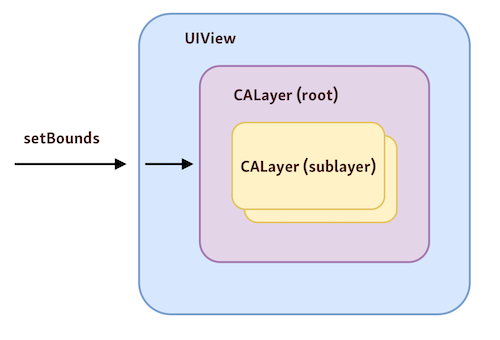
One good example is animations. UIView animations are so called “stock” or "low cost" animations. When we need more flexibility we can go one level deeper to layers and use [Core Animation]() instead UIView animations.
To understand more about views and layers let’s see how they differ.
## UIView
Views have more complex hierarchy layouts. To lay them out on the screen we can use [Auto Layout](https://developer.apple.com/library/archive/documentation/UserExperience/Conceptual/AutolayoutPG/index.html).
They can receive user interactions like taps, pinches, cliks and more.
When you need to create custom views, you can subclass UIView or many other specialized types provided by [UIKit](https://developer.apple.com/documentation/uikit) or [AppKit](https://developer.apple.com/documentation/appkit). They are very flexible to do that.
Working with UIViews happens on the main thread, it means it is using CPU power.
## CALayer
Layers on other hand have simpler hierarchy. That means they are faster to resolve and quicker to draw on the screen.
There is no responder chain overhead unlike with views.
CALayer has no custom logic by default. It means that they are not so flexible and fewer classes to subclass for specific needs.
Layers are drawn directly on the GPU. It happens on a separate thread without burdening the CPU.
## TL;DR;
Each UIView is backed by CALayer which is one level deeper. Views are being drawn using CPU on the main thread. Drawing layers on other hand is on separate thread using GPU power. When you need more flexibility you can move one level down from UIView by using CALayer capabilities.
## Links
* [Ray Wenderlich](https://www.raywenderlich.com/402-calayer-tutorial-for-ios-getting-started)
* [iOS Brownbag: Views vs. Layers](https://dzone.com/articles/ios-brownbag-views-vs-layers)
* [View-Layer Synergy](https://www.objc.io/issues/12-animations/view-layer-synergy/)
* [UIView documentation](https://developer.apple.com/documentation/uikit/uiview)
* [CALayer documentation](https://developer.apple.com/documentation/quartzcore/calayer)
---
### What is (Core) Animation
- URL: https://kristaps.me/blog/what-is-animation-core-animation/
- Date: 2019-03-27
- Tags: animations, Core Animation
- Summary: Animation has been an important part of the Mac OS X user interface since the very beginning. You’ve probably seen the Genie effect, which occurs when you minimize an application, so many times that you hardly notice it anymore. Apple integrates animation into its operating systems and applications, and it is becoming so commonplace that users are starting to expect it. Core Animation is a group of features that makes it easy to build animated user interfaces for the Apple ecosystem devices like iPhone, iPad, Apple TV, and Mac.
Animation has been an important part of the Mac OS X user interface since the very beginning. You’ve probably seen the Genie effect, which occurs when you minimize an application, so many times that you hardly notice it anymore.
Apple integrates animation into its operating systems and applications, and it is becoming so commonplace that users are starting to expect it.
Core Animation is a group of features that makes it easy to build animated user interfaces for the Apple ecosystem devices like iPhone, iPad, Apple TV, and Mac.

## What is Animation?
Animation is a change of value or state over time. If we look closer at the cat animation above, it consists of two animations. Firstly, cat slides from left to right, which is a value change of X axis coordinate over time. Secondly, picture fades out, and that is a state value change.
We always need to think about value or state we would like to change, end time (when we want this animation to finish), and sometimes begin time if we want to delay the animation.
## What is Core Animation?
Core Animation is a graphics compositing framework provided by Apple to build animated user interfaces. The project's initial codename was Layer Kit, and it first appeared in Mac OS X Leopard on 7 August 2006. It was created by John Harper.

Core Animation was introduced with the first iPhone on 9 January 2007. Steve Jobs explained that it runs adapted version of Mac OS X, and that included Core Animation framework as well.
Core Animation provides high frame rates and smooth animations without burdening the CPU and slowing down your app, according to Apple documentation.
## TL;DR
Core Animation's developer-focused marketing slogan is "Render, compose, and animate visual elements". This shows us that Apple wants us to use Core Animation for more sophisticated UI tasks, when using UIView animations is not enough.
## Links
- [Core Animation documentation](https://developer.apple.com/documentation/quartzcore)
- [Core Animation Programming Guide](https://developer.apple.com/library/archive/documentation/Cocoa/Conceptual/CoreAnimation_guide/Introduction/Introduction.html)
- [Core Animation for Mac OS X and the iPhone](https://pragprog.com/book/bdcora/core-animation-for-mac-os-x-and-the-iphone)
---
### Animating shapes in iOS
- URL: https://kristaps.me/blog/animating-shapes-in-ios/
- Date: 2019-02-12
- Tags: animations, swift
- Summary: Animating a UIBezierPath drawing is a pretty trivial task. But how to animate shape morphing, i.e. make one shape change into another? (For instance, morphing a triangle into a square.) To accomplish this, we need to use CAShapeLayer and animate its properties using Core Animation capabilities.
Animating a `UIBezierPath` drawing is a pretty trivial task. But how to animate shape morphing, i.e. make one shape change into another? (For instance, morphing a triangle into a square.) To accomplish this, we need to use `CAShapeLayer` and animate its properties using Core Animation capabilities.
First things first, let’s see which properties of `CAShapeLayer` can be animated with Core Graphics:
- Path
- Fill color
- Line dash phase
- Line width
- Miter limit
- Stroke color
- Stroke start and end.
## Shape morphing
To animate shape morphing, we need to change the `path` property. Keep in mind that both shapes need to have the same number of points that comprise them. Otherwise, the animation would end up looking clunky and unnatural.

Even [Apple’s official documentation](https://developer.apple.com/documentation/quartzcore/cashapelayer/1521904-path?language=objc) is warning us about that.
> Paths will interpolate as a linear blend of the "on-line" points; ”off-line” points may be interpolated non-linearly (e.g. to preserve continuity of the curve's derivative). If the two paths have a different number of control points or segments the results are undefined. If the path extends outside the layer bounds it will not automatically be clipped to the layer, only if the normal layer masking rules cause that.
If we have same amount of points for both paths we can achieve much nicer animation.

## Combining multiple animations
The next step is to combine multiple `CGPath` animations together. To accomplish this, we can use `CAAnimationGroup`, which allows multiple animations to be grouped and run concurrently.
Be aware that you need to set correct `beginTime` for each animation so that they would start one after another. Animation properties like `duration`, `autoReverses`, `repeatCount` and others need to be set on the animation group object.
````swift
let animationGroup = CAAnimationGroup()
animationGroup.animations = [...]
animationGroup.autoreverses = true
animationGroup.repeatCount = .greatestFiniteMagnitude
animationGroup.duration = 2.0
````

## TL;DR
`CAAnimationGroup` is a powerful feature that allows for several uses, from Core Animation to grouping multiple `CABasicAnimation`s together. If you want to animate from one path to another, be aware that _from_ and _to_ paths should have the same amount of points. Otherwise, the animation would look off because the animation algorithms can’t interpolate these points correctly.
## Links
- [Apple's CAShapeLayer path documentation](https://developer.apple.com/documentation/quartzcore/cashapelayer/1521904-path)
- [CAShapeLayer in Depth](https://calayer.com/core-animation/2017/12/25/cashapelayer-in-depth-part-ii.html)
---
### Websockets in iOS using Swift
- URL: https://kristaps.me/blog/websockets-swift/
- Date: 2019-01-05
- Tags: websocket, swift, starscream, networking
- Summary: WebSockets allow for extremely fast two-way networking communication, which lets you send and receive updates quicker and more often, not to mention securely. WebSocket is a communication protocol that uses sockets, providing duplex communication over a single TCP connection. It was standardized by the [IETF](https://tools.ietf.org/html/rfc6455) in 2011 and is a different protocol from HTTP.
WebSockets allow for extremely fast two-way networking communication, which lets you send and receive updates quicker and more often, not to mention securely. WebSocket is a communication protocol that uses sockets, providing duplex communication over a single TCP connection. It was standardized by the [IETF](https://tools.ietf.org/html/rfc6455) in 2011 and is a different protocol from HTTP.
WebSockets are widely used in chat apps, streaming real-time notifications, and stock prices.
## Websocket lifecycle
### Shaking hands with the server
The [handshake](https://tools.ietf.org/html/rfc6455#section-4) app is the web part in WebSockets. It's the bridge from HTTP to WebSocket. The client sends a pretty standard HTTP GET [request](https://tools.ietf.org/html/rfc6455#section-4.2.1) to the server:
```text
GET /chat HTTP/1.1
Host: example.com:8000
Upgrade: websocket
Connection: Upgrade
Sec-WebSocket-Key: dGhlIHNhbXBsZSBub25jZQ==
Sec-WebSocket-Version: 1
```
The most interesting thing here is `Sec-WebSocket-Key` which is needed for security reasons and is generated according to the
[WebSocket standard](http://tools.ietf.org/html/rfc6455#page-7).
The server validates the request and, if everything is fine, sends back an HTTP [response](https://tools.ietf.org/html/rfc6455#section-4.2.2):
```text
HTTP/1.1 101 Switching Protocols
Upgrade: websocket
Connection: Upgrade
Sec-WebSocket-Accept: s3pPLMBiTxaQ9kYGzzhZRbK+xOo=
```
### Exchange the information
At any time, the server or client can send data that follows this specific format:
I will not go over each part, but you can find out more in the [standard](https://tools.ietf.org/html/rfc6455#section-5.6).
### Pings and pongs
At any point, the client or server can send a [ping](https://tools.ietf.org/html/rfc6455#section-5.5.2), and other party must send back a [pong](https://tools.ietf.org/html/rfc6455#section-5.5.3).
### Closing
Connection can be closed by any party via sending a [specified control sequence](https://tools.ietf.org/html/rfc6455#section-5.5.1).
## Implementing WebSockets in iOS
Implementing WebSockets in iOS, macOS, tvOS or watchOS isn’t a trivial task. New [Network.framework](https://developer.apple.com/documentation/network) can simplify that but you still need to deal with underlying tasks like upgrading connection and setting up a WebSocket frame.
### Starscream
The Swift WebSocket client library [Startscream](https://github.com/daltoniam/Starscream) simplifies all the heavy-lifting tasks. Install the library and import it in any Swift file.
```swift
import Starscream
```
### Creating the connection
After that, create a connection and set up the delegate.
```swift
let url = URL(string: "ws://echo.websocket.org")!
let request = URLRequest(url: url)
let websocket = WebSocket(request: request)
```
### Setting up delegation
Then we need to set up delegate and implement `didReceive` method with event `WebSocketEvent` type.
```swift
func didReceive(event: WebSocketEvent, client: WebSocket) {
switch event {
case .connected(let headers):
print("connected \(headers)")
case .disconnected(let reason, let closeCode):
print("disconnected \(reason) \(closeCode)")
case .text(let text):
print("received text: \(text)")
case .binary(let data):
print("received data: \(data)")
case .pong(let pongData):
print("received pong: \(pongData)")
case .ping(let pingData):
print("received ping: \(pingData)")
case .error(let error):
print("error \(error)")
case .viabilityChanged:
print("viabilityChanged")
case .reconnectSuggested:
print("reconnectSuggested")
case .cancelled:
print("cancelled")
}
}
```
Once this is done, we can start the connection. Making the handshake and upgrading connection is done behind the scenes by the library.
```swift
socket.connect();
```
### Sending data
There are several ways to send data:
- binary
- string
- ping
- pong
The easiest way is to just send a string:
```swift
socket.write(string: "Hi Server!")
```
### Closing the connection
At any point, we can check close it if it’s not needed anymore.
```swift
websocket.disconnect(closeCode: CloseCode.goingAway.rawValue)
```
## TL;DR
WebSocket isn’t a first-class citizen in iOS, macOS, tvOS and watchOS. It can be quite overwhelming to implement, use and understand it, but the Swift library Starscream can help you take care of all these tasks.
## Links
- [The WebSocket Protocol](https://tools.ietf.org/html/rfc6455)
- [Writing WebSocket servers](https://developer.mozilla.org/en-US/docs/Web/API/WebSockets_API/Writing_WebSocket_servers)
- [Starscream Swift WebSocket library](https://github.com/daltoniam/Starscream)
- [Websocket Frame implementation in Swift](https://github.com/ZewoGraveyard/WebSocket/blob/master/Sources/WebSocket/Frame.swift)
- [WebSockets 101](http://lucumr.pocoo.org/2012/9/24/websockets-101/)
- [WebSocket Security](https://devcenter.heroku.com/articles/websocket-security)
---
## Optional
- [llms-full.txt](https://kristaps.me/llms-full.txt): Full post bodies, including older Solidity and SwiftUI
- [SwiftUI posts](https://kristaps.me/tags/swiftui/): iOS and SwiftUI notes
- [Solidity posts](https://kristaps.me/tags/solidity/): Language and ERC tutorials
- [RSS feed](https://kristaps.me/feed.xml): Subscribe to new posts
- [Tags](https://kristaps.me/tags/): Browse posts by topic
- [Email](mailto:fassko@gmail.com): fassko@gmail.com
- [LinkedIn](https://www.linkedin.com/in/kristapsgrinbergs/): kristapsgrinbergs
- [X (Twitter)](https://x.com/fassko): @fassko
- [GitHub](https://github.com/fassko): fassko
- [Telegram](https://t.me/kristapsgrinbergs): kristapsgrinbergs